IT Tools
IT Tools provides browser-based developer utilities for everyday tasks such as converting text and formatting structured data. You do not need a database for the catalog deployment.
Deploy on Moltern
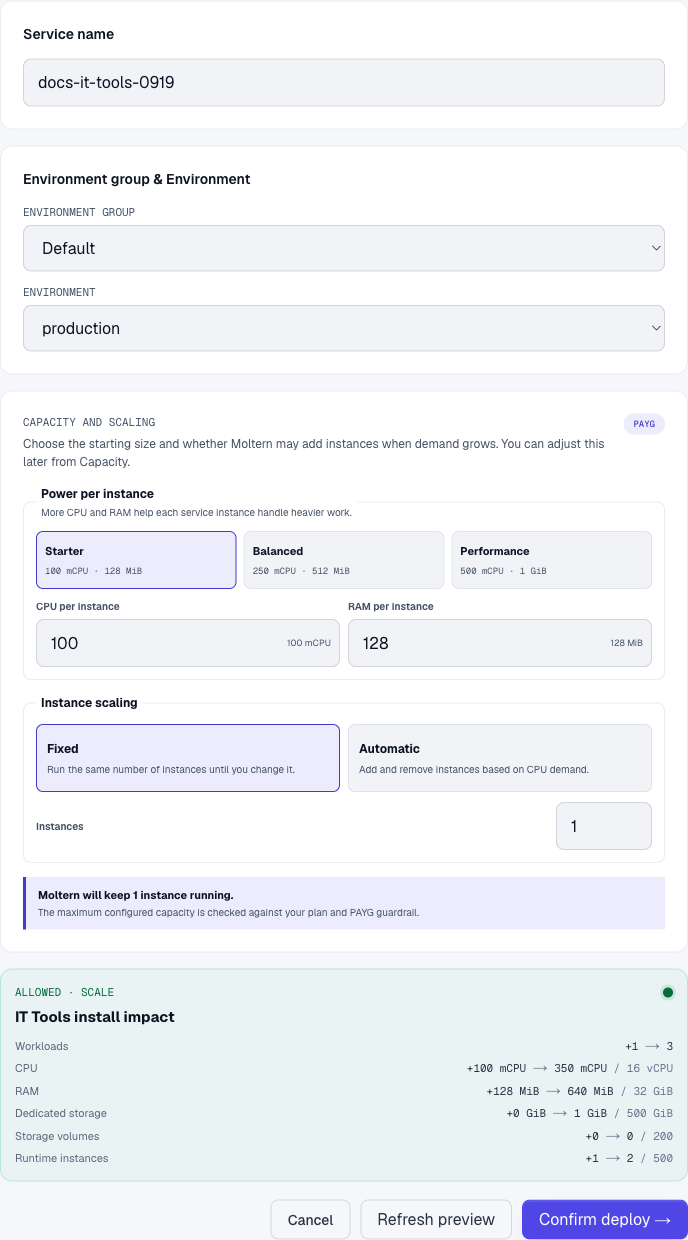
- Open Services, choose Deploy service, and search for IT Tools.
- Name the service and select the environment where it should run.
- Review Capacity and scaling. Our functional check used Starter, 100 mCPU, 128 MiB, and 1 fixed instance. This is a tested starting point, not a load-tested capacity recommendation.
- Select Preview deploy. Review the requested resources and your workspace allowance.
- Select Confirm deploy and wait for the service to become Running.
- Select Open to use IT Tools at its generated HTTPS address.
The tested template does not ask you to create an IT Tools account. Its public URL opens the utilities directly. Do not treat an unlisted URL as access control or enter production credentials into demonstration tools.
Encode and Decode Text
- Open Base64 string encoder/decoder from the navigation or search.
- Under String to base64, enter
Moltern documentation check. - The output should be
TW9sdGVybiBkb2N1bWVudGF0aW9uIGNoZWNr. - Paste that output into Base64 to string. The decoded result should match the original text exactly.
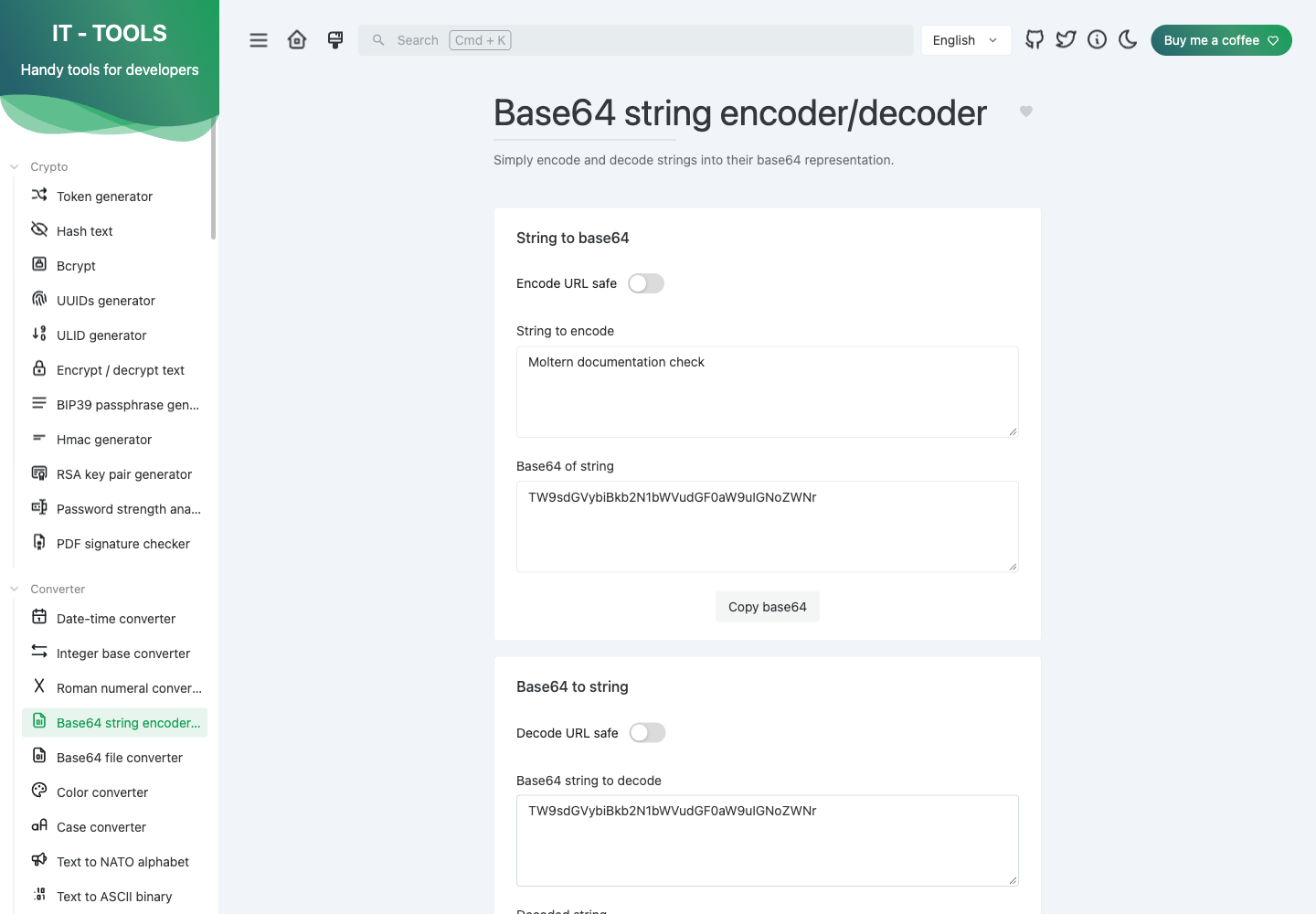
Base64 is encoding, not encryption. This particular conversion completed without network requests during our browser check; that does not establish the behavior of every utility in the collection.
Format and Validate JSON
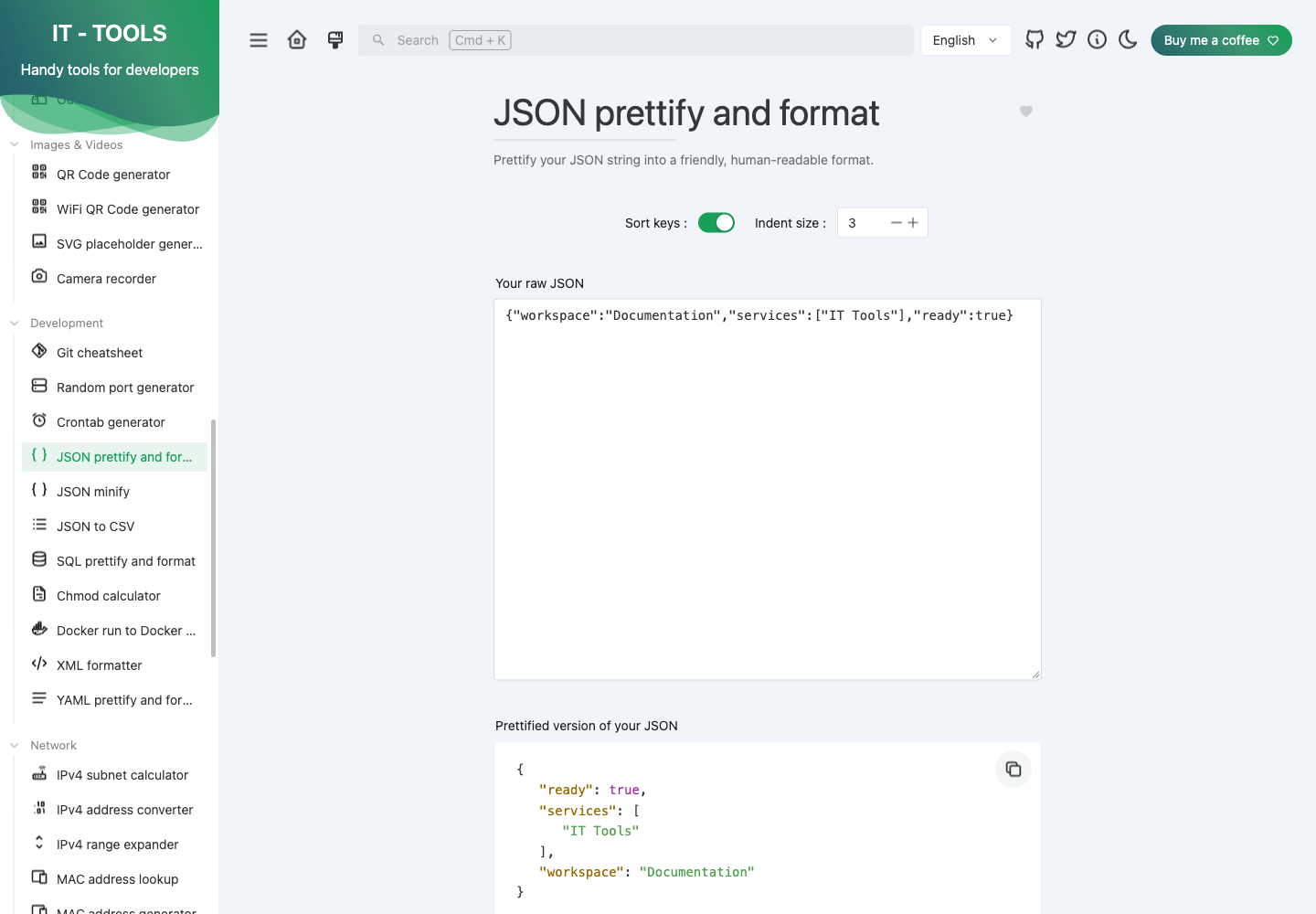
Open JSON prettify and format, then paste this non-sensitive example into Your raw JSON:
{"workspace":"Documentation","services":["IT Tools"],"ready":true}
The formatted output preserves the values and structure. Change the indentation
or Sort keys setting to suit your task. Invalid input such as {invalid
shows Provided JSON is not valid. rather than a valid formatted result.
Capacity, Storage, and Lifecycle
- Use Capacity on the Moltern service page to review CPU, memory, and instance settings.
- This catalog deployment does not provision a persistent data volume or a database. Do not use the browser's input fields as durable document storage.
- Stop service pauses the runtime. Start service brings it back; reopen the URL and verify the utility you need. The Base64 workflow passed after a stop/start during our check.
- Billing shows the service's reserved compute while it is running. The tested instance added no service-data storage allocation.
- To remove it, choose Delete service, review the confirmation, and confirm your account when requested. In our test, the service, runtime, and route were removed, and the current compute reservation returned to zero. Historical usage can remain in billing.
Troubleshooting
| Problem | What to check |
|---|---|
| The URL is not ready | Check deployment progress and Live Logs in Moltern. Wait for the service itself to be running. |
| JSON is rejected | Check quotes, commas, and brackets; JSON does not allow comments or trailing commas. |
| Text disappears on reload | Keep important input and results outside the utility. This deployment is not a persistent document editor. |
| You need restricted access | A generated URL alone does not authenticate visitors. Review your access requirements before using sensitive data. |
Verification Scope
Checked on 19 September 2026 with IT Tools 2024.5.13-a0bc346: Moltern deployment, HTTPS access, Base64 round trip, JSON formatting and invalid input, stop/start, current compute allocation, and runtime deletion. The screenshots above were captured from that real deployment.
This does not certify every included utility, autoscaling under load, or invoice reconciliation. No database or coding-agent integration is advertised by this guide.