Baby Buddy
Baby Buddy helps caregivers record feedings, sleep, diaper changes, growth and other care activities. Use its timeline to coordinate care and its exports for records you want to keep separately. It is not a medical advice service.
Your Baby Buddy account is separate from your Moltern account. The corrected Moltern template initializes a protected administrator before opening the site; it does not require you to sign in with a public default password.
Before You Start
You need permission to deploy services in the selected Moltern workspace and environment. Use fictional care data for your first test, especially when checking access from an API client or coding agent.
The tested configuration uses one fixed instance and an embedded database. It has no separately provisioned database dependency. Its database, uploaded photos and application configuration belong to this service's persistent storage. Multiple replicas sharing the same embedded database are not a validated high-availability configuration.
Start with the catalog's minimum capacity, then observe startup and normal usage. A small functional test is not a sizing guarantee for many caregivers, large imports or concurrent activity. Keep an independent backup of important records before upgrades, imports or deletion.
The corrected template uses the directory the application actually writes to. It deliberately stops an incompatible legacy storage migration instead of silently opening an empty site. If an older deployment is affected, preserve its exports and uploaded files and contact support before replacing it.
Deploy In Moltern
- Open Services and select Baby Buddy.
- Enter a service name and choose its environment.
- Set Administrator username for the initial owner.
- Enter a strong Administrator password of at least 16 characters, or leave the field blank to generate one securely.
- Select Preview deploy and review the capacity and storage impact.
- Confirm deployment. Open the service URL after startup completes.
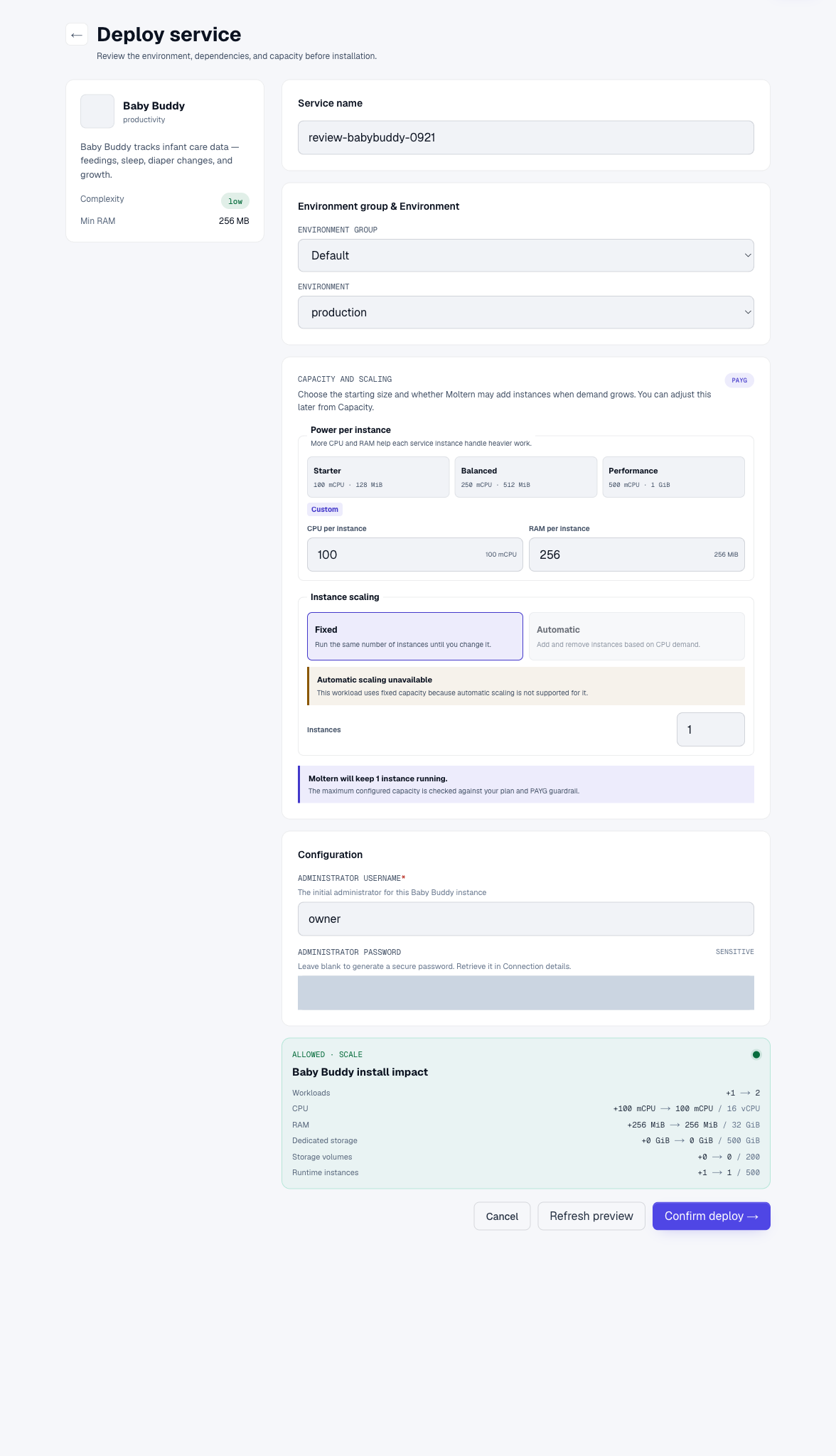
Retrieve a generated password through the service's Settings > Connection details, using the required account confirmation. Do not place credentials in shared screenshots, URLs or chat messages.
Sign in with the owner you configured. Baby Buddy should offer to add a child. If startup fails, open Live Logs in Moltern. Do not repeatedly reinstall or delete stored data to work around a login failure.
Record Your First Care Activity
- Select Add a Child and enter a first name, last name and birth date. Only upload a photo when you have the appropriate permission.
- Save the child and open its timeline.
- Open Activities and select Bottle Feeding.
- Select the child, feeding type, time and amount. Check the unit displayed by your instance before entering a value.
- Expand Advanced Fields if you need a note, then submit the record.
- Reopen Feedings and check the child, time, amount and note.
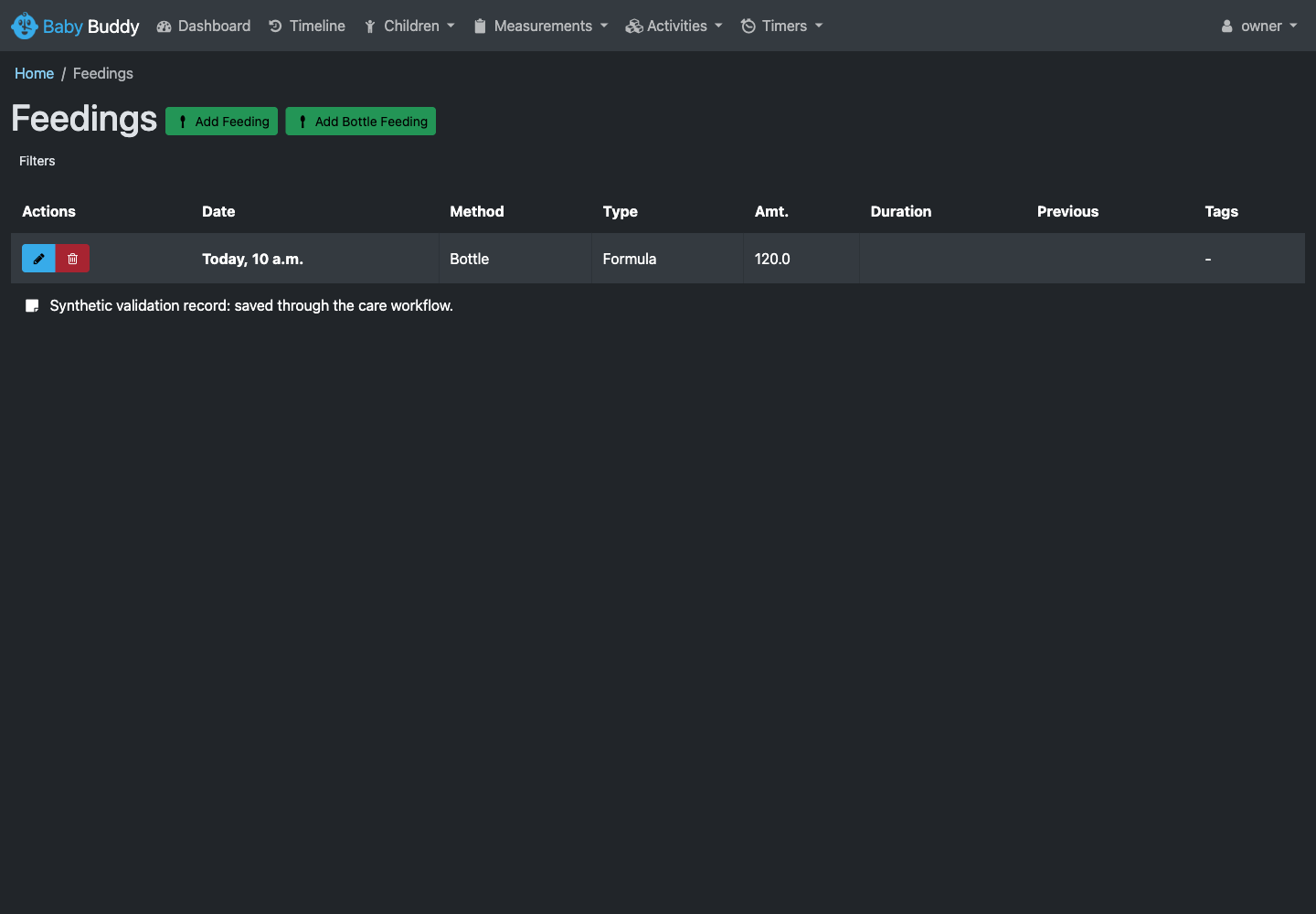
The illustrated test uses a fictional child and a Moltern logo, not a real child's photograph. It saved a formula feeding with an amount of 120 and then verified that exact record through the application's API and export workflow.
Create only the caregiver accounts and permissions you need. An administrator can manage users through Baby Buddy's Database Admin area. A Moltern workspace invitation does not automatically create a Baby Buddy caregiver.
Record Sleep, Changes And Growth
From Activities, use Change for a diaper entry or Sleep entry for a sleep interval. Select the child and review the times before saving. A sleep end before its start is rejected; correct the interval rather than adding a second record. Use Measurements > Weight entry for a dated measurement, checking your instance's units first.
Open the child's Dashboard to see the saved feeding, diaper change and sleep summary together. Sparse test data can legitimately show Not enough data for a statistic; that is different from a failed save. Check the underlying activity list when a summary is unclear.
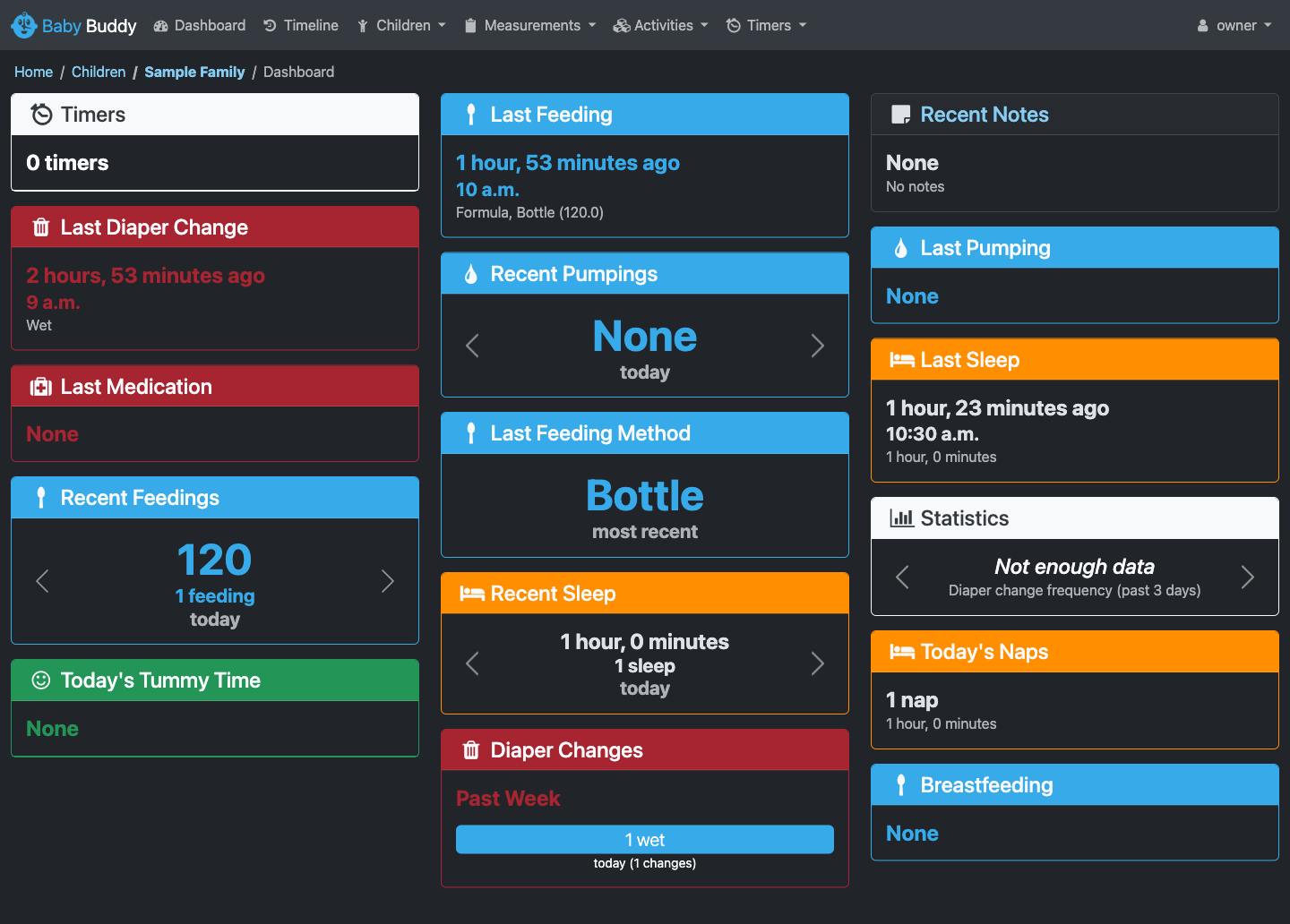
These workflows were exercised through the product UI with fictional data, including rejection of an invalid sleep interval. No medical interpretation is implied by the example values.
Protect Accounts And Uploaded Photos
Use the owner menu to change the initial password. The initialization process preserves existing accounts and does not reset a customer-changed password each time the runtime starts. Store your password in a password manager.
On the corrected template, uploaded media requires application authorization. The live check returned the uploaded photo to the signed-in owner and denied the same URL in an anonymous browser. The responses disallow shared caching. A service URL is not a substitute for a caregiver account or API credential.
Test your intended caregiver permissions separately before sharing personal records. The owner-access test does not certify every custom role or external integration. Moltern's stored initial credential is not necessarily updated when you change a password inside Baby Buddy.
Connect An API Client Or Agent
Open Settings from the Baby Buddy owner menu to retrieve your API key. Treat it like a password. Use a supported secret input in your client, and do not paste the key into source code, shared terminal history or documentation.
Baby Buddy accepts a token authorization header on its API:
GET /api/feedings/
Authorization: Token YOUR_API_KEY
Use your service's HTTPS origin and replace the placeholder with the credential inside your client's secure configuration. Check that the response contains the expected saved record. An anonymous request must not return care data.
An application or coding agent also needs the appropriate Moltern service connection and application-level permissions. A URL alone does not grant database, owner or publishing access. Full Moltern coding-agent attachment and revocation for this service remain under validation; do not infer them from a successful direct API request.
The Regenerate button in the tested Baby Buddy release reports that settings were saved without actually replacing the key. Do not assume it revoked an old client. An administrator can instead delete that user's token in Database Admin > Tokens, then revisit the user's Settings to create a new one. Update authorized clients and verify the old token is denied. This alternative was tested: the deleted key was rejected and the replacement key worked.
Export And Restore Records
For an administrator-led feeding export:
- Open Database Admin > Feedings.
- Select Export, choose JSON, and download the file.
- Keep the export somewhere independent of the running service. Protect it as personal data.
To import it, open the same Feedings list, select Import, choose the JSON file and format, and submit the upload. Review the proposed rows before selecting Confirm import.
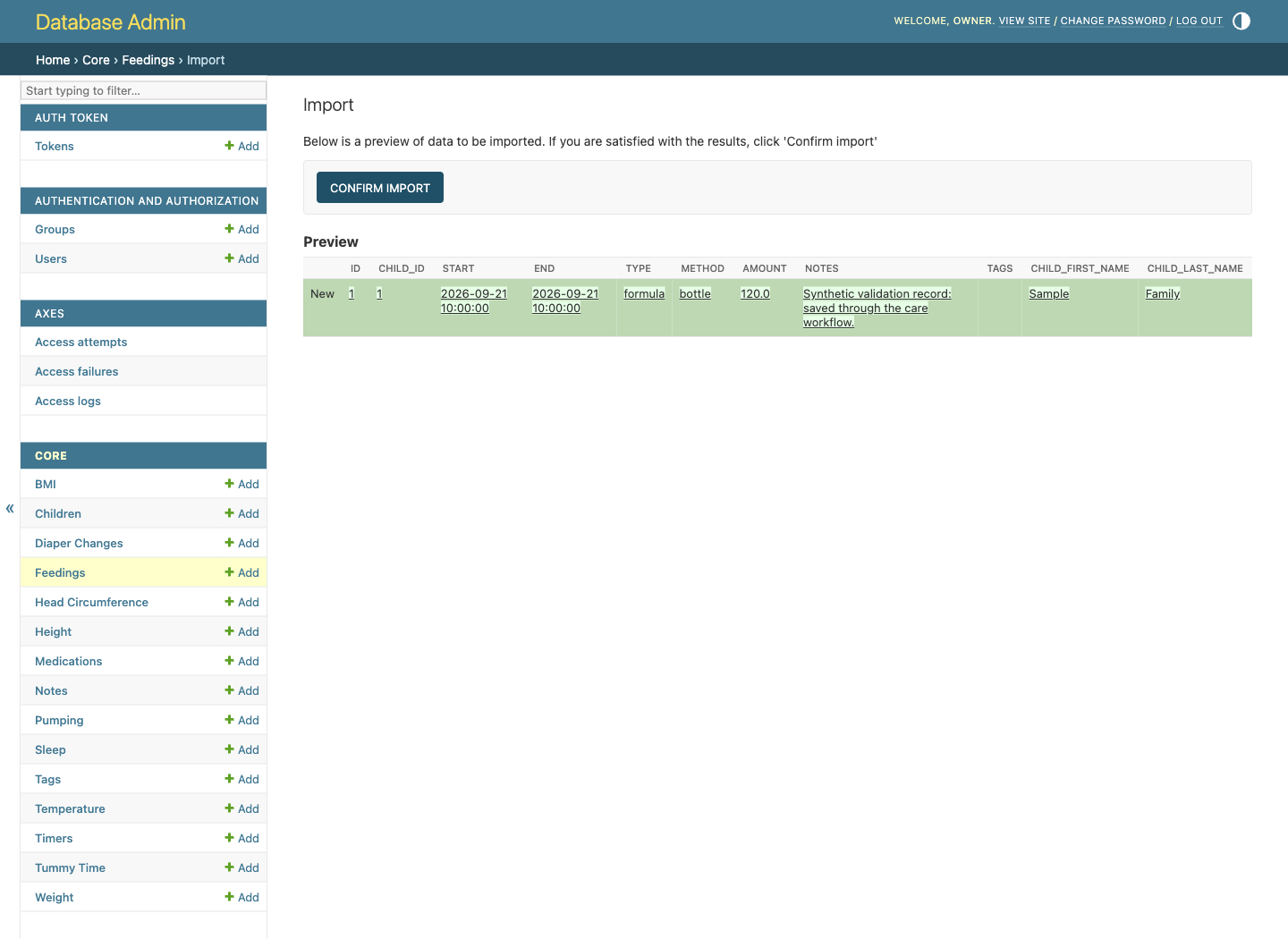
The referenced child must exist with the matching identifier. Do not import records blindly into an unrelated instance: a numeric child ID can refer to a different person. Start with a disposable copy and verify the mapping.
A feeding export is not a complete site backup. It does not replace backups of other activity types, accounts, settings or uploaded photos. In the live restore test, the fictional feeding was exported, removed, imported and verified by amount and note; a separate fresh test instance also accepted the export after its matching fictional child was created.
Complete pending imports promptly. An upload preview has not yet committed its records. On the corrected template, a pending import survived a full runtime replacement: confirming the original preview restored the expected record and removed its temporary upload. Abandoned uploads are not documented as automatically expiring.
Verify Persistence And Manage Capacity
Before using real care data, save a fictional record and a harmless image. Stop the test service in Moltern, wait for it to stop, then start it and check both again. Expect the URL to be temporarily unavailable while stopped or starting. Do not delete stored data as part of this check.
The corrected configuration retained its child, feeding, image and changed owner password across runtime replacement. Signed-in media access and anonymous denial also remained intact after restart. Graceful replacement is not proof of safety during every interrupted write; sudden-crash and concurrent-write recovery on shared storage remain separate test gates.
Use Capacity for resource changes and Live Logs for application errors. The live capacity test increased the request from 100 mCPU / 256 MiB to 250 mCPU / 512 MiB. After the rollout, the feeding, diaper, sleep and weight records were still readable, and the uploaded photo kept its checksum. Expect a single-instance rollout to interrupt availability; it is not a zero-downtime configuration. Keep a single fixed instance. Billing storage figures update after collection, and a small database can round to zero GiB. Check the measurement state rather than assuming zero means the data is not persistent. Storage sampling alone is not validation of final elapsed-time charges.
Troubleshooting
| Symptom | What to check |
|---|---|
| Login rejected | Use the configured Baby Buddy owner, not your Moltern login or an upstream demo account. |
| Old password stops working after you changed it | Use the password set inside Baby Buddy; the deployment's initial value is not a reset button. |
| Photo URL returns 403 | Sign in with an authorized account; anonymous media requests are intentionally denied. |
| API request denied | Check the service origin, token header and user permissions without publishing the token. |
| Regenerate reports success but the old key still works | Use the tested administrator token-deletion procedure above. |
| Import references a missing child | Verify child identifiers and import into a disposable copy before changing real records. |
| Pending import fails after a restart on an older template | Re-upload the export and review the preview again; do not assume the file was committed. |
| Existing installation stops after a template change | Preserve records and contact support about legacy storage migration. |
Delete A Test Service
Export anything you need to keep and remove client credentials you no longer use. Select Delete Service in Moltern, choose Delete stored data for a disposable test, and complete account confirmation. Wait for cleanup to finish. Choosing to keep workspace files intentionally retains storage and its usage; it is not a backup stored outside the workspace.
Frequently Asked Questions
Does Moltern create a default public administrator password?
No. The corrected template uses your chosen owner password or a securely generated credential available through protected connection details.
Does a running status prove the application is ready for my family?
No. Sign in, save a harmless test record, check permissions and verify recovery before adding personal information.
Can I run several copies against the same embedded database?
That is not the tested configuration. Keep one fixed instance; adding replicas does not by itself provide safe concurrent database access or recovery.
Is a feeding JSON export a full backup?
No. It covers the selected records, not every activity, account, photo or site setting. Keep and test a complete backup process for the data you rely on.