CloudBeaver
CloudBeaver provides a browser-based SQL workspace. This guide follows a real Moltern deployment with a private PostgreSQL database.
Deploy
- Deploy PostgreSQL, or choose a database you can administer in your environment.
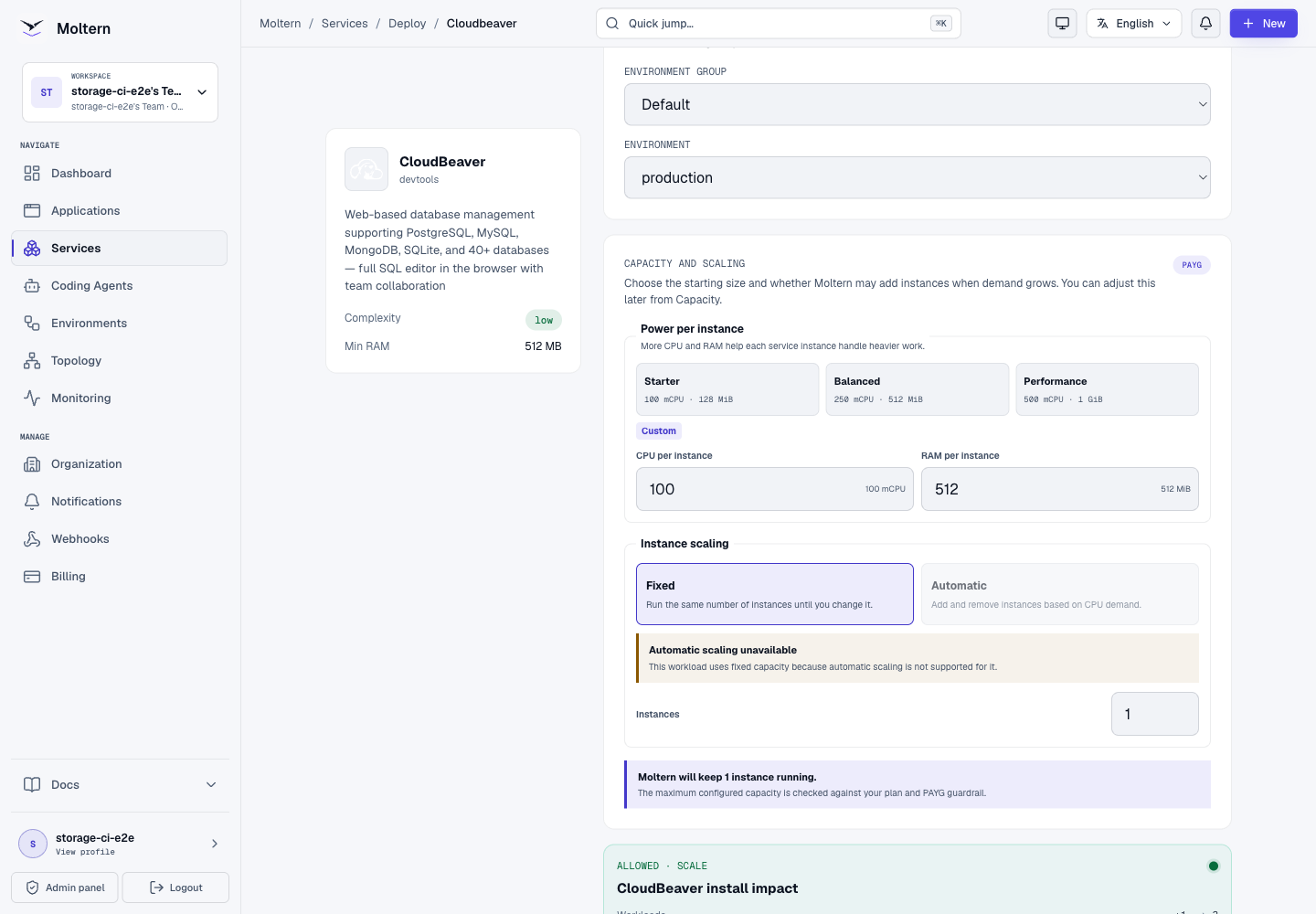
- Open Services, find CloudBeaver, and choose Deploy.
- Select the same environment as the database. Review capacity and choose Preview deploy, then confirm.
- Wait for deployment to finish before opening the service URL.
Complete Setup Securely
Open the URL promptly after deployment and complete Initial server configuration. Set the server name and its HTTPS URL. Under Authentication settings, turn Allow anonymous access off and keep Local authentication enabled. Choose your own administrator login and a strong password, then select Next and Finish. Sign in with that CloudBeaver account.
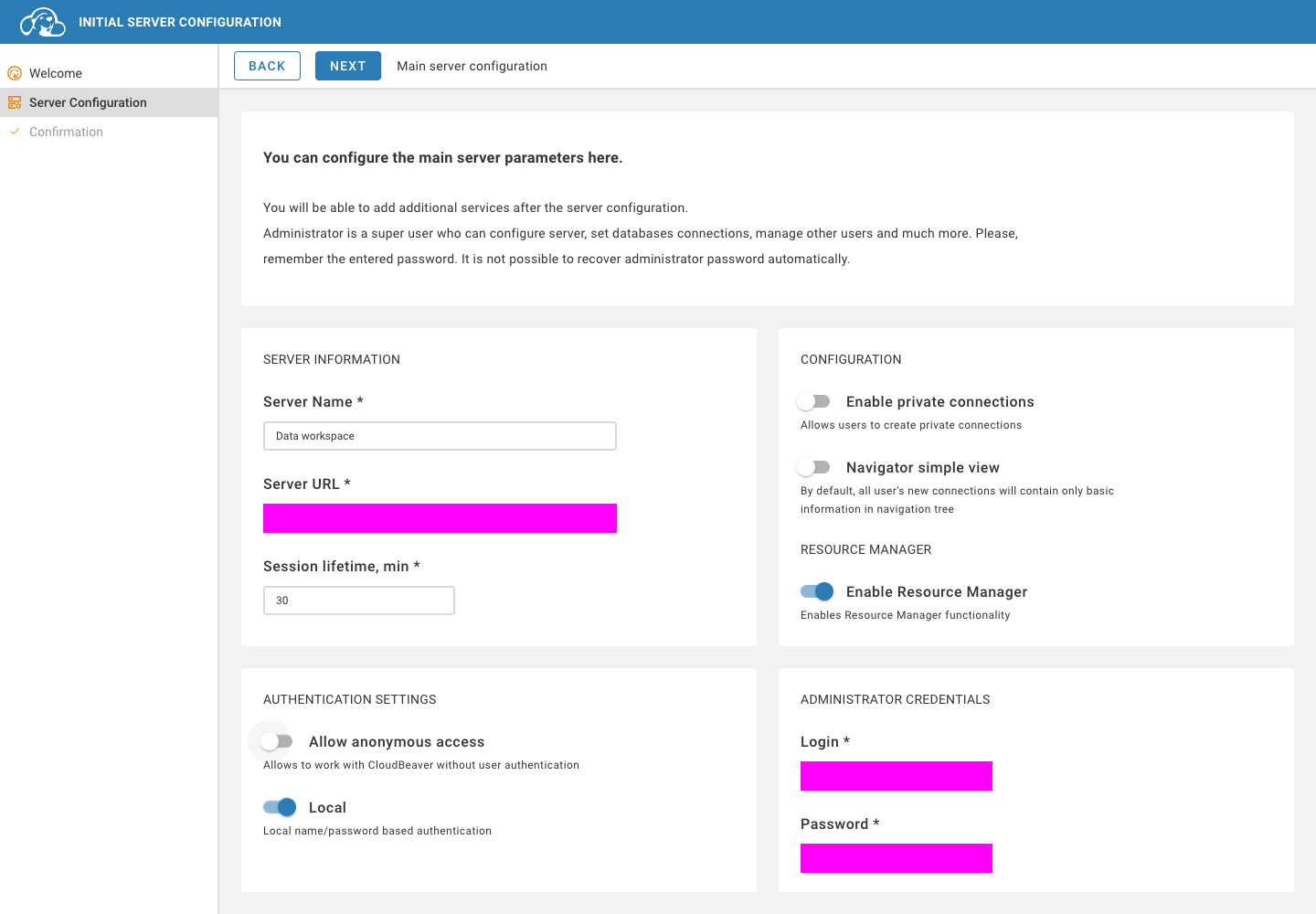
The first-run setup page is publicly reachable until configured. Do not leave it unattended or add database credentials before protecting it. The CloudBeaver administrator password is separate from your Moltern account password.
Connect Private PostgreSQL
- In Moltern, open CloudBeaver's Settings. Under Private service connections, select PostgreSQL and choose Connect.
- Open PostgreSQL's Settings and reveal connection details using your connection-details password. Keep these values private.
- In CloudBeaver, select Connection > New Connection > PostgreSQL.
- Enter the database host, port, database name, username and password from Moltern.
Replace the default
localhosthost with your private database host. - Give the connection a clear name and select Test, then Create.
Moltern's attachment permits private network access; it does not automatically create a CloudBeaver connection or sign in to the database for you. Only save credentials for shared use when everyone with access to that CloudBeaver connection should have those database permissions.
Run A Query
Select your connection, then Open SQL Editor. In a disposable test database, execute this script to create and save a record:
CREATE TABLE validation_notes (id integer PRIMARY KEY, note text NOT NULL);
INSERT INTO validation_notes VALUES (1, 'Saved through CloudBeaver on Moltern');
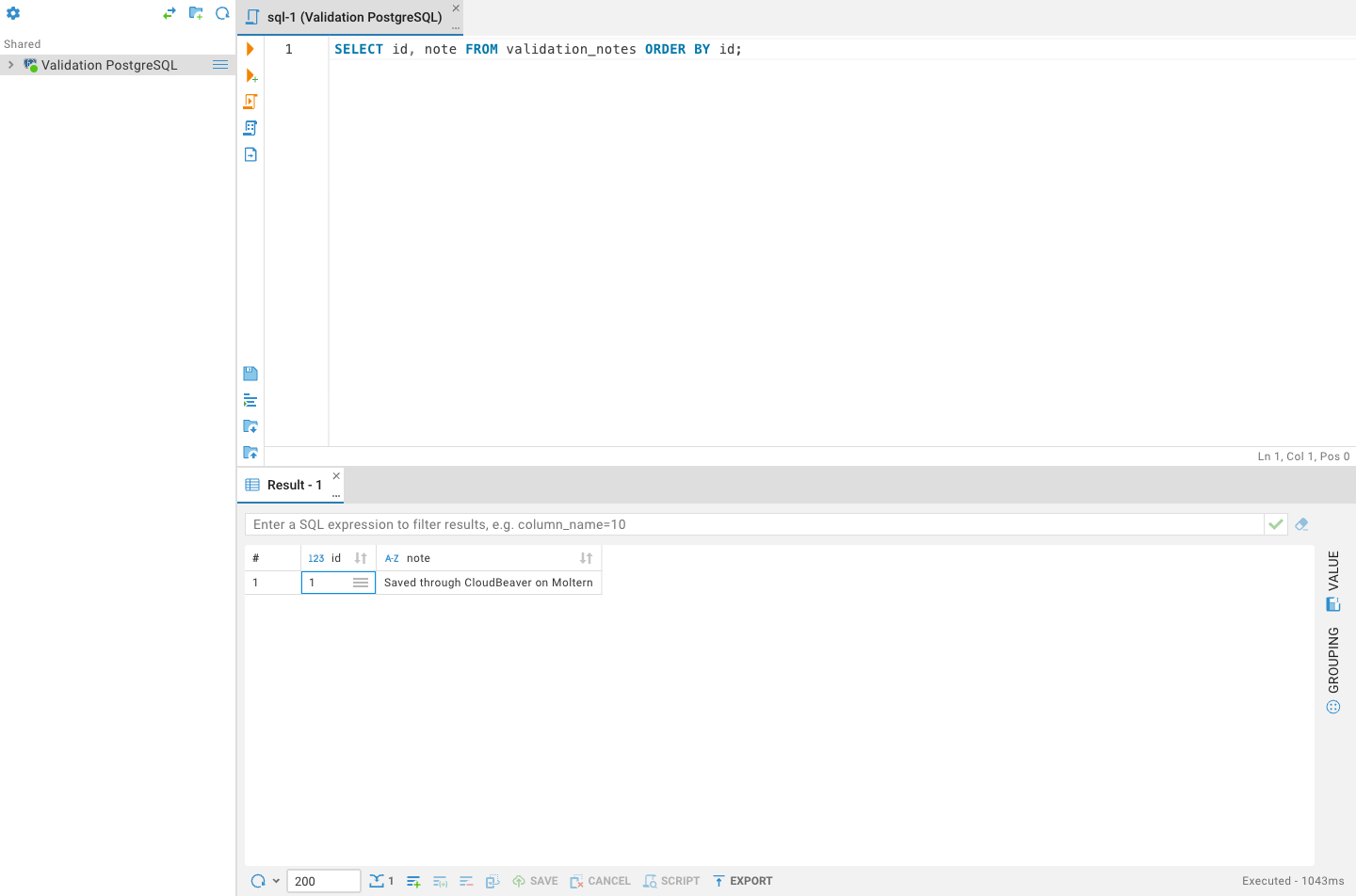
Use Execute SQL Script for the two statements. Then query the saved result with Execute SQL Statement:
SELECT id, note FROM validation_notes ORDER BY id;
What Was Verified
The tested workflow covers Moltern deployment, first-run setup, administrator login, private PostgreSQL attachment, connection testing, SQL create/insert/select, and CloudBeaver stop/start with a replacement runtime. Its administrator account, saved database credentials and query access survived that replacement. A fresh unauthenticated browser required login.
This does not certify every database driver, load level, backup, database TLS configuration, storage failure scenario or billing calculation.
Troubleshooting And Cleanup
Temporary unavailable page after Start: wait for the service to finish starting, then refresh. Starting the runtime does not make its browser API available instantly.
Cannot connect: check the database is running, the private attachment is
active, and the connection uses the private host rather than localhost.
Restore connection after restart: sign in again and choose Restore when CloudBeaver asks to reopen the saved connection.
Review Moltern's deletion preview before deleting. A separately created PostgreSQL service is not a disposable part of this client; manage its data and lifecycle separately.