Bento PDF
Bento PDF provides browser tools for working with PDF documents. The tested template runs BentoPDF Simple 2.8.8. It is a web application, not a REST API for generating PDFs from HTML or URLs.
Deploy on Moltern
- Open Services, choose Deploy service, and search for Bento PDF.
- Enter a name and select the destination environment.
- Select Balanced capacity: 250 mCPU, 512 MiB, and 1 fixed instance. This is the size used for our functional check, not a large-file benchmark.
- Choose Preview deploy, review the allowance, then Confirm deploy.
- Wait for Running and select Open.
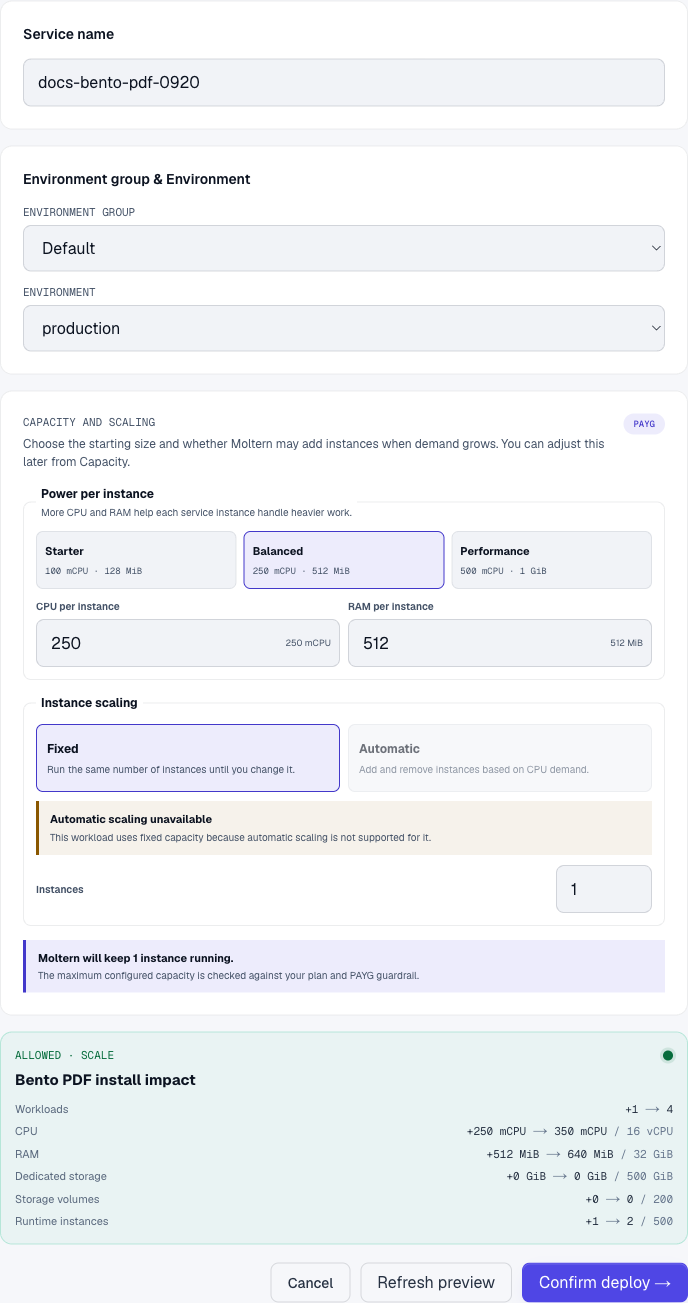
The tested template needs no database or user account. Its generated URL opens the tools directly; the URL alone is not an access restriction.
Merge Two PDFs
Start with two small, non-sensitive PDF files, each containing one page.
- Open Merge PDF from the tool list.
- Choose both files, or drag them into the file area.
- Check their order, then select Merge PDFs.
- Open the downloaded
merged.pdf. It should contain both pages in that order.
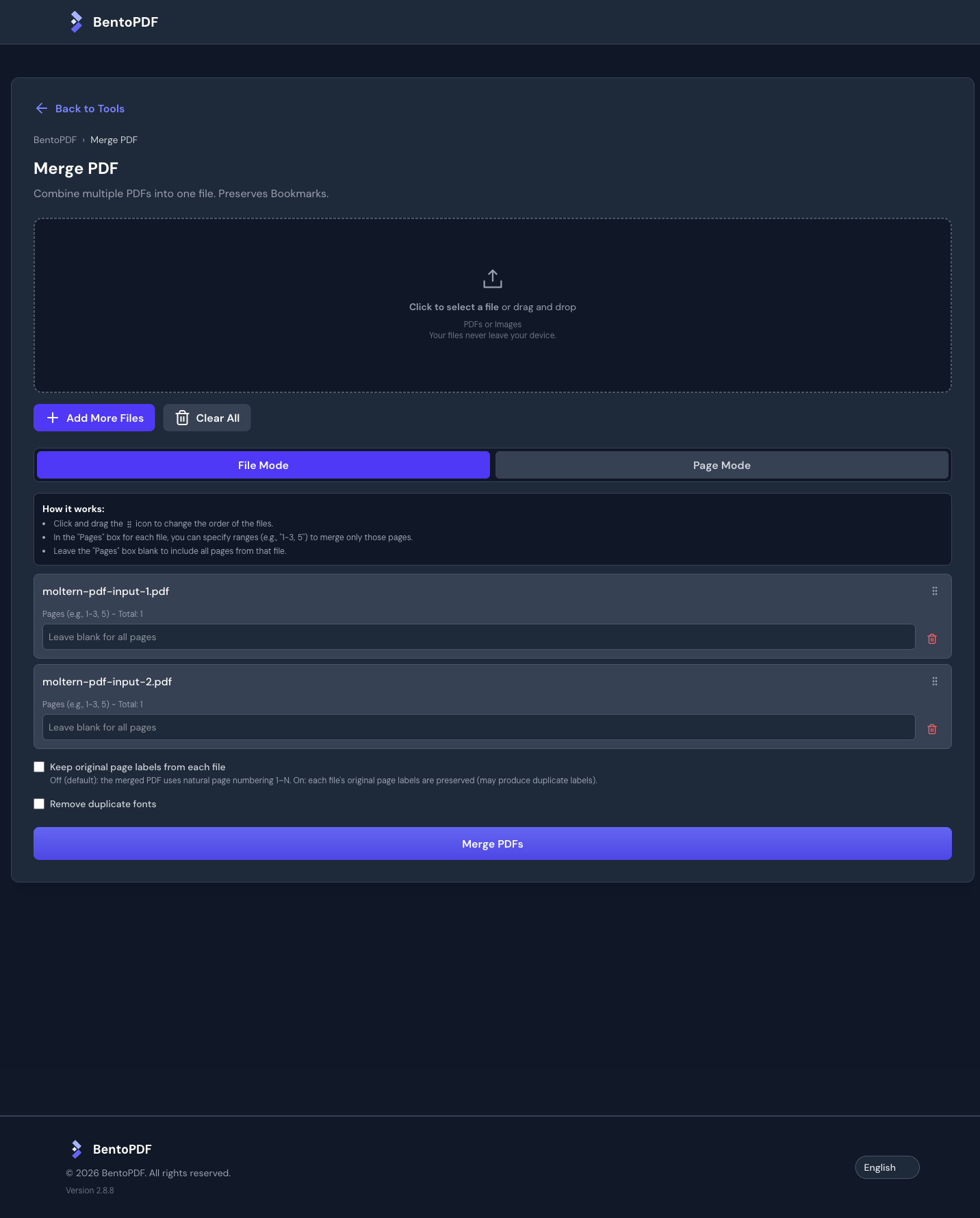
Our check parsed the downloaded PDF and confirmed both pages and their text; it did not stop at the success message.
Extract a Page
- Open Split PDF and select the merged file.
- Keep Extract by Page Range (Default) selected.
- Enter
2in Page Range and keep Single combined PDF selected. - Choose Split PDF and open the download. It should contain only page two.
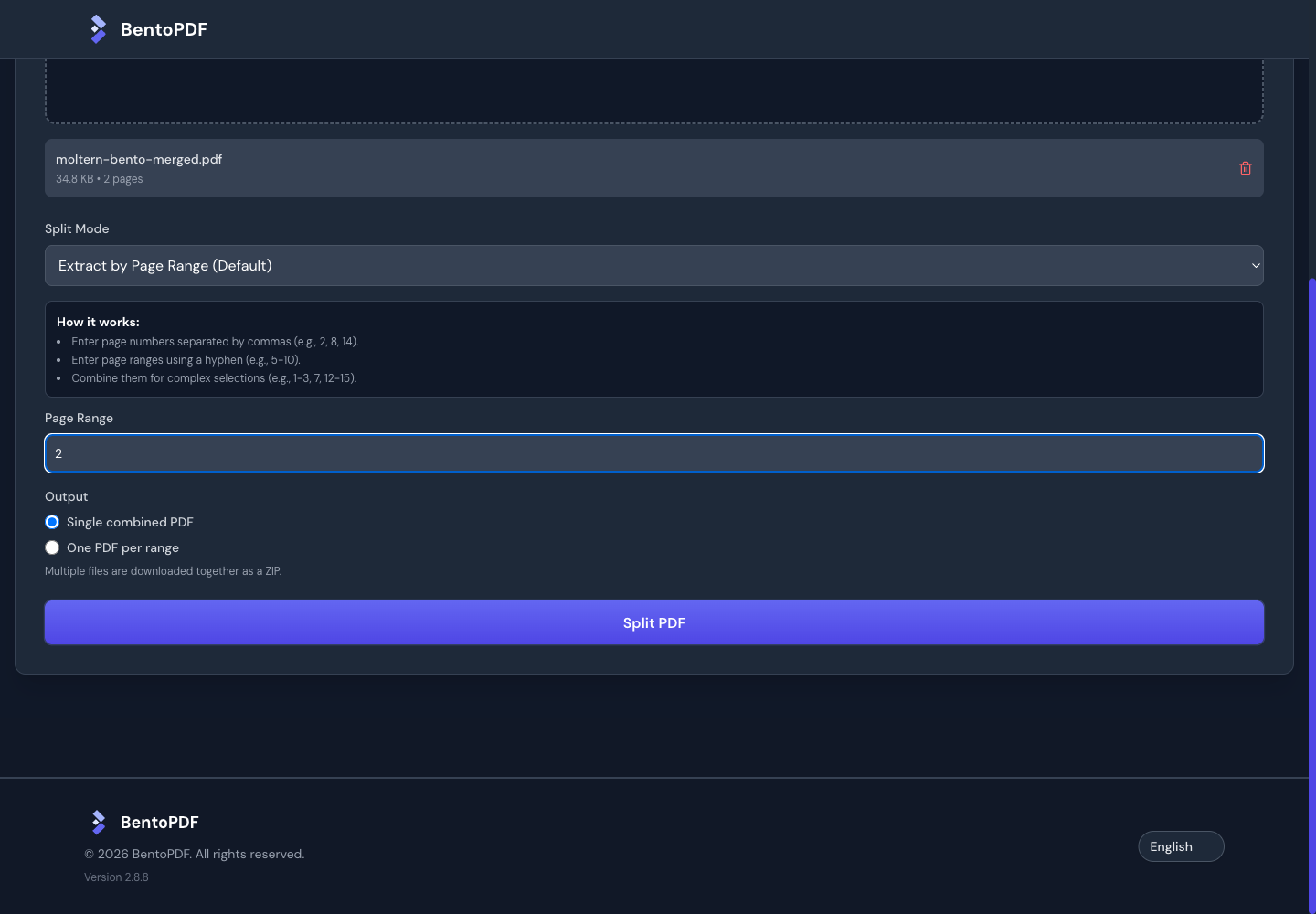
Entering an out-of-range page, such as 99 in a two-page document, produces
No pages were selected for splitting. Dismiss the message and correct the range.
Processing and Storage
The verified merge and split operations process documents in the browser. During the split check, observed HTTP requests loaded assets rather than uploading the document. This is not a blanket network or privacy audit of every tool: some features can load additional processing libraries, and browser capacity matters.
This service does not create a persistent document volume or keep a shared library of uploaded files. Save downloads somewhere appropriate for your team. After a restart or reload, select your input files again. Adding server memory does not automatically increase the memory available to a browser tab.
Markdown to PDF uses the browser's print dialog for export in this version. That is different from a direct PDF download or a server API. The print export was not included in our completed output-validation test.
Manage and Troubleshoot
Use Capacity and Live Logs on the Moltern service page. Stop service and Start service pause and resume access; merging worked again after a stop/start in our test. Billing shows reserved compute and no additional persistent service data allocation for this template.
Delete the service through Moltern when it is no longer needed. Keep your source documents and downloaded outputs separately; deleting or retaining a runtime is not a document backup strategy.
| Symptom | What to check |
|---|---|
| No pages selected | Check the page count, range syntax, and whether the requested pages exist. |
| A PDF cannot be processed | Start with a small valid PDF; check password protection, corruption, and browser errors. |
| A tool loads slowly or fails | Check whether its additional assets can load and whether the browser has enough memory. |
| Markdown export has no download | Complete the browser's print dialog and choose its PDF destination where supported. |
| An agent needs a PDF API | This template does not supply one. Browser access is not an authenticated conversion API. |
Verification Scope
Checked 20 September 2026, version 2.8.8: deployment, HTTPS access, merge, split, invalid range handling, downloaded page counts and text, stop/start, current compute reservation, and deletion. Screenshots show the real deployment using controlled, non-sensitive test PDFs. Other tools, large documents, password-protected files, and invoice reconciliation are not certified by this check.