Versity Gateway on Moltern
Give applications a private place for uploads, documents and generated assets, using an S3-compatible client. Versity Gateway includes a browser console for managing buckets, objects and separate client identities.
This is a separate service, not an automatic migration from MinIO. Existing buckets, identities and policies are not imported when you deploy it. Export and plan any migration explicitly.
Before You Start
You need permission to create services and manage connections in the intended Moltern workspace environment. Use a separate native identity for each client; do not distribute the initial owner keys to applications or coding agents.
| Address | Purpose |
|---|---|
Service HTTPS URL followed by /ui | Browser console |
Service HTTPS URL without /ui | S3 endpoint for external clients |
| Private endpoint supplied by a Moltern connection | App or agent S3 client in the same environment |
The console and S3 API share an address but use different paths. An XML error
at the root URL is not the sign-in page: append /ui to open the console.
Deploy Object Storage
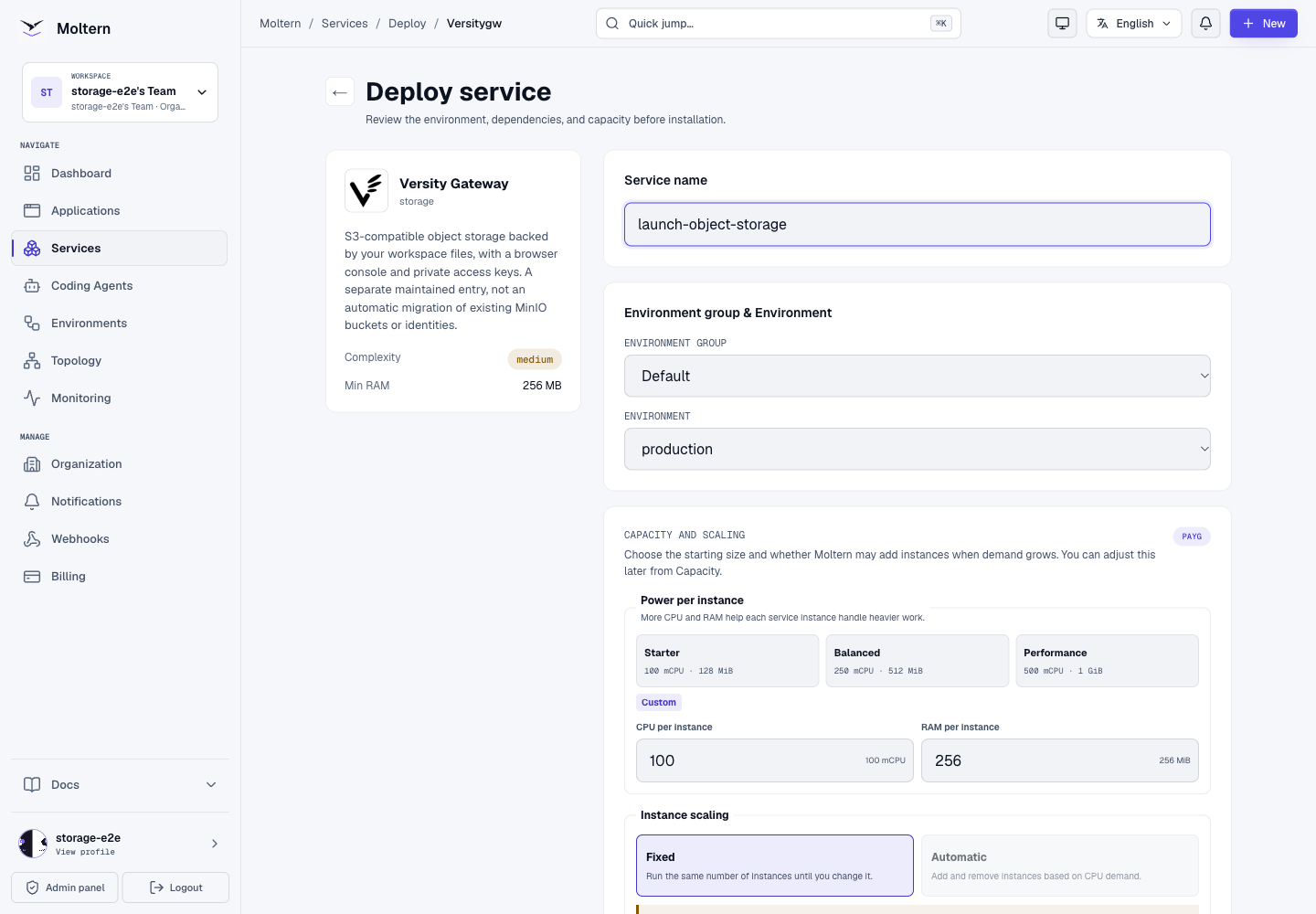
- Open Services > Service Catalog and select Versity Gateway.
- Name the service and choose its environment.
- Leave both initial owner keys blank for secure generation. If you supply them, the access key needs at least 16 characters and the secret at least 32.
- Review capacity. The template starts with 100 mCPU and 256 MiB; larger objects and concurrent transfers may need more CPU and memory.
- Choose Preview deploy, review its impact and Confirm deploy.
- Wait for Running, then open the service URL followed by
/ui.
In Moltern Settings > Connection details, choose Reveal connection values and complete the required account and connection-password confirmation. Retrieve the initial Access Key and Secret Key privately.
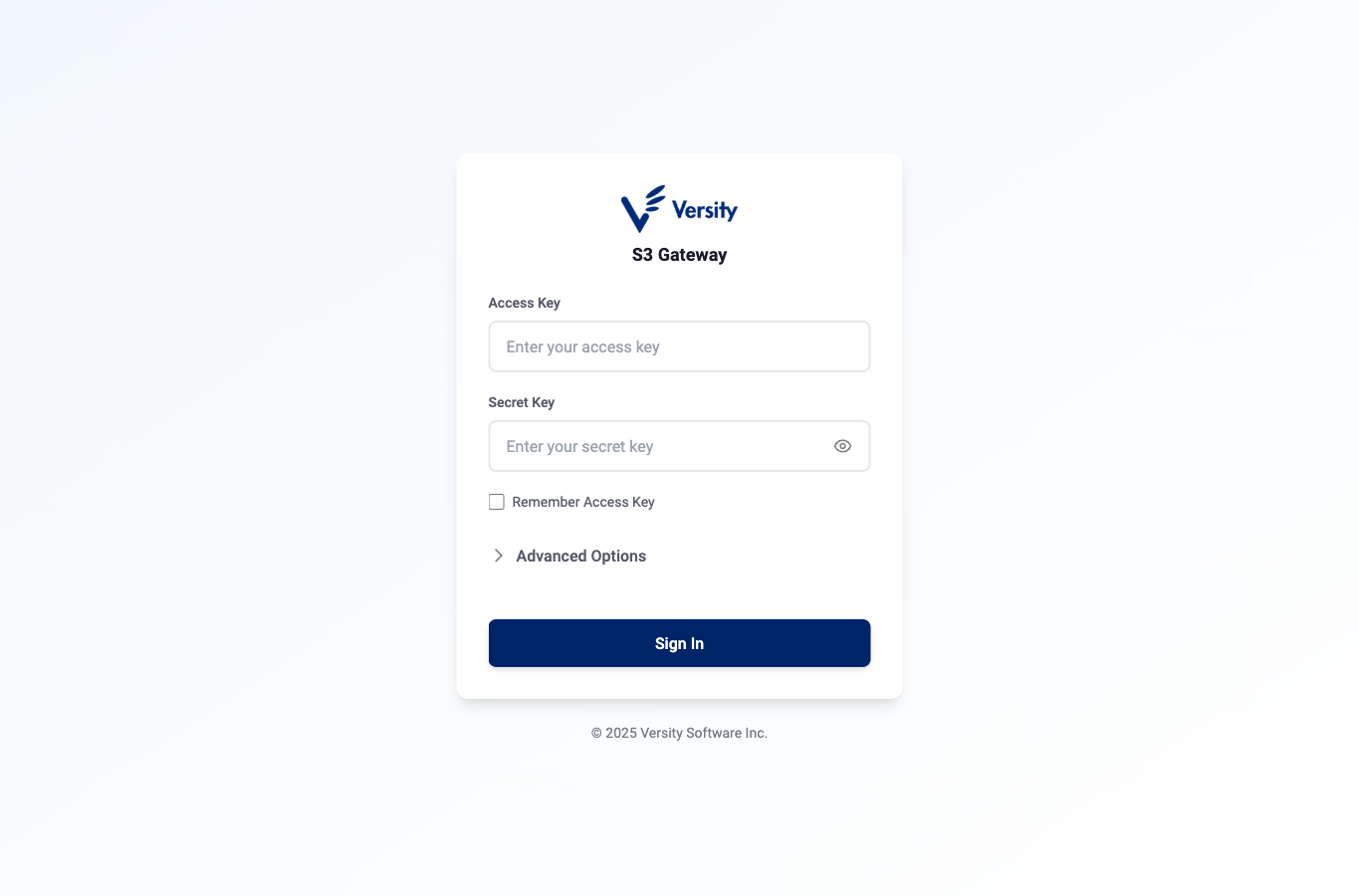
Sign in with those native keys. Keep the HTTPS S3 endpoint, us-east-1 region and Path Style addressing. The separate IAM endpoint is optional and is not configured by this managed template; leave it empty.
Create a Bucket and Upload Files
A bucket contains objects. An object key identifies a file within that bucket; folder-like names are prefixes, not a separate filesystem permission boundary.
- In the console, open Buckets > Create Bucket.
- Enter a unique lowercase name, such as
launch-handoff. - Select its Owner. On a new service with no ordinary users, enter the initial owner's access key in the owner field.
- Leave optional versioning and object lock unchanged unless you understand their retention behaviour. They are not needed for the workflow below.
- Choose Create.
- Open Explorer, then the new bucket.
- Choose Upload and select files from your laptop.
- Wait for the upload-success message and confirm each object's name and size.
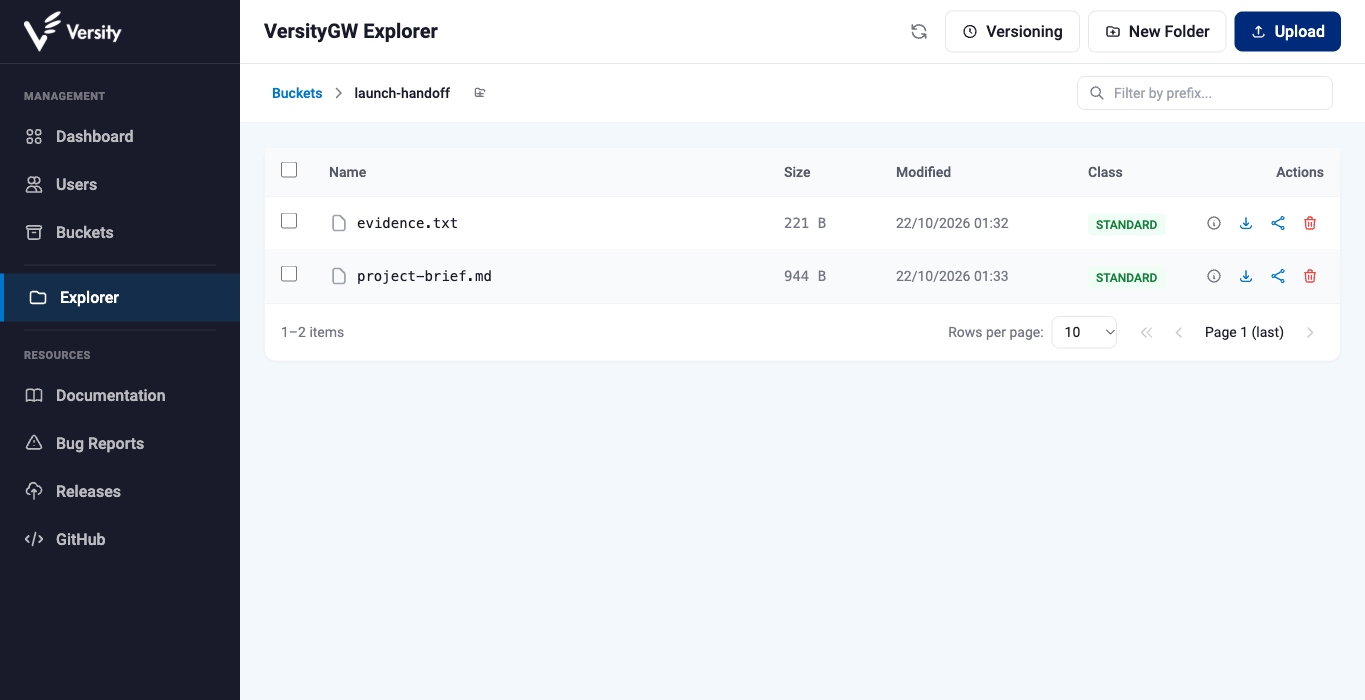
Use a small, non-sensitive document first. Keep an original copy so you can compare the downloaded bytes before relying on a new client configuration.
Download an Object
Choose the object's Download arrow. Chromium-based browsers may open their native save-location picker; complete or cancel that dialog on your laptop. Firefox uses the browser download flow. Check the actual saved file rather than treating a toast or a matching filename as proof of a complete download.
For important files, compare their SHA-256 hashes. Do not assume an S3 ETag is always the file's hash, especially for multipart uploads.
An object store is not a document editor. Download a document to edit it in an appropriate application, then upload the intended revised version. Review your overwrite and retention requirements before replacing important objects.
Create a Separate Client Identity
- As the owner, open Users > Create User.
- Choose or generate an Access Key identifying the integration.
- Generate a strong Secret Key and store it securely for that client.
- Select the ordinary User role, not Admin or User+.
- Leave advanced operating-system identity fields unchanged unless your administrator has a specific requirement.
- Choose Create User.
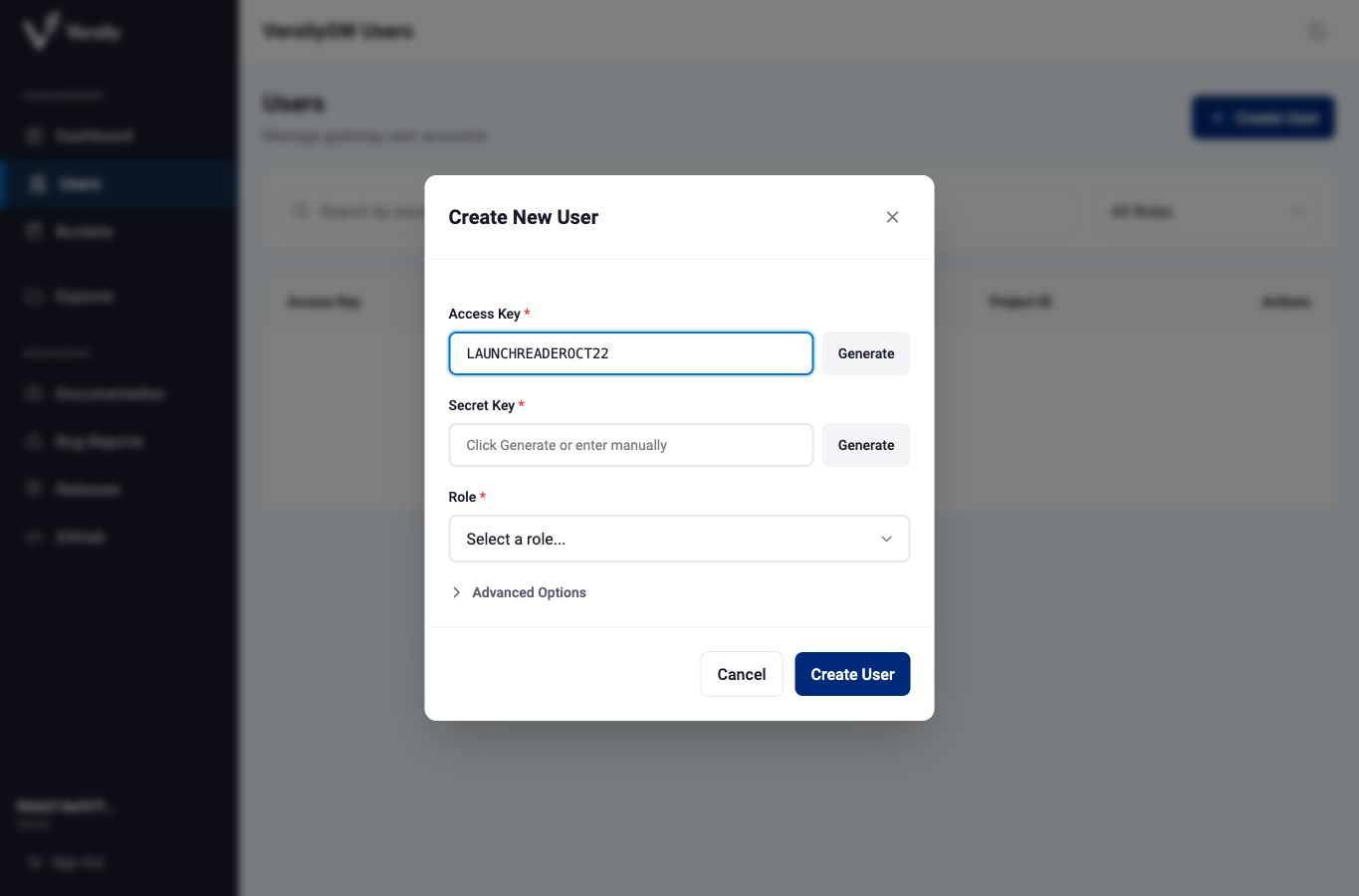
The secret field is visible text in this upstream form. Do not screen-share, record or capture screenshots while a real secret is present.
Creating a user does not by itself grant access to another owner's bucket. Use a bucket policy to authorize exactly the operations that client needs.
Grant Read-Only Access to One Bucket
In Explorer, return to the bucket list and use the intended bucket's
Manage policy action. Enter a policy like this, replacing TEAM_READER
with your client's actual native access key:
{
  "Version": "2012-10-17",
  "Statement": [
    {
      "Sid": "ReadOnlyHandoff",
      "Effect": "Allow",
      "Principal": ["TEAM_READER"],
      "Action": ["s3:ListBucket", "s3:GetObject", "s3:GetBucketLocation"],
      "Resource": [
        "arn:aws:s3:::launch-handoff",
        "arn:aws:s3:::launch-handoff/*"
      ]
    }
  ]
}
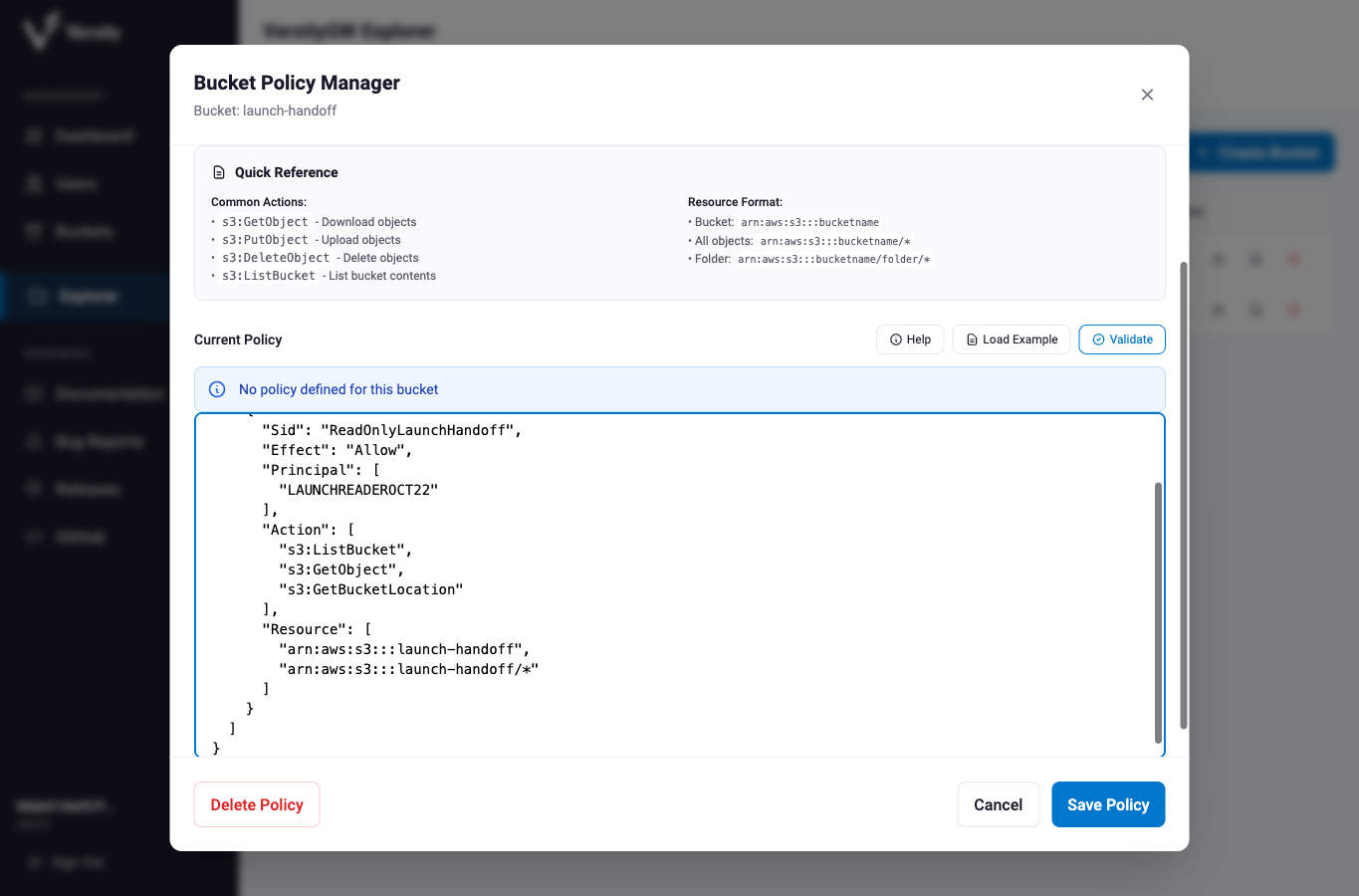
Choose Validate, then Save Policy. A success message appears inside the dialog; saving does not automatically close it. Close the dialog when finished.
This policy names a particular client. Do not replace the principal with *:
that can grant access to everyone, rather than your intended integration.
Read-only access does not require PutObject, DeleteObject or policy-management
permissions. Restrict object prefixes further when the client needs less data.
Check the Restricted Account
Sign in with the client's keys in a separate browser session. The console's bucket listing can be empty for a user granted access through a bucket policy: it lists owned buckets, not every policy-granted bucket.
Enter launch-handoff in Enter bucket name and choose Open. The allowed
files should load. Download one and confirm its contents. Requests for another
private bucket and uploads/deletes should be denied for this read-only account.
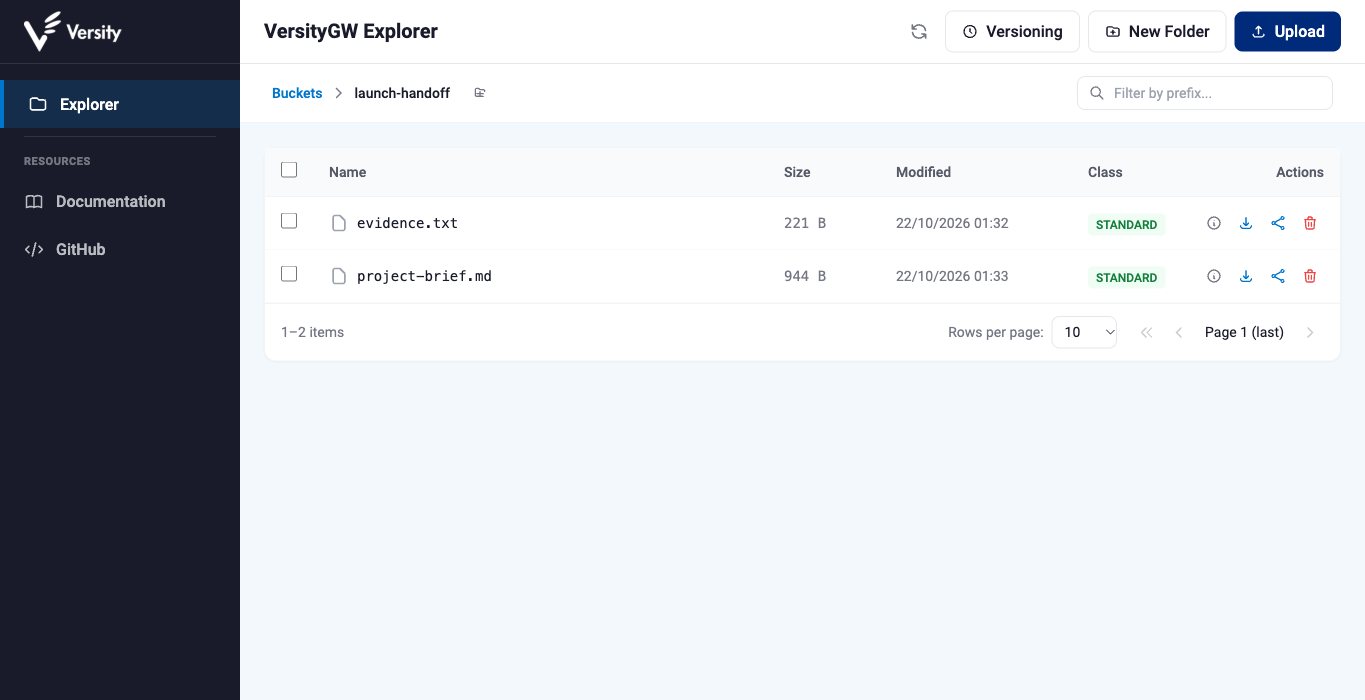
Some upstream action buttons remain visible even when the user lacks permission. A visible button is not an authorization grant: the server must still deny operations outside the user's policy.
Connect a Moltern Application
- Open the application's Settings > Private service connections.
- Select Versity Gateway and choose Connect.
- Configure your S3 client with the private endpoint supplied by the connection.
- Add a separate native access key and secret with the required bucket policy through protected application variables.
- Set the bucket explicitly, region us-east-1 and path-style addressing.
- Save and deploy the updated configuration.
- Test a real read and a prohibited write, not only the network connection.
| Client setting | Value |
|---|---|
| Endpoint | Private connection endpoint, without /ui |
| Region | us-east-1 |
| Addressing | Path style |
| Bucket | Explicit allowed bucket name |
| Access key and secret | Dedicated restricted native identity |
Moltern grants private reachability; it does not silently supply the owner keys or create a restricted native account for you. Never use another application's credentials or the initial owner identity just to avoid creating a bucket policy.
When changing providers, review saved variables explicitly. Updating some variables does not necessarily remove an older endpoint, protocol selector or credential your application still reads.
Connect a Coding Agent
In the agent's Resources tab, select this service, choose Connect and Save permissions. Complete account confirmation if requested, wait for the runtime to be ready, then open or reconnect its terminal.
Give the agent a dedicated native client identity, not the service owner keys.
Keep its secret in protected configuration or enter it without terminal echo.
Do not put credentials in AGENTS.md, source code, prompts or shell history.
Use a real S3-compatible client with the private endpoint and an explicit bucket. Check that its allowed file downloads correctly, an unrelated bucket is denied and writes fail for a reader. The same checks should still pass after restarting the storage service. The agent does not need access to the underlying runtime or infrastructure to use object storage.
Pause, Resume and Recover
Use Moltern Stop service to pause the runtime while keeping saved objects, metadata, users and bucket policies. Choose Start service, wait for Running, then sign in and verify a known object again.
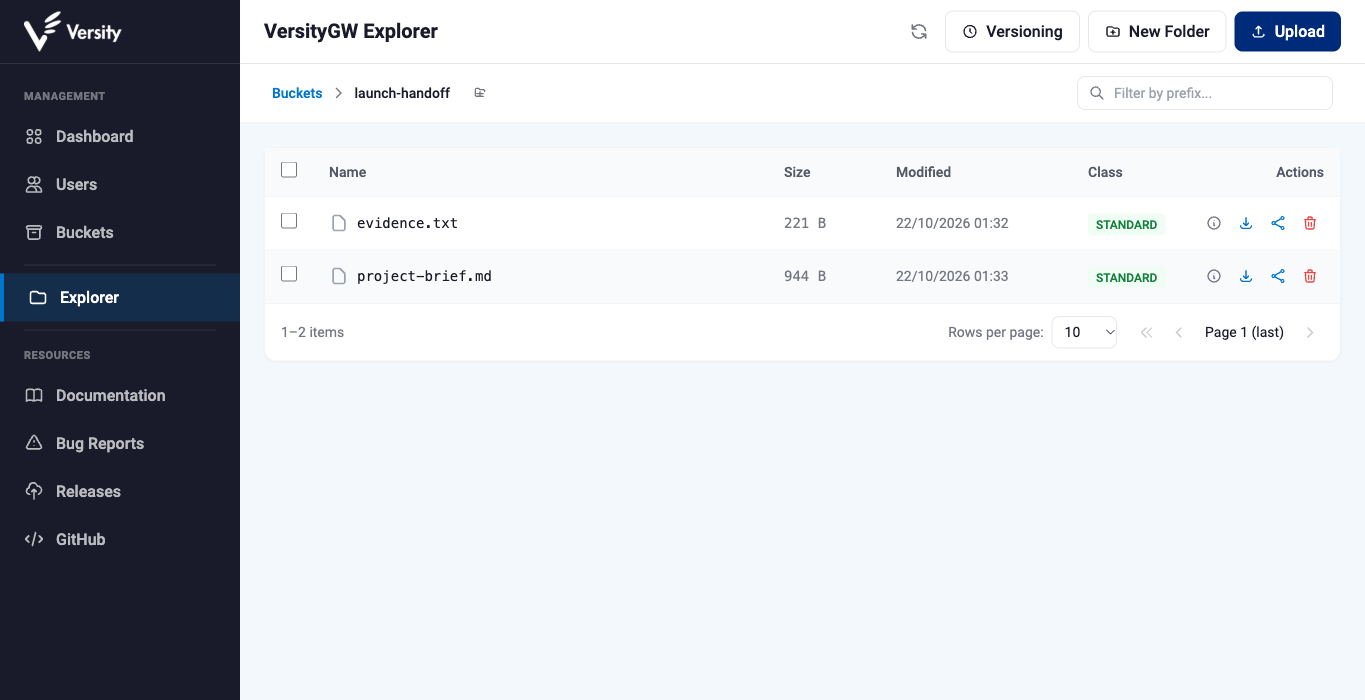
Confirm both permitted and prohibited operations with an existing restricted identity after restart. This single-instance service can interrupt requests during pauses, upgrades and recovery; it is not a multi-region availability guarantee.
Keep a consistent independent backup of objects, metadata, identities and policies, and validate restoration. A successful restart is not a backup test. Do not copy only object files and assume that account or policy state follows.
For an ordinary client, an owner can change or replace its secret in Users. Update the intended clients and confirm that old credentials stop working. Initial owner keys come from protected Moltern connection details; native user secrets created later are not automatically synchronized back there. Outgoing account-recovery email is not configured by this template.
Revoke Access and Delete Stored Data
Delete an obsolete native identity in Users and confirm Delete User. Test a fresh request with that key: it should be denied. Review and remove obsolete policy principals too. Copies already downloaded are not recalled.
Remove the corresponding Moltern application or agent service connection separately. Native authentication and Moltern network access are independent controls; revoking one is not proof that the other was removed.
Before deleting the service, export needed objects and a restorable backup. In Moltern choose Delete Service > Delete stored data and complete the protected confirmation. Cleanup removes this service's saved data. Choosing Keep workspace files deliberately retains data that continues to count toward workspace storage usage.
Use Billing for workspace allowance and charges. Object size does not include every metadata or identity file, and the template's requested capacity is not the same as measured storage consumption.
Troubleshooting
| Symptom | Check |
|---|---|
| XML response at the service URL | Append /ui for the browser console |
| Create Bucket asks for an owner | Supply the intended native owner's access key |
| Restricted user sees no bucket list | Enter its allowed bucket name and choose Open |
| Policy save dialog stays open | Look for the success message, then close it |
| Read works but writes return 403 | Expected for a read-only policy |
| Client reports InvalidAccessKeyId | Correct service, identity still exists and current key pair |
| Private client times out | Service Running, matching environment and explicit Moltern connection |
| Browser download appears stalled | Complete the native save picker, or try Firefox's download flow |
| Native UI button returns access denied | Visible actions do not override server-side permissions |