Deploy an Omarchy Linux desktop
Omarchy is a Linux desktop for development and everyday work. Moltern provides its private desktop console inside your workspace, so you can use the desktop from your browser without publishing a remote-desktop address.
Omarchy is under test and available only to enabled workspaces. Use it for evaluation, not as the only copy of important work. The first launch requires completing the Omarchy installer.
Before you start
You need a workspace with Omarchy beta access, permission to create services and open their consoles, and sufficient compute and storage allowance.
The initial desktop profile is fixed: two CPUs and 4 GiB of guest memory, with additional memory reserved for the runtime. The virtual disk has a 50 GiB capacity. That is its maximum guest-visible size, not 50 GiB of preloaded files or an increase to your workspace storage allowance. Review your workspace's available storage and plan before installing applications or downloading files.
Choose your own Linux account and disk-encryption password during setup. Keep them in a password manager. They are separate from your Moltern login.
Create the desktop
- Open Services and find Omarchy in Virtual Machines.
- Select the target environment and give the desktop a recognizable name.
- Review the deployment's capacity and storage impact.
- Confirm the deployment and wait for the service to become Running.
- Select Open desktop or the Desktop tab.
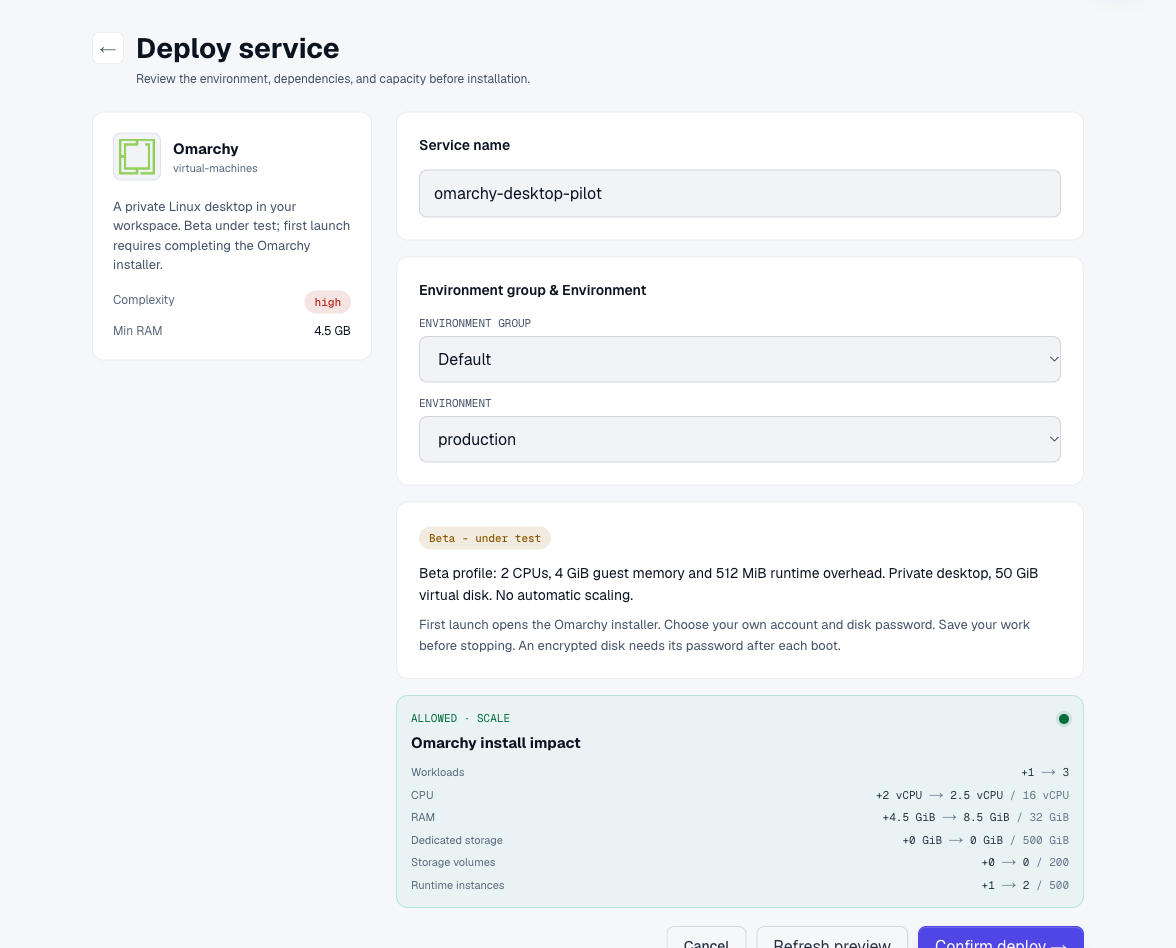
The desktop does not have a public application URL. Reopen it from its Moltern service page. Your Moltern workspace permissions control access to the console.
Running means the desktop runtime can accept a console connection. On a new desktop, the operating system still needs to be installed.
Complete the first-run installer
Click inside the desktop to give it keyboard focus. Use Full screen when the installer text is too small.
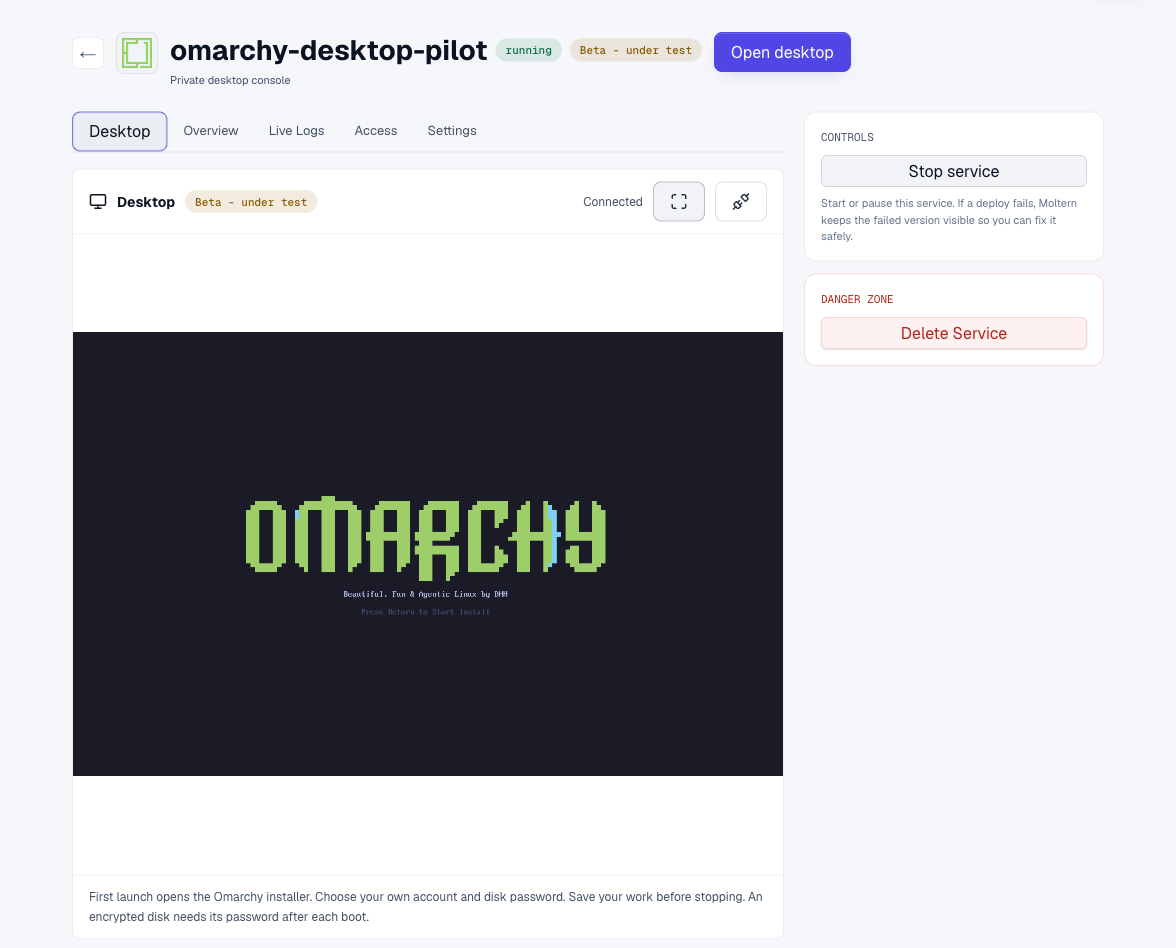
- Start the installer at the Omarchy welcome screen.
- Select your keyboard layout.
- Enter your own username and password, then confirm the password.
- Complete the optional name and email fields if you want to configure them.
- Choose a hostname and timezone.
- Review the account details and select the desktop's virtual disk.
- Read the erase confirmation carefully, then confirm installation on that disk.
- Let installation finish and follow the restart prompt.
The installer's erase action applies to the selected virtual desktop disk. Reinstalling onto an existing desktop disk destroys the files inside that desktop. Do not repeat installation as a troubleshooting step when you already have work saved there.
The installation progress screen may remain visible while files are copied and packages are configured. Do not stop or delete the service during this step.
After installation, the desktop can take a little time to finish its first boot. Unlock the encrypted disk when prompted and wait for the desktop session to load.
Use the desktop
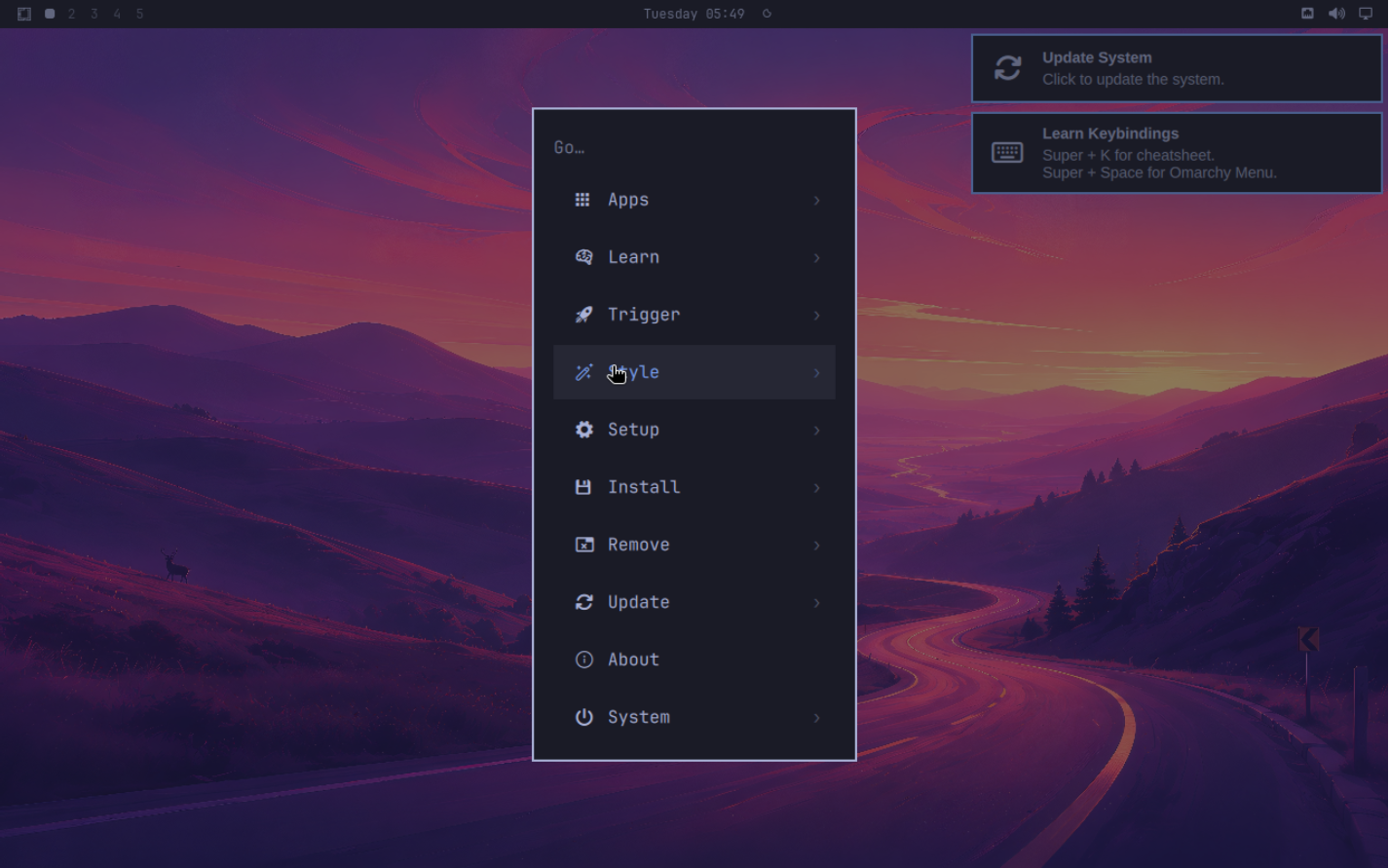
Use the Omarchy menu to open applications or a terminal. A browser runs inside the desktop, separately from the browser you use to access Moltern. Downloaded files and Linux application settings belong to this desktop.
Click the window you want to use before typing. Do not share the same console while someone else is entering commands: both people would control the same desktop, not independent sessions.
Open another session
Open the service's Desktop tab and connect. Click inside the screen before typing. Disconnect closes your browser's connection; it does not stop the desktop or discard saved files.
After a full restart, an encrypted desktop asks for its disk password before Linux can start. Enter the password you chose in the installer. Moltern cannot recover a forgotten disk-encryption password.
Keep a second copy of important files outside the desktop. This beta does not provide desktop snapshots, live migration or one-click disk recovery.
Stop, start and delete
Save your files and close work that cannot be interrupted before selecting Stop service. Starting the same service again reuses its desktop disk. You may need to unlock that disk after startup.
Stopping is not the same as deleting: saved desktop data remains stored while the service is stopped. Storage remains subject to your workspace plan.
Use Delete Service only when you no longer need the desktop. Review the data-removal confirmation, and export anything you want to keep first. Deleting the desktop and its stored data is not a way to reset a forgotten password without losing files.
Access and limitations
- The browser console is private to authorized Moltern workspace members.
- There is no public VNC port or desktop URL to share.
- The desktop is a separate machine, not a shell in another service.
- Other service credentials and workspace files are not automatically mounted inside it.
- This beta does not provide GPU acceleration, automatic scaling, desktop cloning or configurable CPU, memory and disk resizing.
- A desktop is not subject to HTTP inactivity sleeping. Stop it when you finish if you do not need it running.
Troubleshooting
| Symptom | What to check |
|---|---|
| Omarchy creation is unavailable | Confirm that the selected workspace has beta access. |
| Open desktop is disabled | Wait for deployment to finish or start the stopped service. Check Live Logs if startup fails. |
| Connected appears before a picture | Allow the guest to finish booting. Reconnect if the picture never appears. |
| Keys do not reach the installer | Click inside the desktop, then try again. Check the keyboard layout selected in the installer. |
| Browser shortcuts run instead of desktop shortcuts | Use full screen and avoid browser-reserved shortcuts. Browser and operating-system key capture varies. |
| An encryption password is requested after restart | Enter the disk password created during installation, not your Moltern password. |
| The console disconnects | Reconnect from Desktop. Sign back into Moltern if your platform session has expired. A disconnected console does not imply lost files. |
| Storage is full | Check free space inside the desktop and the workspace's Billing storage section. A virtual disk's size does not override workspace limits. |
Next steps
Read the Omarchy manual for desktop shortcuts, applications and Linux configuration. For the common Moltern workflow, see Deploy a service.