File Browser Quantum on Moltern
File Browser Quantum is a browser workspace for project files, documents and controlled file exchange. Upload a handoff from your laptop, preview or edit a document, and give colleagues or applications access only to the folder they need.
This is a separate maintained product. Deploying it does not import accounts, files or settings from an existing File Browser service. Back up and plan any migration explicitly.
Before You Start
You need permission to create services and manage connections in the target workspace. Choose the environment containing the applications or coding agents that will use the files.
| Access method | Intended use | Credential |
|---|---|---|
| Service HTTPS URL | Browser upload, preview and user administration | Native username and password |
URL followed by /dav/Files/ | WebDAV file clients | A native user token, not the sign-in password |
| Private Moltern service connection | Application or agent file access | Explicit connection plus a restricted native token |
Your Moltern account password, protected connection-details password, native file-browser password and generated client token serve different purposes. Do not share an owner login with every integration.
Deploy Your File Workspace
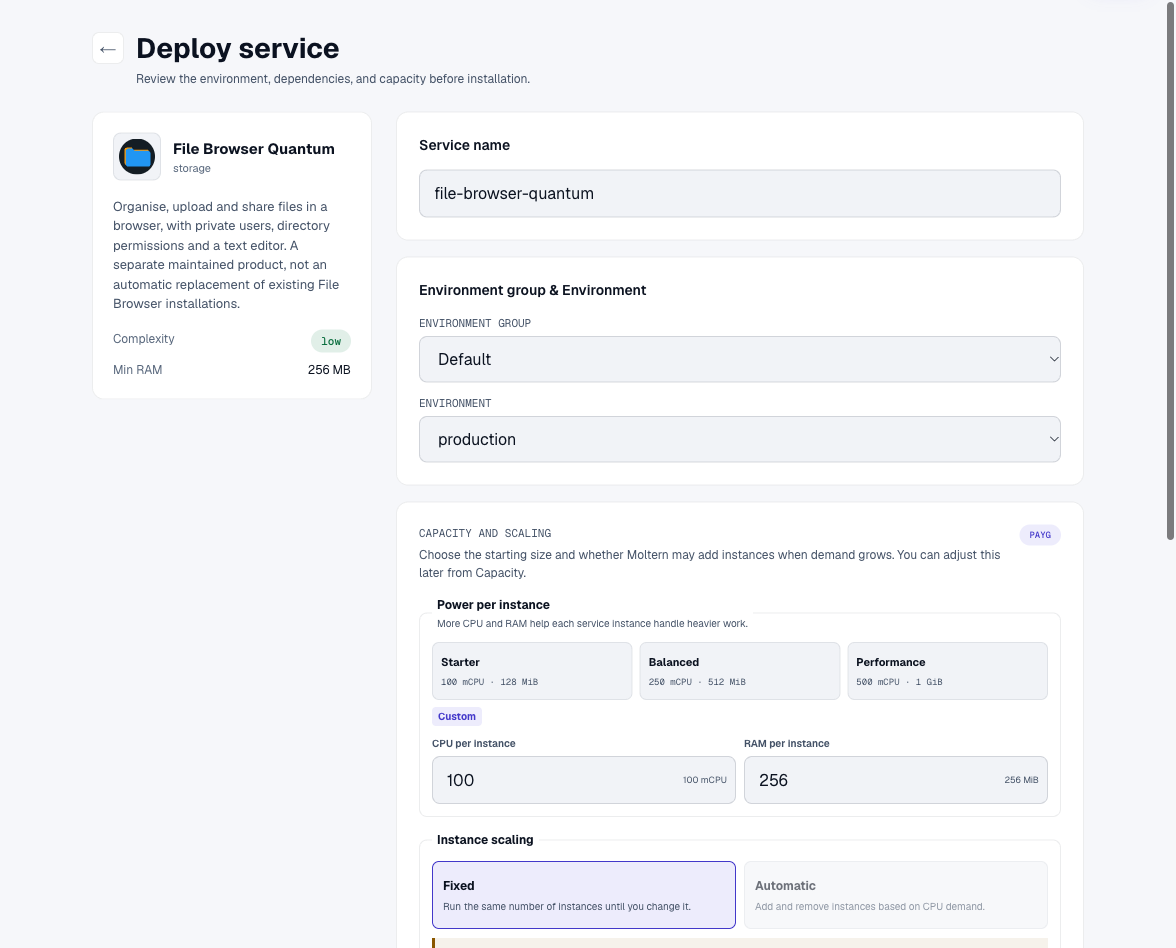
- Open Services > New service and select File Browser Quantum.
- Name it and choose its environment.
- Leave the initial owner password blank for secure generation, or enter a strong password of at least 16 characters.
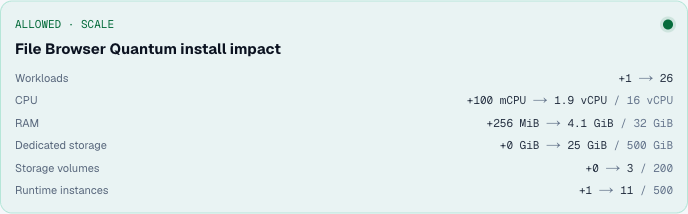
- Review saved-data capacity, CPU and memory. The small template starts with 100 mCPU and 256 MiB; indexing and larger concurrent workloads may need more.
- Choose Preview deploy, review the impact and Confirm deploy.
- Wait for Running, then open the service URL.
Open Settings > Connection details > Reveal connection values to retrieve the initial owner password. Complete account confirmation and protected connection-details confirmation if requested.
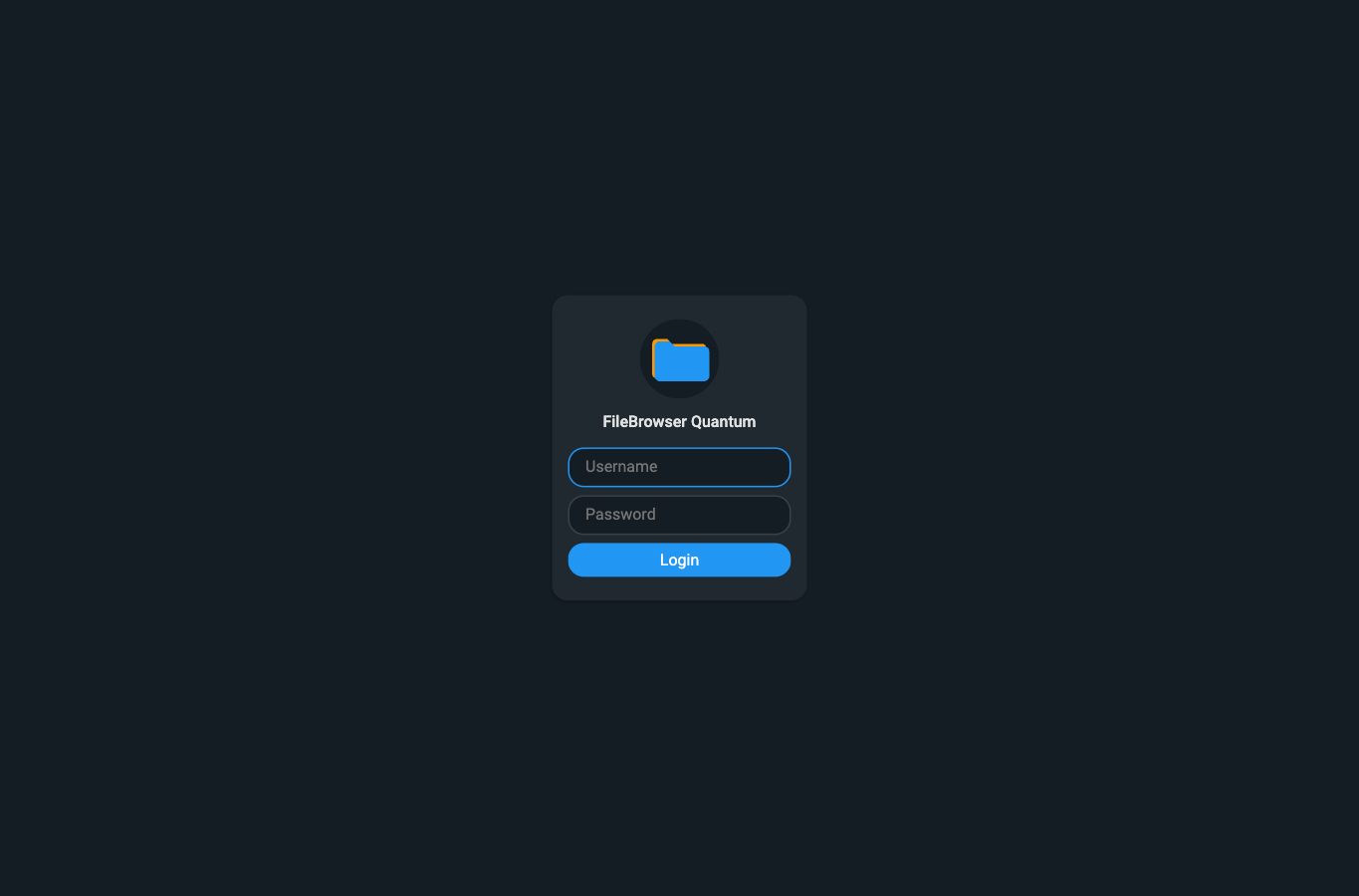
The initial native username is owner. Public self-registration is disabled;
the owner creates additional users deliberately.
Upload Files From Your Laptop
After signing in, select Files in the left sidebar. The general home view may be empty until you open this source.
- Choose File actions > New folder.
- Name the folder, for example
Launch handoff, and choose Create. - Open the folder.
- Choose File actions > Upload, or use the browser's file picker to select the intended files from your laptop.
- Wait for each upload to show Completed. Clear completed tasks and close the upload panel when finished.
- Open an uploaded document to preview it.
Use non-sensitive sample files when learning the interface. Confirm both the filename and contents before sharing a handoff.
Preview, Edit and Download a Document
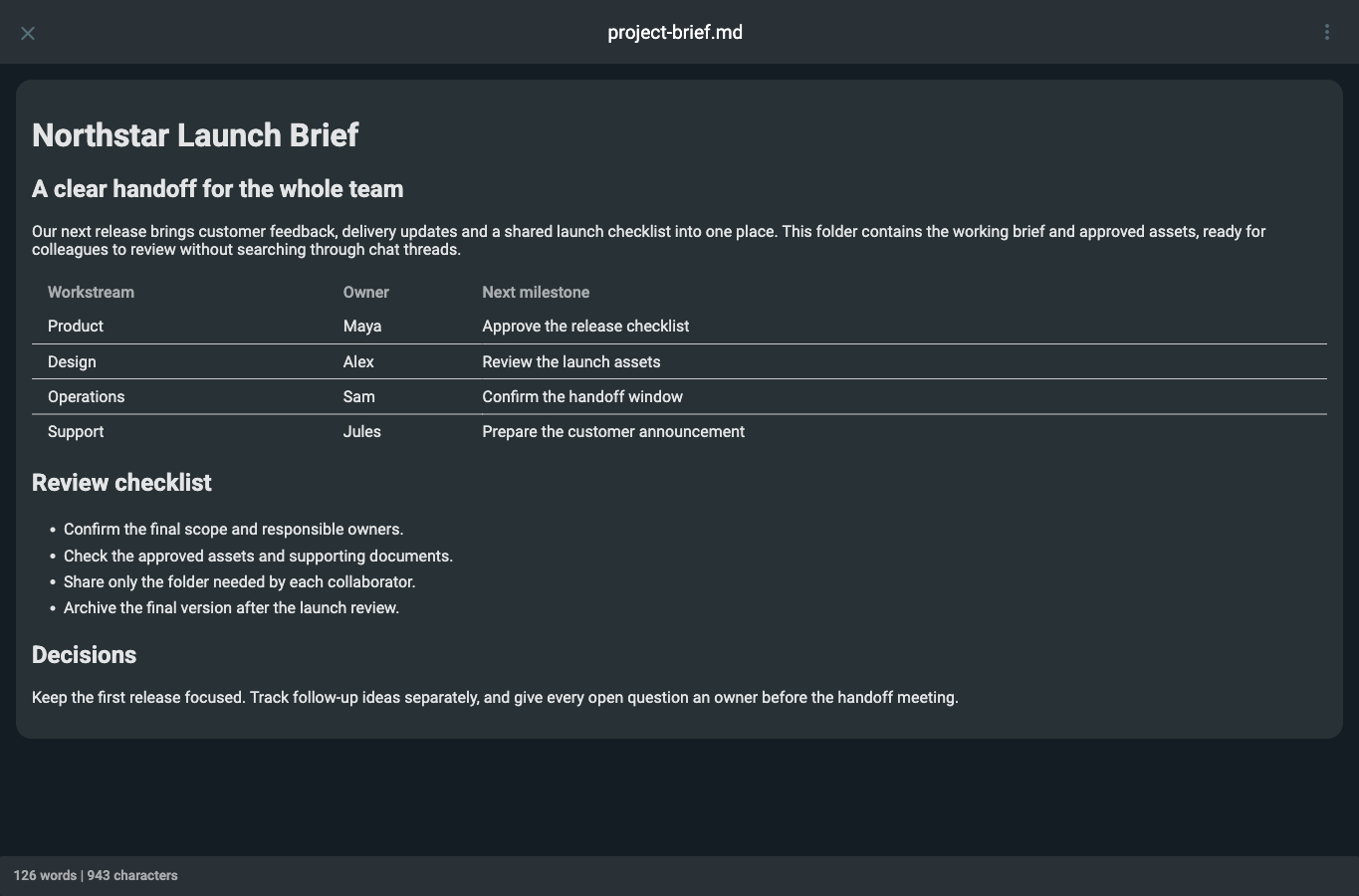
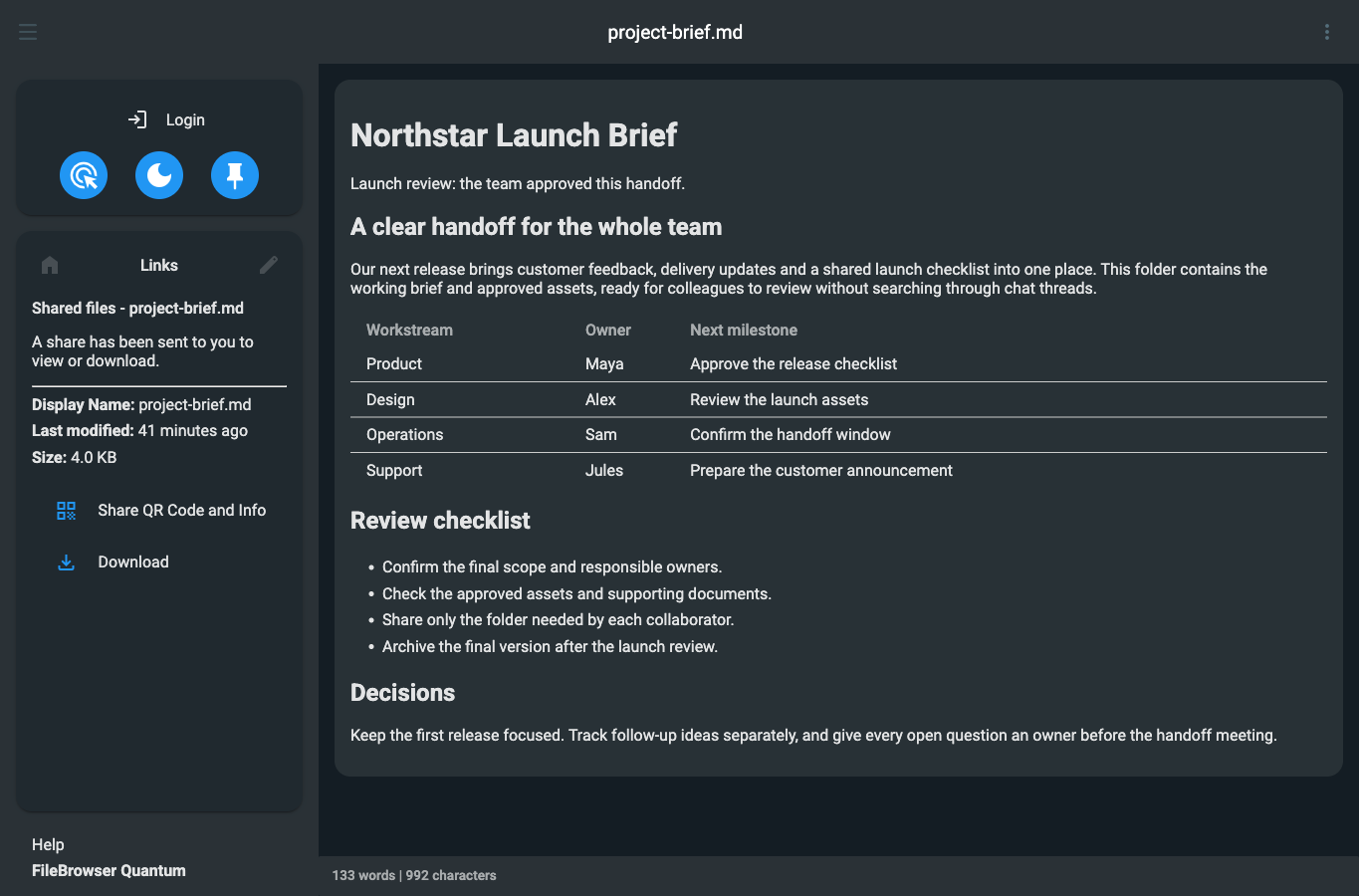
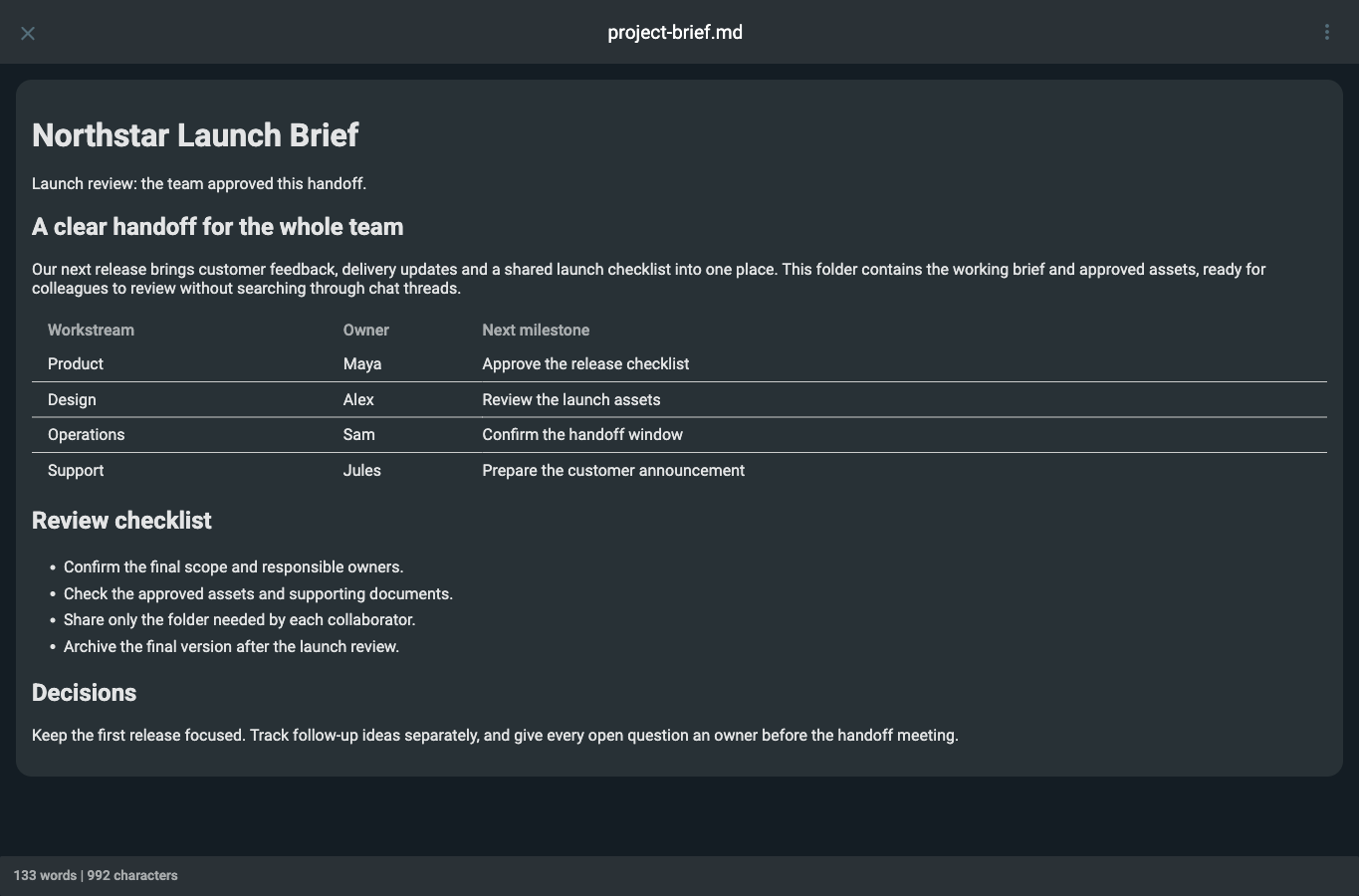
Open a Markdown document to see its formatted headings, tables and checklist. Use its More menu to choose Edit. Make the change, then choose Save from that menu before leaving the editor. Preview returns to the formatted view.
Choose Download from the file's menu to retrieve it to your laptop. Open the downloaded copy and confirm that saved edits are present. For important files, compare SHA-256 hashes; a matching filename does not establish matching contents.
The managed template provides document browsing and text editing. Do not assume that every upstream media converter, office integration or external helper is installed or configured.
Share One Document With a Guest
For someone who does not need a permanent account, create a narrowly scoped share rather than sending your owner login.
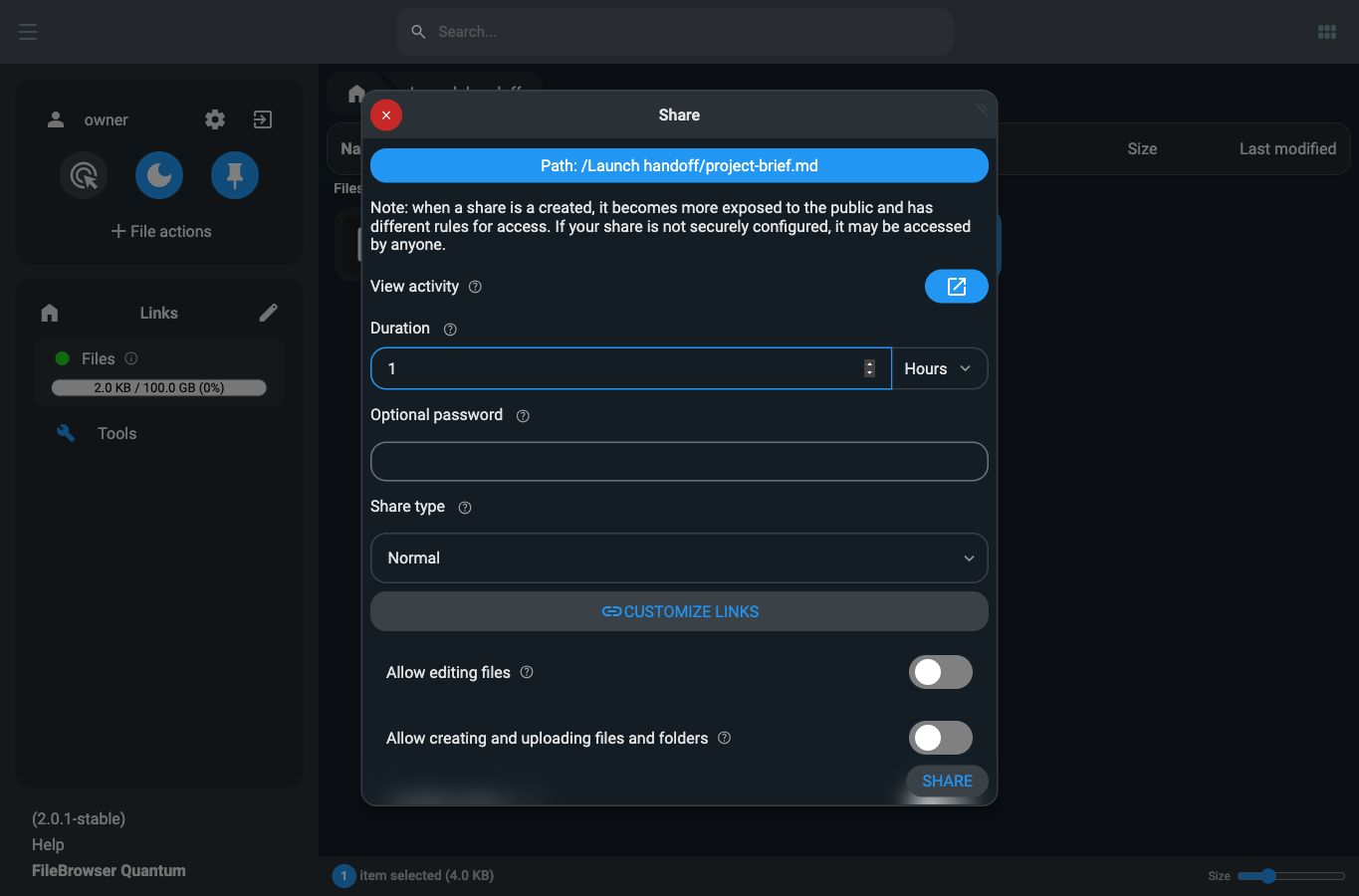
- In the folder listing, right-click the intended document and choose Share.
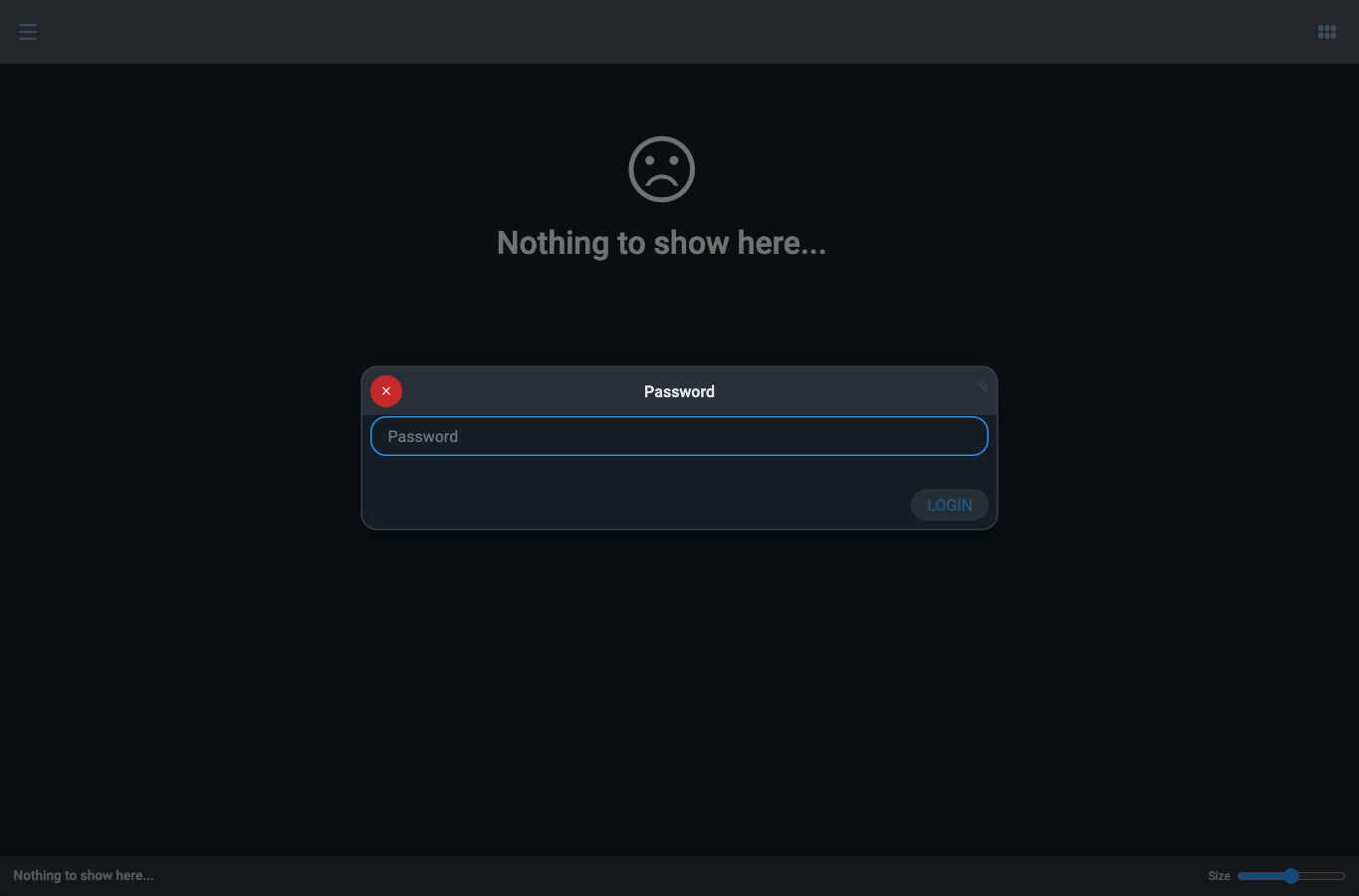
- Set a short Duration and add a strong Optional password.
- Leave editing, creating/uploading and deleting disabled for a reader.
- Confirm the share, then send its link and password separately.
- Open the link in a separate, signed-out browser session to check the result.
The recipient can preview the document and choose Download. If a download format dialog appears, select the offered format; a single-file share may return the original document directly.
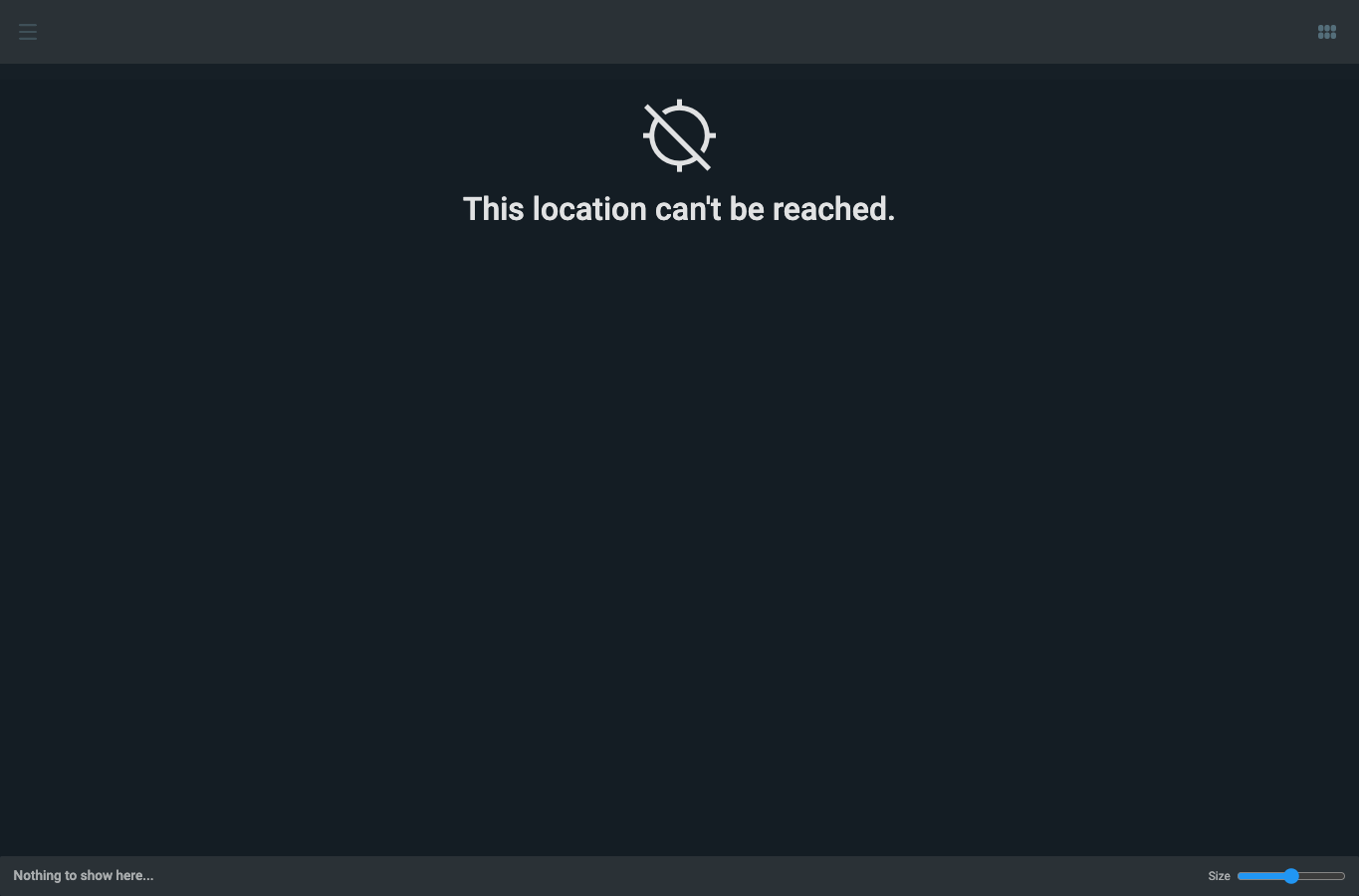
Remove an obsolete share in Settings > Share settings and confirm deletion. A fresh visit should no longer open its document. Copies already downloaded remain with their recipients.
Create a Folder-Scoped Collaborator
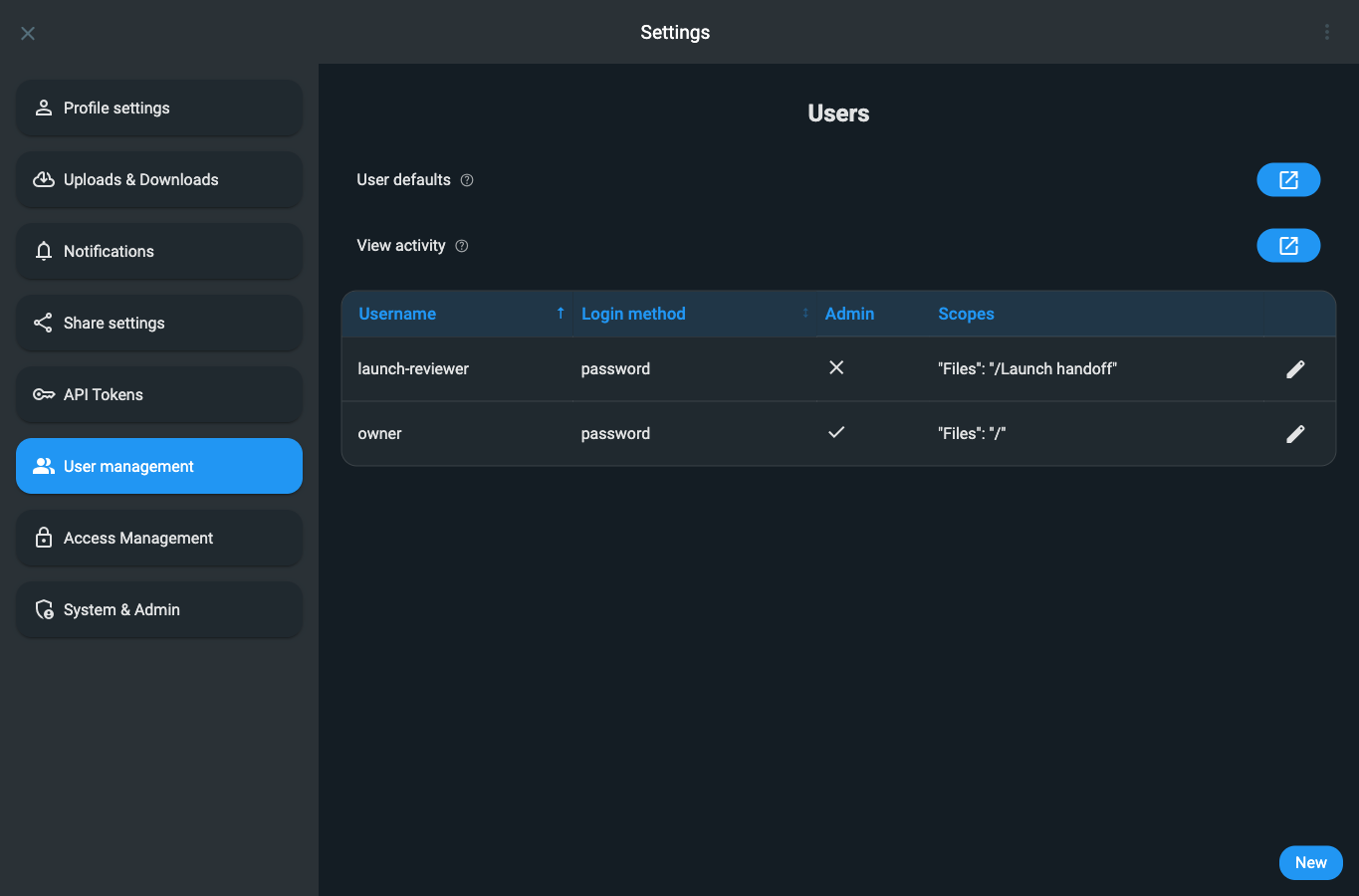
Give collaborators separate native accounts. A source is an available file area; a user's Scope path narrows that area to the chosen folder.
- Open your profile/settings menu and User management > New.
- Enter a username and a strong password twice.
- In Define allowed sources and the user scope within them, select Files.
- Expand the Files row and choose Scope path.
- Open
Launch handoffin the folder picker and choose Select. - Enable View and list files and Download files for a reader. Leave Edit files, Create files and Delete files disabled.
- Leave Administrator disabled. Enable other global capabilities only when that collaborator needs them.
- Choose Save. If a second password prompt appears, enter your current native owner password to confirm this sensitive user-management action.
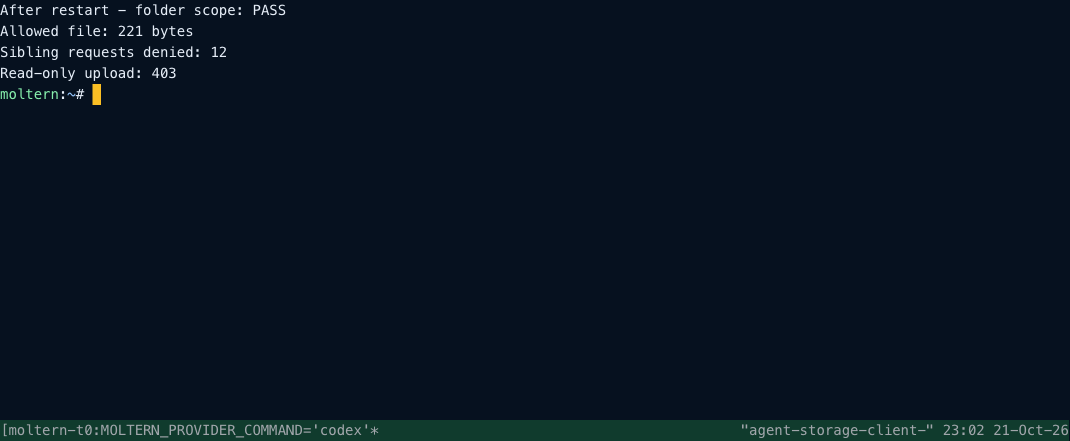
Sign in as the collaborator in a separate browser session. Open Files and confirm that it shows only the handoff folder's contents, not sibling folders. Also check that a read-only user cannot upload or delete files.
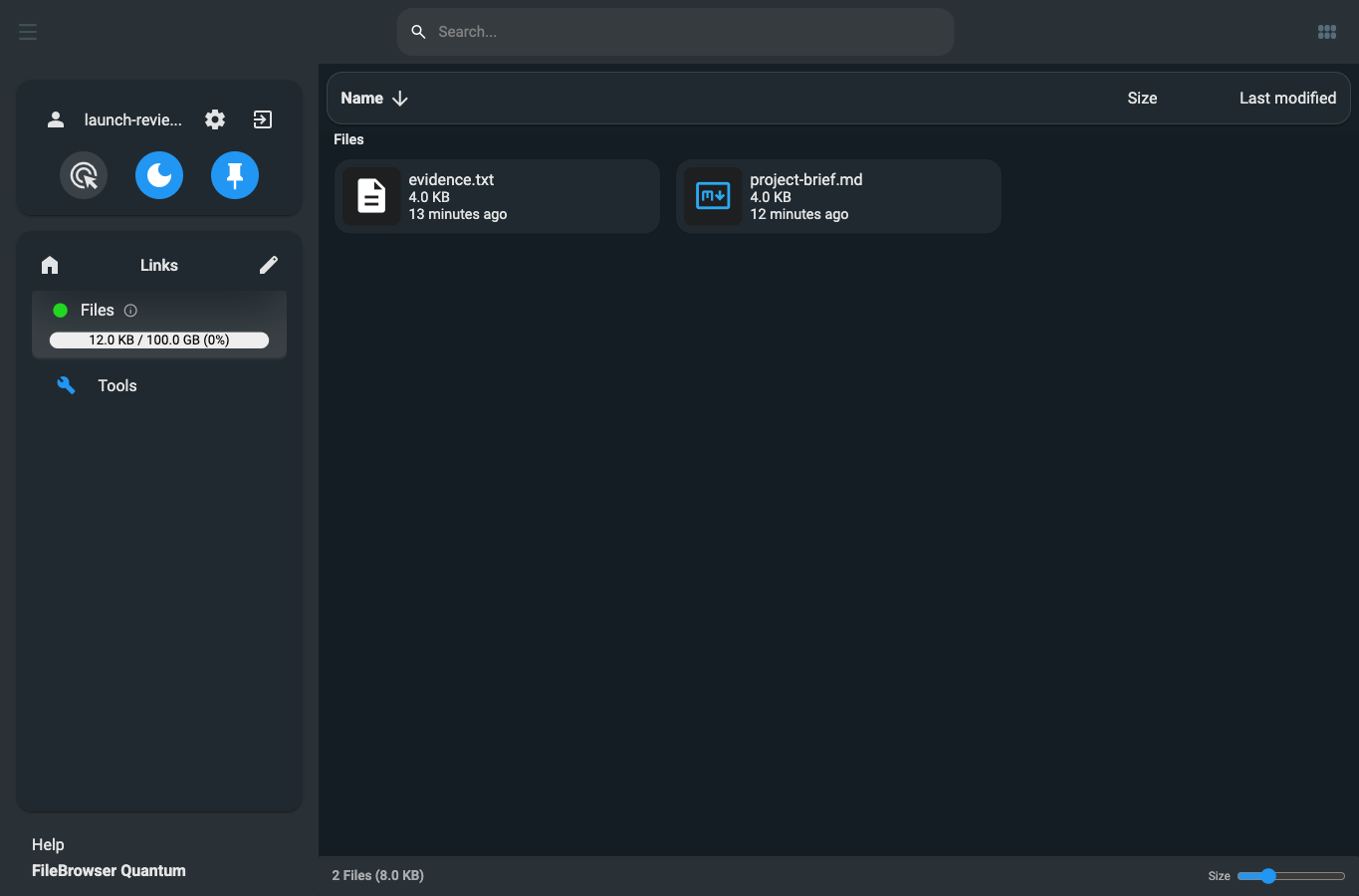
Folder scope and operation permissions are independent. Giving an account download access should not require granting edit, delete or administrator access.
Create a Restricted WebDAV Token
WebDAV uses a native API token as its password, not the account's ordinary sign-in password. Create the token from the restricted account so it inherits that account's intended access boundary.
- As the owner, edit the restricted user in User management.
- Enable Create and manage long-live API Tokens, save and confirm with the current owner password if prompted. Do not enable Administrator.
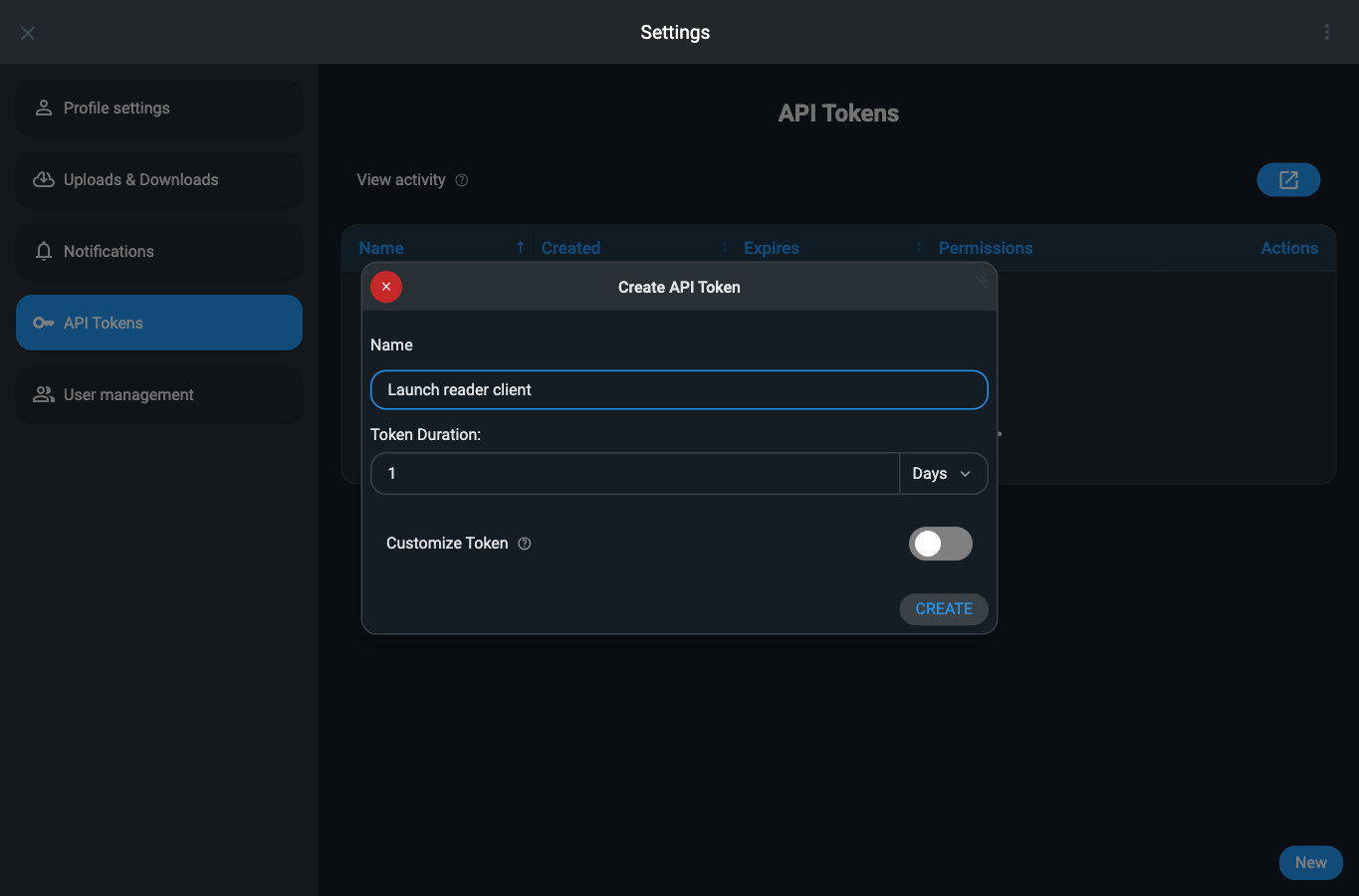
- Sign in as that restricted user and open Settings > API Tokens > New.
- Give the token a name identifying its client and choose a short duration.
- Leave Customize Token disabled for a WebDAV-compatible token.
- Choose Create and securely transfer the generated token to the intended client. Keep it out of code, screenshots, prompts and shell history.
Use this client configuration:
| Setting | Value |
|---|---|
| Server | Your service URL followed by /dav/Files/ |
| Username | Restricted account name |
| Password | Its generated WebDAV-compatible token |
| Expected files | Files inside that account's selected scope |
Do not append Launch handoff to the server address again. The native user
scope already establishes that folder as the client's root.
Connect a Moltern Application
- Open the application's Settings > Private service connections.
- Select File Browser Quantum and choose Connect.
- Configure its WebDAV client with the private endpoint supplied by the
connection, the
/dav/Files/path and the restricted user's token. - Save protected variables and deploy the changed configuration.
- Try a real file read, then verify that writes fail for a read-only account.
Moltern grants private reachability; it does not silently inject the owner password or create a native file-user token. Your application remains responsible for using the appropriate native authentication and handling client errors.
For an existing application, review saved variables when changing storage providers. Bulk saves can update selected values without deleting old variables; remove or explicitly change any old protocol-selection setting your code uses.
Connect a Coding Agent
In the agent's Resources tab, select the file service, choose Connect and Save permissions. Confirm your account if prompted, wait for the runtime to become ready, then open or reconnect the terminal.
Provide a dedicated restricted token through protected configuration. Do not
write it into AGENTS.md, source files or terminal commands containing literal
secrets. An additional terminal opens a shell for file-client commands without
starting another provider session.
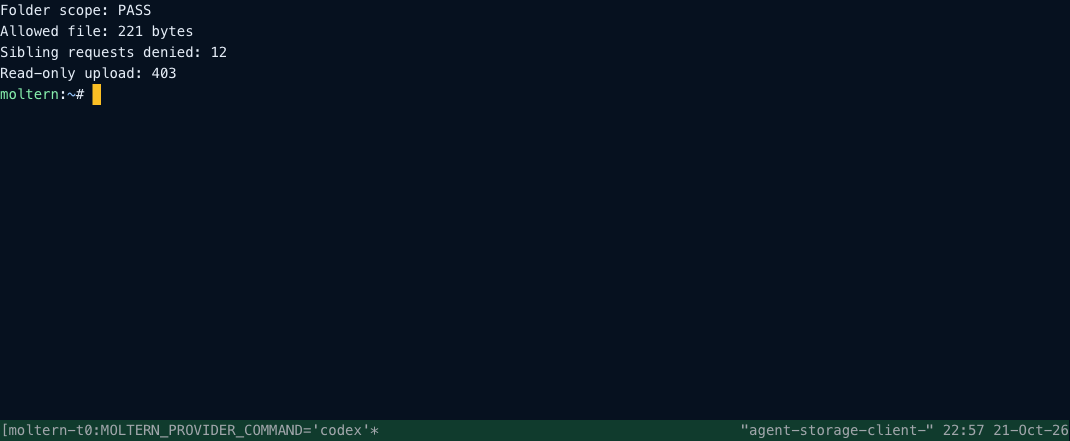
Give an agent write permissions only if its task requires them, and only within the intended scope. A connection does not grant access to the service's runtime, other folders or infrastructure administration.
Change Passwords and Recover Access
Use User management > Edit to enter a new native password twice, then choose Update. Confirm the current native account password if requested. Verify the new password in a fresh browser session before closing the original.
Moltern's protected connection details contain the initial deployment password. After you change it in the native product, that initial value is not a current password recovery service. Restarting does not reset a changed native password.
Keep a second trusted owner account or a documented recovery procedure before relying on the drive for critical files. Outgoing recovery email and external identity providers are not automatically configured by this template. Contact support if all native administrators lose access; do not delete the service to try to recover an account.
Pause, Resume and Protect Saved Data
Stop service pauses the runtime while retaining files, users and saved identity configuration. Start service starts it again. Wait for Running before issuing new requests.
After restarting, open a known document, confirm saved edits, test the changed owner password in a fresh session, and recheck both allowed and denied access with the existing restricted token.
This is a single-instance file service. Pauses, upgrades and recovery can interrupt active requests. Keep an independent backup and validate restoration; the ability to restart is not proof of a complete disaster-recovery backup.
Revoke Access and Delete the Service
Remove an integration's token from API Tokens and confirm a fresh request using that token is denied. Also remove its Moltern application or agent service connection. Downloaded copies are not recalled by revocation.
Before deleting the service, download or export files you need, disconnect clients and preserve a restorable backup. Choose Delete Service > Delete stored data to remove its runtime and saved workspace files after cleanup finishes. Keep workspace files intentionally retains files that continue counting toward storage usage.
Use Moltern Billing for workspace plan limits and charges. The native file browser's storage indicator describes its file area, not your subscription allowance. File contents, filesystem allocation, identity records and metadata can contribute different amounts to workspace storage.
Troubleshooting
| Symptom | What to check |
|---|---|
| Empty home after login | Open Files in the sidebar |
| New collaborator sees too much | Selected sources, Scope path and Administrator permission |
| Save asks for another password | Enter the current native account password, not Moltern's reveal password |
| WebDAV returns 401 | Use a non-expired WebDAV-compatible token as the password |
| Read succeeds but upload returns 403 | Read-only permissions deliberately deny creation or modification |
| Other folders return 403 or 404 | Expected when they are outside the user's selected scope |
| Private client cannot connect | Correct environment, service Running and explicit Moltern connection |
| Initial password no longer works | Use the password changed in the native application |
| Connection closes after permissions change | Wait for runtime readiness and reconnect the terminal |