Uptime Kuma
Use Uptime Kuma to check whether a website responds, view response times and certificate expiry, and configure notifications when a check fails. Its checks run from your deployed service, not from your browser.
Before You Deploy
- Choose the workspace and environment that will own the monitor.
- Have a website or health-check URL you are authorized to monitor.
- Review capacity for both Uptime Kuma and its managed MariaDB database. The database stores accounts, monitor configuration, and monitoring history.
- Keep the administration URL private to your team. Create a strong password during the first visit; the setup page is not a completed account.
Deploy And Create Your Account
- Open Services, select Uptime Kuma, and choose a service name.
- Review the required database, capacity, and deployment preview.
- Confirm deployment. Wait for the database and then Uptime Kuma to finish.
- Open the service URL. Choose a username and password, repeat the password, and select Create.
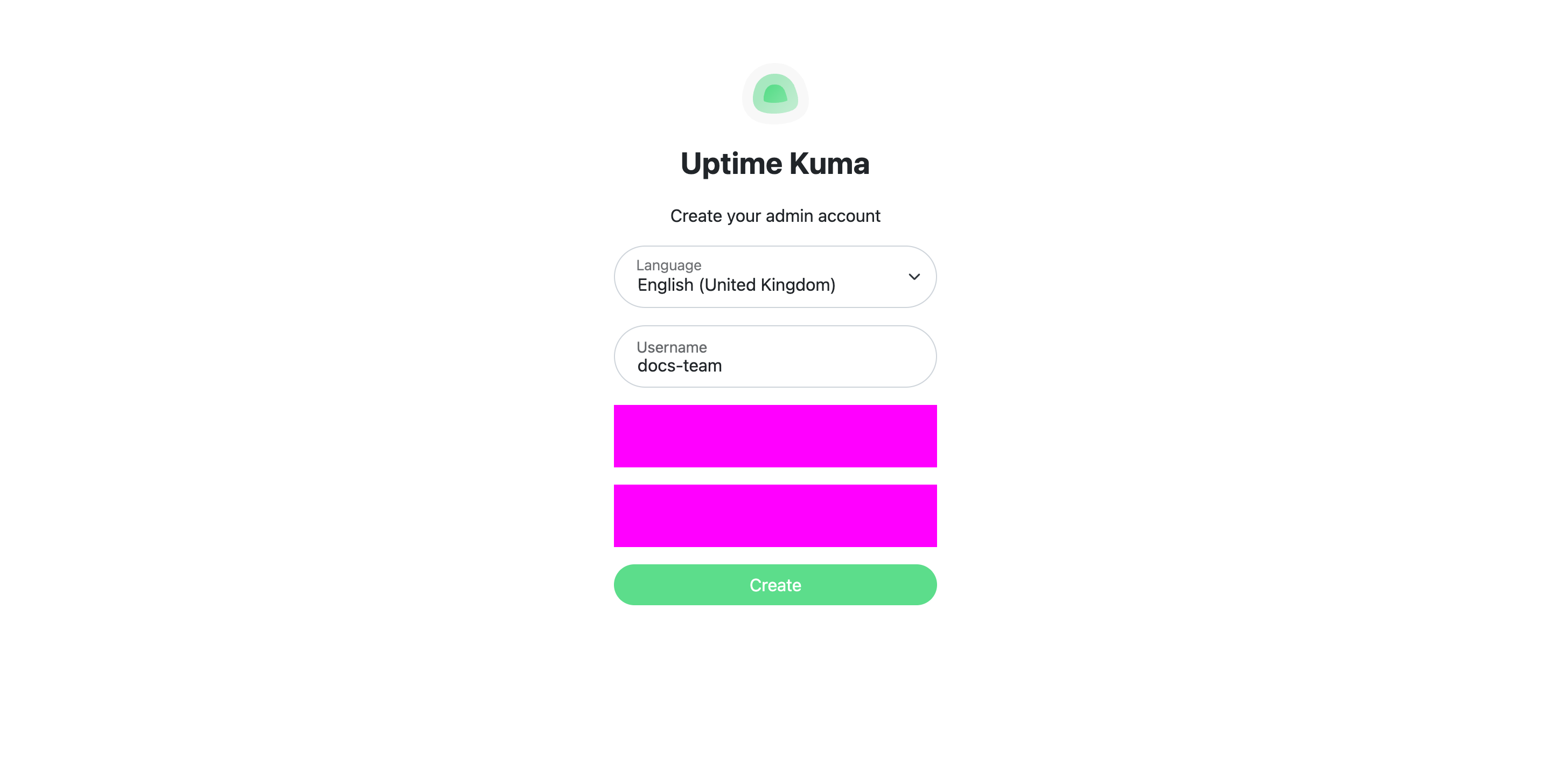
This account belongs to Uptime Kuma. It is separate from your Moltern login. Do not assume the username and password you create inside Uptime Kuma will appear in Moltern's connection details.
Add Your First Website Check
- Select Add New Monitor.
- Keep HTTP(s) as the monitor type.
- Enter a Friendly Name that your team will recognize.
- Enter the full URL, including
https://. Use a stable page or a dedicated health endpoint. A login page returning HTTP 200 is suitable for a basic availability check; it does not prove that authenticated operations work. - Review the check interval and accepted status codes, then select Save.
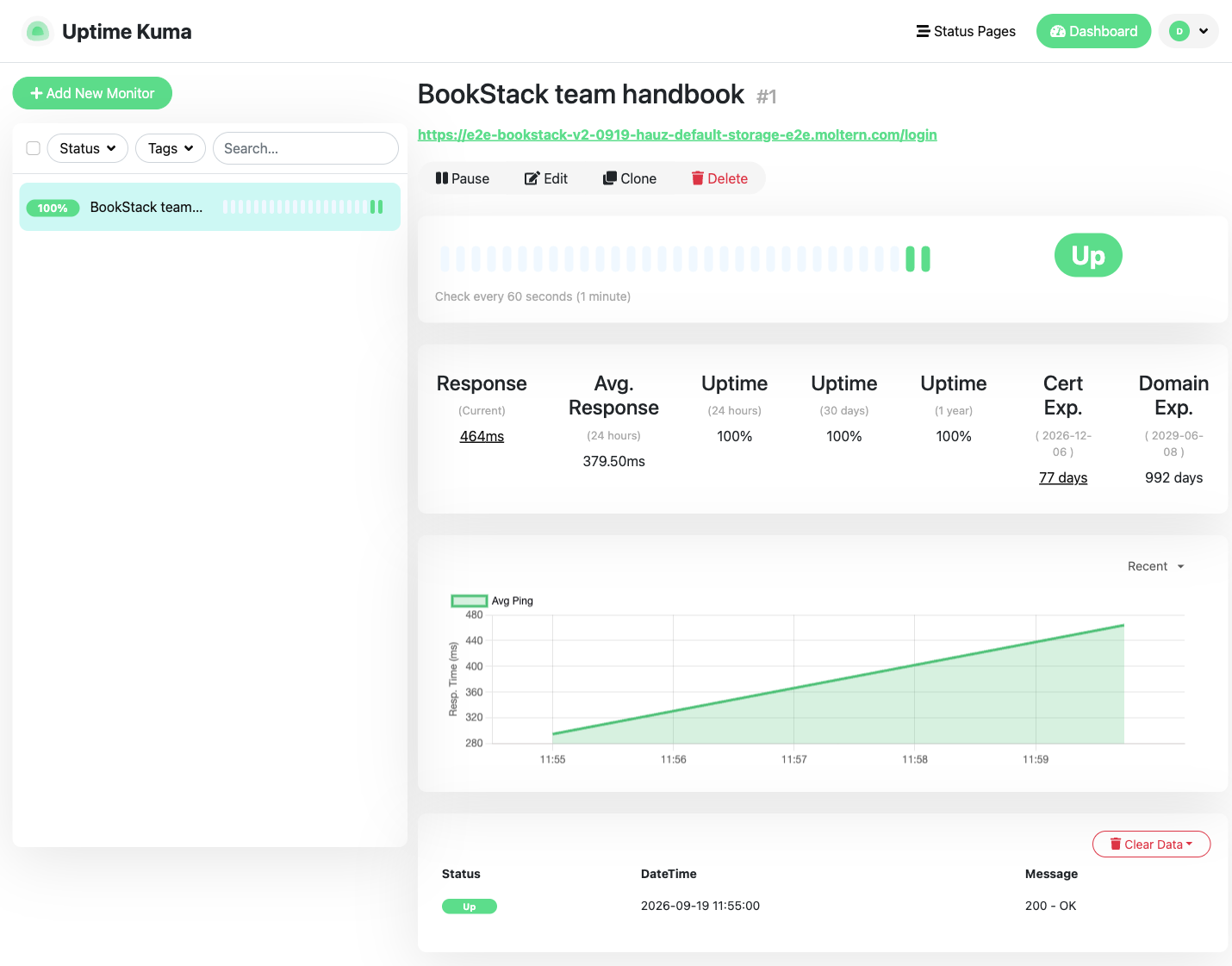
- Open the monitor. Wait for an Up result and inspect the response message.
The screenshot below is a real check of a BookStack service, returning 200 - OK. It is not a sample dashboard with generated metrics.
Understand Network Access
The current template permits public IPv4 website checks on ports 80 and 443 and name resolution. It does not grant unrestricted access to private networks, cloud metadata, or arbitrary TCP ports.
Uptime Kuma offers other monitor types, but their availability depends on the network access configured for your deployment. A private database address or another workspace's address is not automatically reachable. Ask your workspace administrator about an authorized connection before monitoring a private target.
If a check stays Down, inspect its message before changing the application:
| Result | What to check |
|---|---|
| Name resolution error | Spelling, DNS records, and whether the target is public or private. |
| Connection timed out | Target availability, permitted destination port, and network access. |
| HTTP 401 or 403 | The endpoint requires authentication; use a suitable health endpoint or configure authorized credentials. |
| Certificate error | The target's certificate validity and hostname. Keep certificate validation enabled. |
| HTTP 500 | The target responded but reported an application error; inspect that application's logs. |
Notifications And Status Pages
Configure a notification channel in Uptime Kuma and use its test function before depending on alerts. Notification credentials and destinations are not supplied automatically by Moltern. This guide's verified workflow covers HTTP monitoring, not delivery through every notification provider.
Status pages are optional. Review every monitor and label you publish so an external status page does not disclose private application names or URLs.
Capacity, Persistence, And Billing
- Open Capacity in the Moltern service page to review the service and its managed database separately. Check the preview before applying changes.
- A stop/start preserves stored configuration. Monitoring pauses while Uptime Kuma is stopped; stopping the parent does not imply its database also stops.
- Review both workloads under Billing. Resource use and stored data may continue to incur charges even when you are not viewing the dashboard.
- Storage usage updates after collection; small amounts may display below one GiB. An unavailable measurement should not be treated as free storage.
The tested stop/start retained the account, monitor, and existing check history. That is persistence verification, not a backup-and-restore guarantee.
Existing Installations And Deletion
New installations use Uptime Kuma 2 with a managed database. An older installation with SQLite data is not automatically converted. The template stops rather than silently replacing that data. Back up the old installation and plan a supported migration before upgrading it.
To remove the service, use Delete Service in Moltern and review the listed managed dependencies. Choose whether to retain or delete stored data. Deleting stored data also removes the selected service's monitoring history. Take and verify a backup first if you need recovery; do not assume deletion creates one.