C# / .NET Starter
Create a working C# web application with the .NET SDK and ASP.NET Core. The starter includes a browser preview, a small HTTP API, Git and protected terminal access.
It uses modern .NET 10 LTS, not the retired .NET Core 3.1 or Windows-only .NET Framework. This is a Linux development workspace for cross-platform applications, not a Windows desktop or a production hosting guarantee.
The preview URL is public and has no built-in application sign-in. Keep private information out of it until you implement your own authentication and authorization.
Before You Start
- Choose the workspace and environment that should own your project.
- You need permission to deploy services and use the terminal.
- Have a private Git repository ready if you want source collaboration or coding-agent changes.
- A database is optional; the initial application works without one.
Deploy On Moltern
- Open Services, then Development frameworks.
- Choose C# / .NET Starter, enter a name, and select an environment.
- Review the starting capacity: 250 mCPU and 512 MiB memory requested, with limits of 2 CPUs and 2 GiB memory. Larger applications may need more memory.
- Review source-storage capacity and the installation preview before confirming. Follow any plan or Billing guidance shown there.
- Wait for the project to restore and build, then open its generated URL.
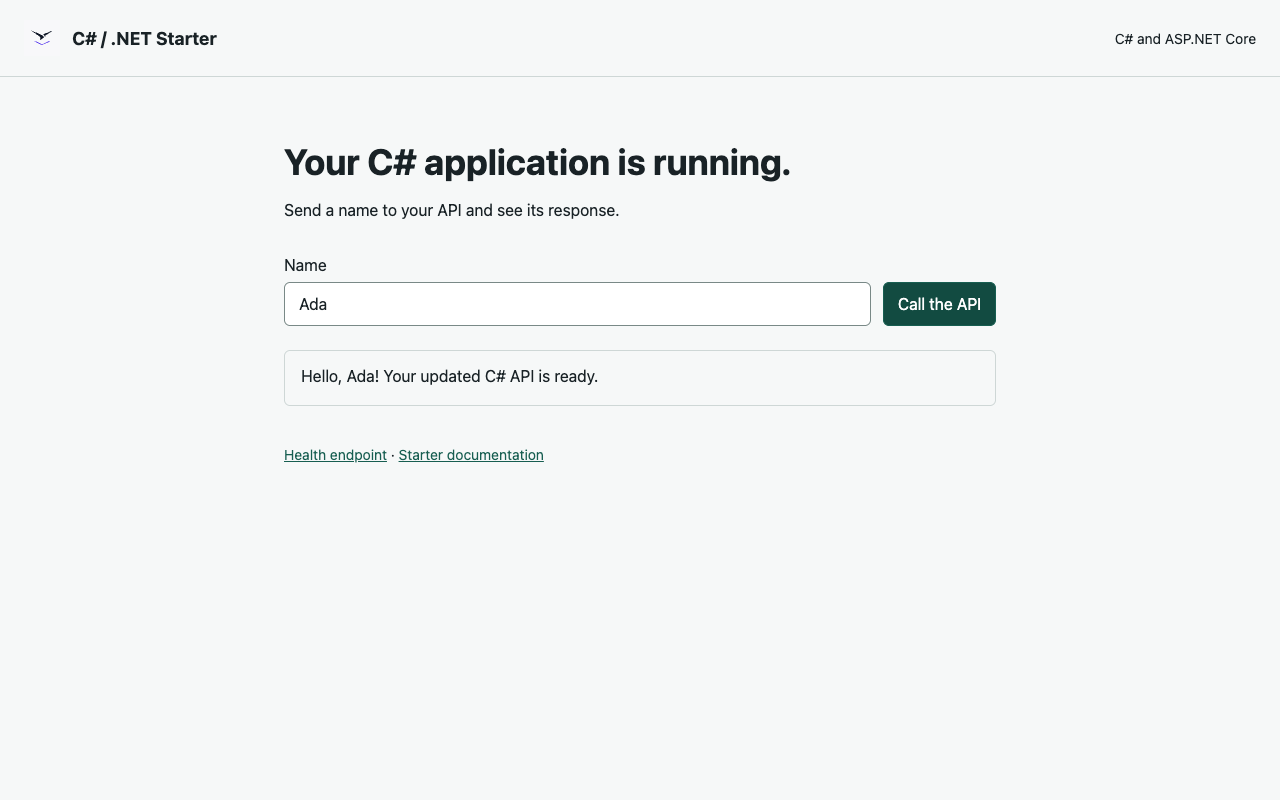
- Enter a name and choose Call the API. The response comes from your ASP.NET Core endpoint, not a static placeholder.
What Is Included
| Component | Purpose |
|---|---|
| .NET SDK 10.0.403 | Restore, compile, run and publish the C# project. |
| ASP.NET Core 10.0.14 | HTTP application runtime. |
| Git and Bash | Source control and terminal commands. |
| Browser preview | A form that calls the greeting API. |
| Health endpoint | GET /health returns {"status":"ok"} when the application is serving requests. |
The source is in /workspace/app:
app/
  MolternStarter.csproj
  Program.cs
  wwwroot/
    index.html
  .gitignore
Program.cs defines the API routes and listens on 0.0.0.0 at the configured PORT, initially 8080. wwwroot/index.html is the browser interface. The project targets net10.0.
Edit And Check The Application
Open the service Terminal:
cd /workspace/app
dotnet --info
git --version
dotnet build --artifacts-path "$MOLTERN_DOTNET_ARTIFACTS"
curl --fail http://127.0.0.1:8080/health
curl --fail 'http://127.0.0.1:8080/api/greeting?name=Ada'
The build should succeed. The requests should return a healthy JSON response and a greeting for Ada.
Edit Program.cs, run the build again, then use Restart in Moltern to launch the updated API. Edit wwwroot/index.html to change the page. Refresh the browser to check the result.
The managed application already uses the preview port. Do not start a second dotnet run on that port in another terminal. Use a separate port only for a temporary experiment and stop that extra process when finished.
The starter does not include a unit-test project. Add an appropriate test project as your application grows, and run that project's tests explicitly; an empty dotnet test result is not evidence that your endpoints work. See testing ASP.NET Core applications.
Dependencies And Build Output
Use dotnet add package to add the library your application needs, review the package version and license, and rebuild before restarting. Network access to public HTTPS package registries is available for restore.
Use the provided artifact location for build and publish commands:
dotnet restore --artifacts-path "$MOLTERN_DOTNET_ARTIFACTS"
dotnet build --no-restore --artifacts-path "$MOLTERN_DOTNET_ARTIFACTS"
dotnet publish -c Release --artifacts-path "$MOLTERN_DOTNET_ARTIFACTS"
The SDK stores intermediate files, packages and compiled output in temporary writable locations. Do not move them into another service's folder or depend on them surviving a replacement runtime. Keep your source and project files in /workspace/app.
If you rename the project file, set MOLTERN_DOTNET_PROJECT to its relative path in your service variables before restarting. Keep the application compatible with the installed SDK; a global.json requiring another SDK will not install it automatically.
Develop With A Coding Agent
- Open a coding agent in the intended environment and connect its provider account.
- In Resources, select this .NET service and the minimum access required.
- Apply the permission change and restart the agent if Moltern requests it.
- Authorize a dedicated private repository or branch for source changes.
- Ask the agent to implement a specific C# change and add tests. Run native checks in the framework terminal unless the agent has an explicitly configured test runner.
- Review its commit, pull that exact commit into the framework workspace, build, and restart.
- Revoke temporary grants and repository credentials after the task.
Example request:
Add a customer feedback API and browser form. Validate input, keep
/healthworking, add tests, and commit the changes to our private feature branch.
Attaching a service gives the agent only its approved context and connection scope. It does not automatically mount this source directory in the agent, grant unrestricted terminal access, or authorize private Git. Use Git for source synchronization.
See Coding Agents and Development Frameworks.
Use A Private Git Repository
cd /workspace/app
git init
git switch -c feature/dotnet-api
git status
git add MolternStarter.csproj Program.cs wwwroot .gitignore
git commit -m 'Start the C# application'
git remote add origin https://YOUR_GIT_HOST/YOUR_TEAM/YOUR_PRIVATE_REPOSITORY.git
Set a repository-local author identity if needed. Use an approved short-lived credential flow to push or pull; never embed a token in the remote URL or save it in source, shell history, or screenshots.
This SDK image includes Git over HTTPS. It does not include an SSH client: use an HTTPS remote instead of assuming ssh or ssh-keygen is present. A personal token with access to every repository is not required for normal collaboration.
Connect PostgreSQL, Redis Or Another Service
Install the dependency in the intended environment, or select an existing compatible instance through Private service connections. Grant only the connection your application needs.
Your C# application still needs the service's native credentials and client library. For example, use a maintained PostgreSQL client such as Npgsql, and read its connection settings from configured environment variables. The starter does not create a database account, schema or migrations automatically.
Keep connection strings out of source and Git. Do not log passwords or API keys while troubleshooting. A public service URL alone is not authenticated access to its data.
Persistence, Capacity And Restarts
| Item | What Happens |
|---|---|
Project source and .git metadata | Retained through stop, start, restart and resize. |
| NuGet cache and compiled artifacts | Temporary; restored or rebuilt when the runtime is replaced. |
| Temporary home and global Git configuration | Can reset; put retained author settings in the repository's own configuration. |
| Service variables | Managed independently from project files. |
First boot initializes an empty project directory once. If files already exist but the configured project is missing, startup stops and leaves those files untouched. Restore the intended project or choose a new empty workspace rather than deleting files blindly.
Use Settings to adjust CPU and memory if restore or compilation needs more capacity. Review Billing and your plan's usage allowance first. This is one development runtime; its URL can be briefly unavailable during a restart or capacity change.
Deploy A Production Application
Push a reviewed version to a private repository and create a Git-backed Moltern Application. Use a reproducible build, usually a multi-stage Dockerfile with an SDK build stage and a matching ASP.NET Core runtime stage.
Publish the application, configure its port and health endpoint, attach the intended services, and test the actual production image before moving traffic. Implement your own sign-in, authorization, migrations and recovery procedures. The starter does not turn a development process into a highly available production deployment.
Troubleshooting
| Symptom | What To Do |
|---|---|
| Project restore or build fails | Read the first error in deployment logs. Check the package source, SDK compatibility and available memory. |
| Missing project file | Check MOLTERN_DOTNET_PROJECT and /workspace/app. Existing non-empty folders are not overwritten automatically. |
| SDK not found | Compare global.json and the project target with dotnet --info. Use the supported SDK or a separately reviewed runtime. |
| Address already in use | Stop only your additional test process; the managed application already owns the preview port. |
| Permission or output-path error | Use --artifacts-path "$MOLTERN_DOTNET_ARTIFACTS"; do not write build products into the runtime installation. |
| API changes do not appear | Build, restart the service, and check the reviewed Git commit. Browser refresh alone does not restart C# code. |
| Database access fails | Verify the selected connection, native credentials, client configuration and database readiness. |
Stop And Delete
Use Stop to pause compute while retaining source. A later start may need to restore dependencies and compile again. Before deleting, push any work you need to keep. Review the stored-data choice: retained files continue to count as storage, while deleting stored data removes this service's project.