Live Helper Chat
Live Helper Chat gives a website a support conversation with a real operator. Visitors write in the chat widget or a direct chat page; your team accepts and answers conversations in an operator inbox. Departments, conversation history, files and native API integrations help organize the work behind each reply.
Your Moltern account and your Live Helper Chat account are separate. Adding someone to your Moltern workspace does not automatically make them a support operator, and knowing the website URL does not grant operator access.
Before You Start
- Choose the Moltern workspace and environment that should own the inbox.
- Decide who will own the first administrator account.
- Review capacity for both the support application and its required database.
- Decide whether visitors should upload files, and which types you need.
- Arrange email delivery before depending on password recovery or email alerts.
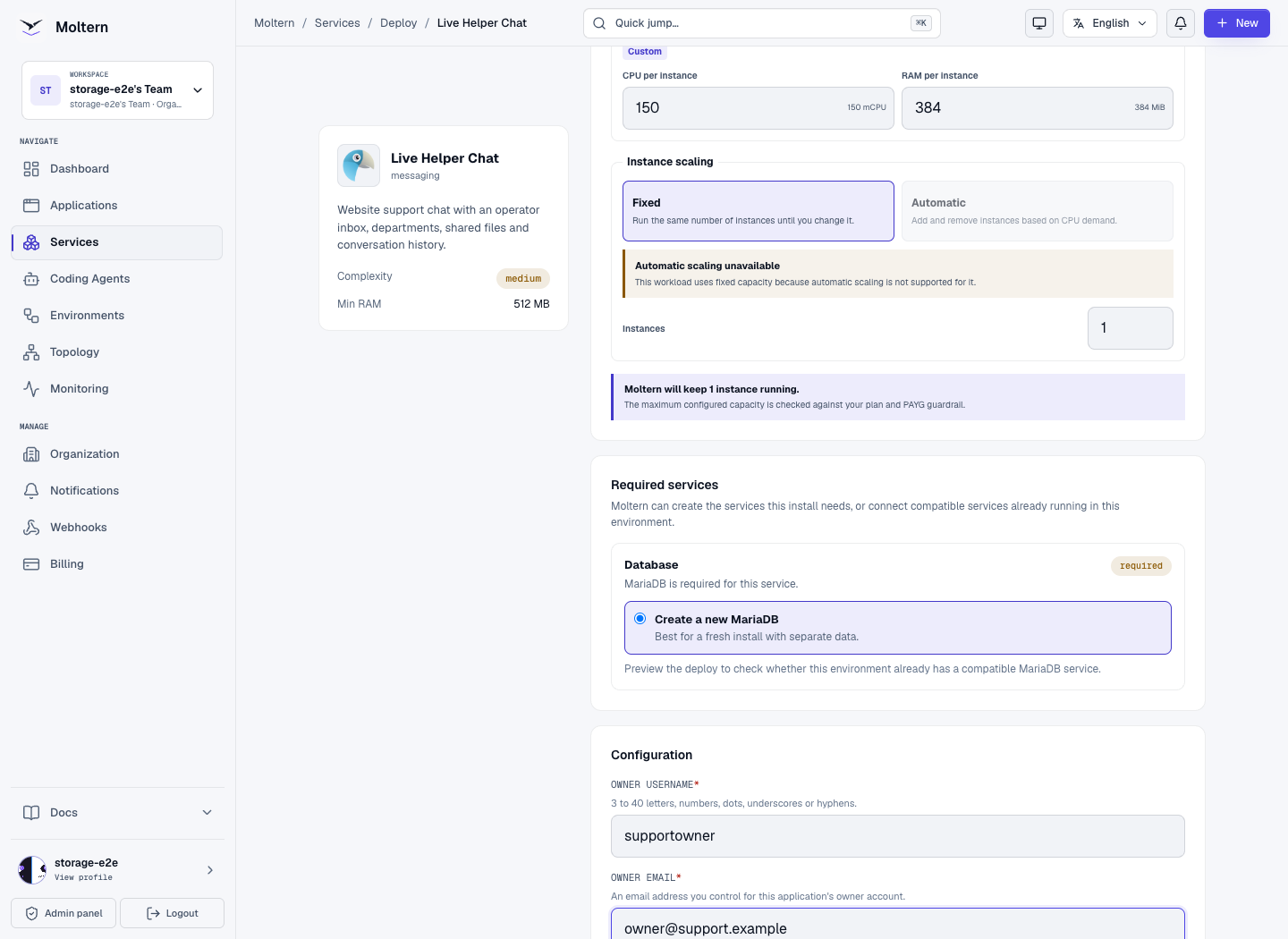
The application starts with 150 mCPU and 384 MiB RAM, plus 50 mCPU and 128 MiB RAM for its background work. Its managed database needs additional capacity, shown in the installation preview. These are starting sizes, not a capacity guarantee for every team. This template runs as one instance; do not enable extra replicas as a substitute for reviewing conversation load.
Deploy Live Helper Chat
- Open Services > Service Catalog > Messaging > Live Helper Chat.
- Enter a recognizable service name and select its environment.
- Review Capacity and scaling. Adjust CPU and memory for your expected use.
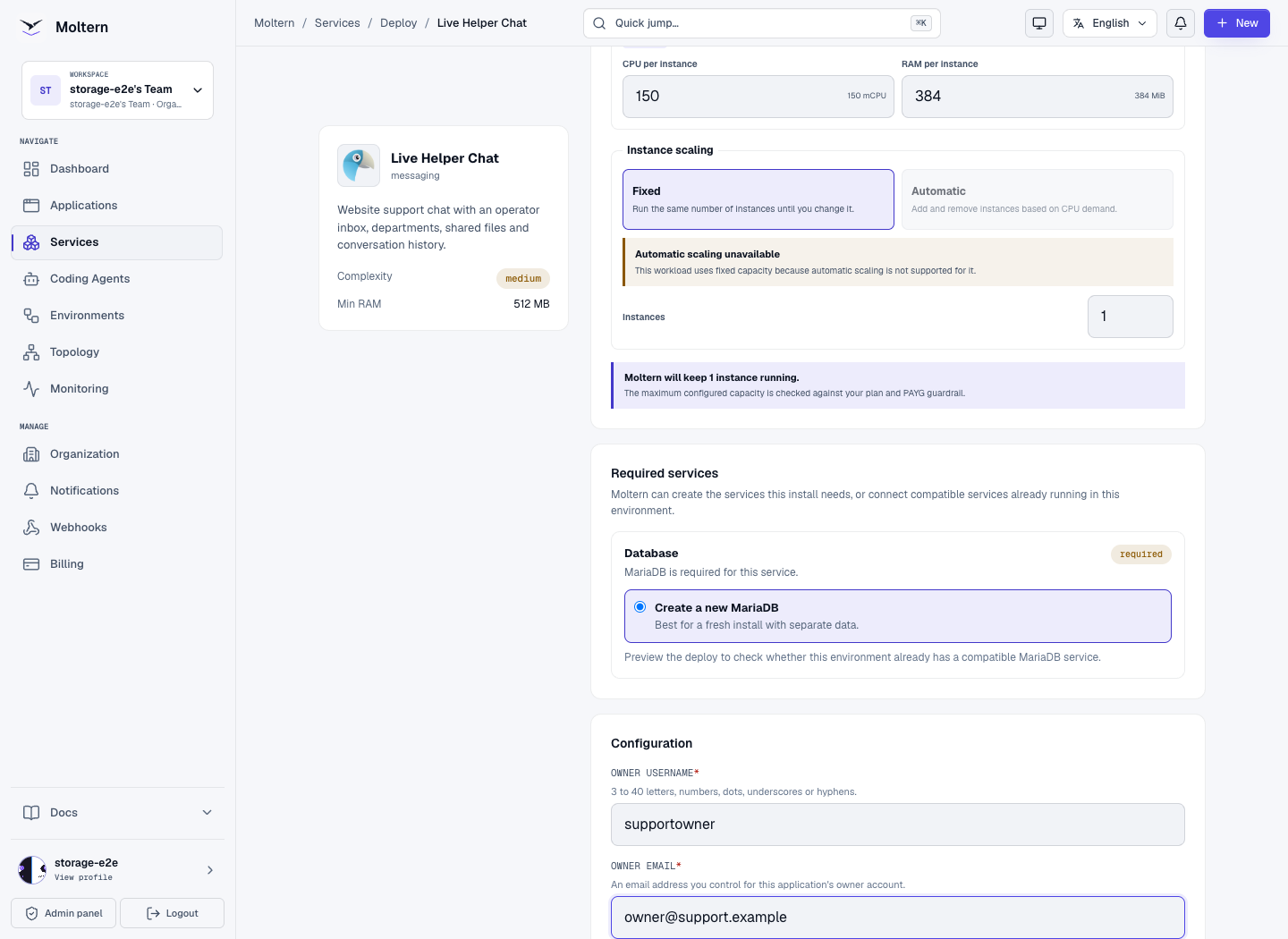
- Under Required services, create a compatible managed MariaDB database for the new installation, or deliberately select an appropriate existing database. Do not select an unrelated application's populated database.
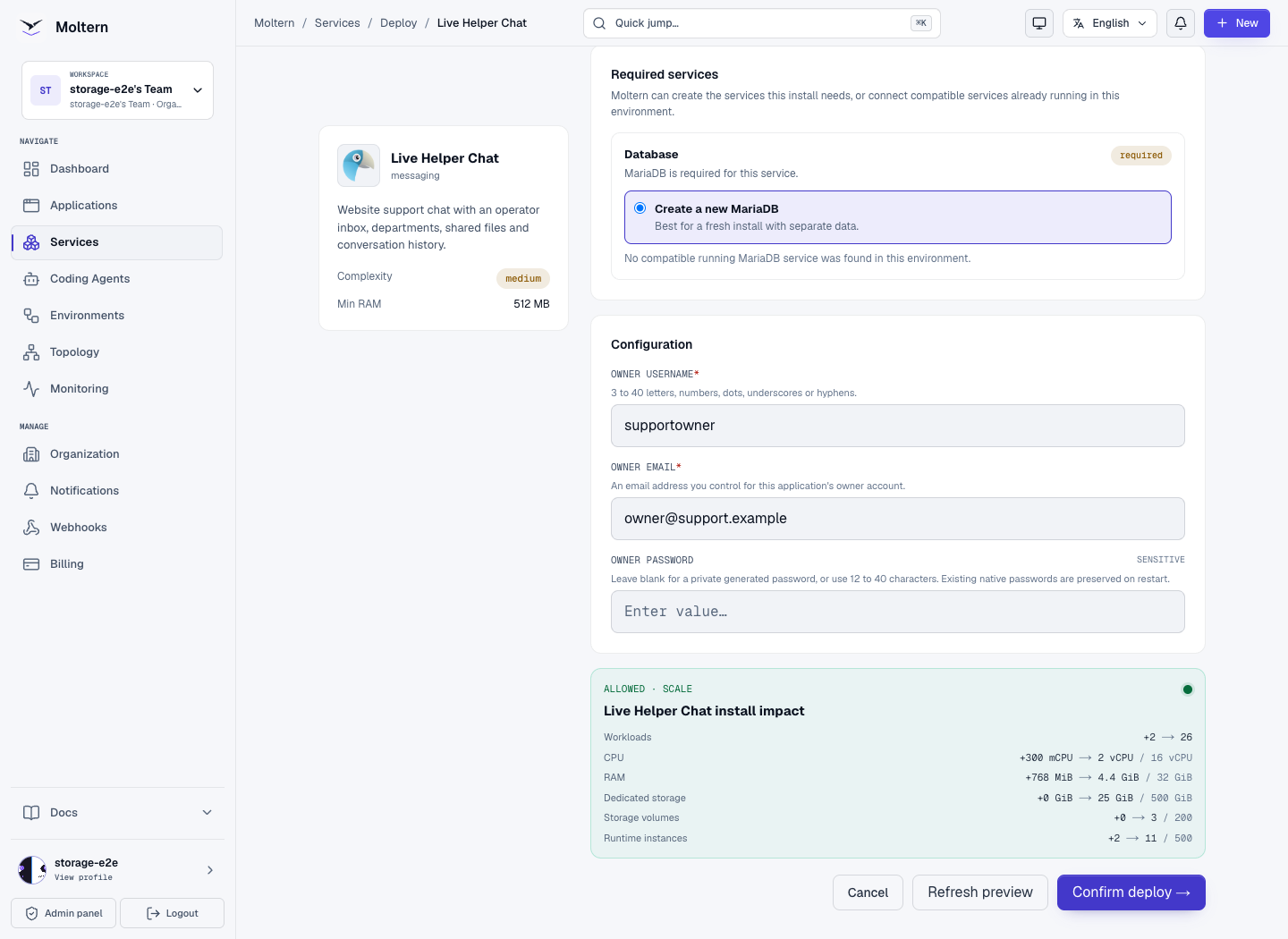
- Enter an Owner username of 3–40 letters, numbers, dots, underscores or hyphens, and an Owner email you control.
- Leave Owner password blank for a private generated password, or enter a strong, unique password of 12–40 characters.
- Select Preview deploy and review the application, background work, database and storage impact together.
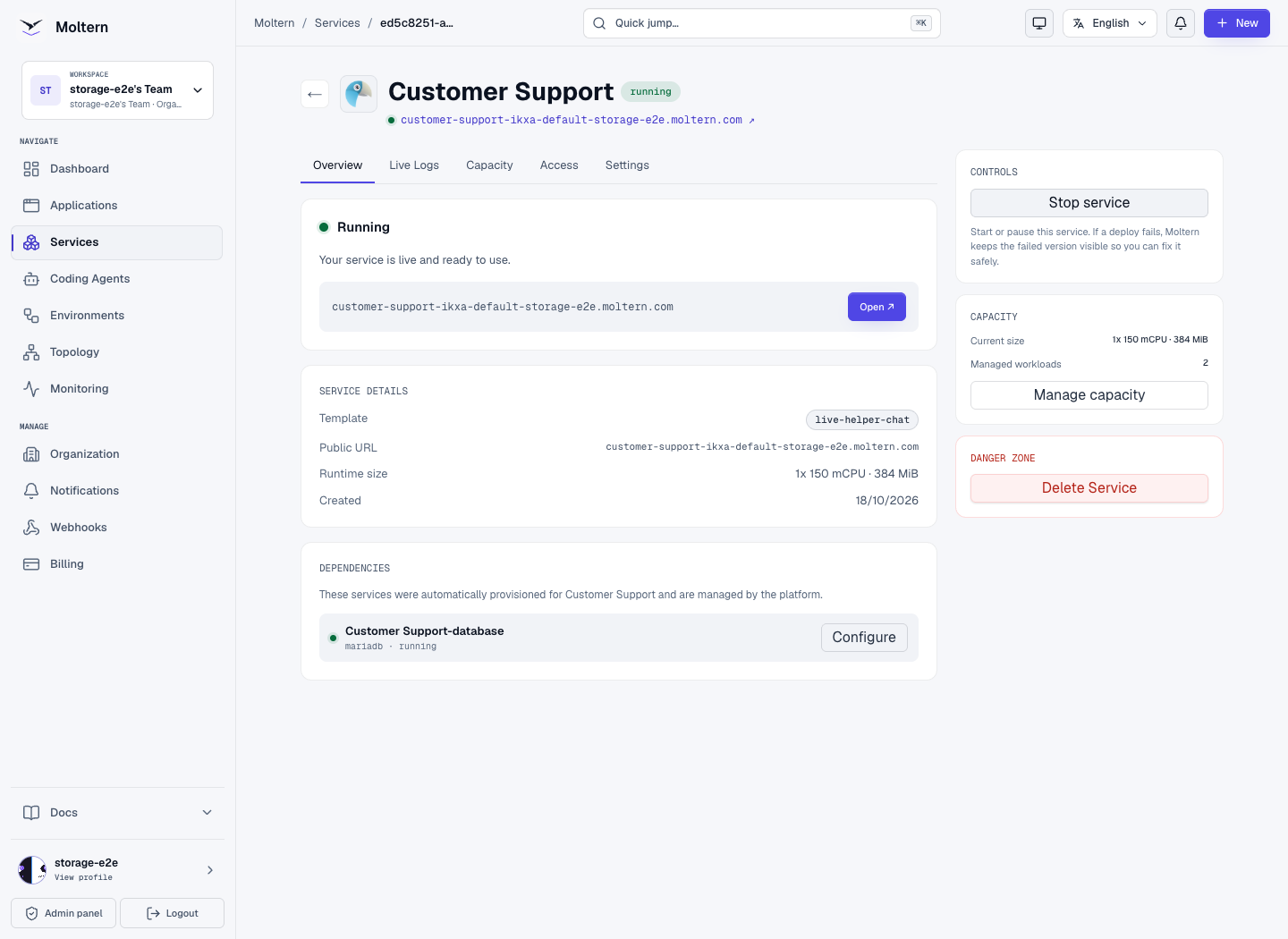
- Choose Confirm deploy, then wait for dependency preparation and startup.
The service and its database store their persistent data in separate, workspace-managed storage locations. A different database selection is not a data migration. Keep the original database attached when restarting an existing inbox.
Sign In as the Owner
Open the service's Settings > Connection details in Moltern. Complete the security check when requested, then use your connection-details password to reveal the initial owner username, email and password privately.
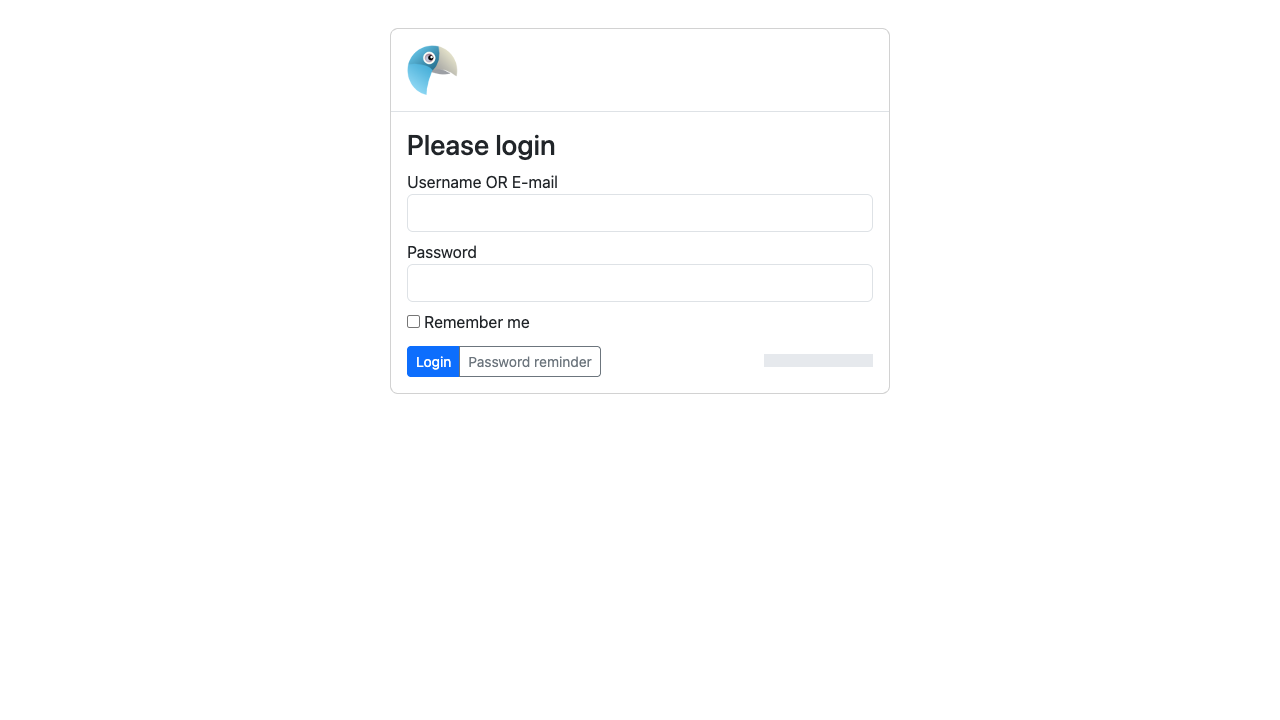
Open the service URL and go to /site_admin. Sign in using that application's
owner credentials, not your Moltern login. A fresh installation already has its
owner account; you do not need to run a public installation wizard.
Keep passwords in a password manager. If you change or recover the password inside Live Helper Chat, use the new password afterward. Moltern's initial connection details are not a live mirror of native account changes.
Prepare Your Support Inbox
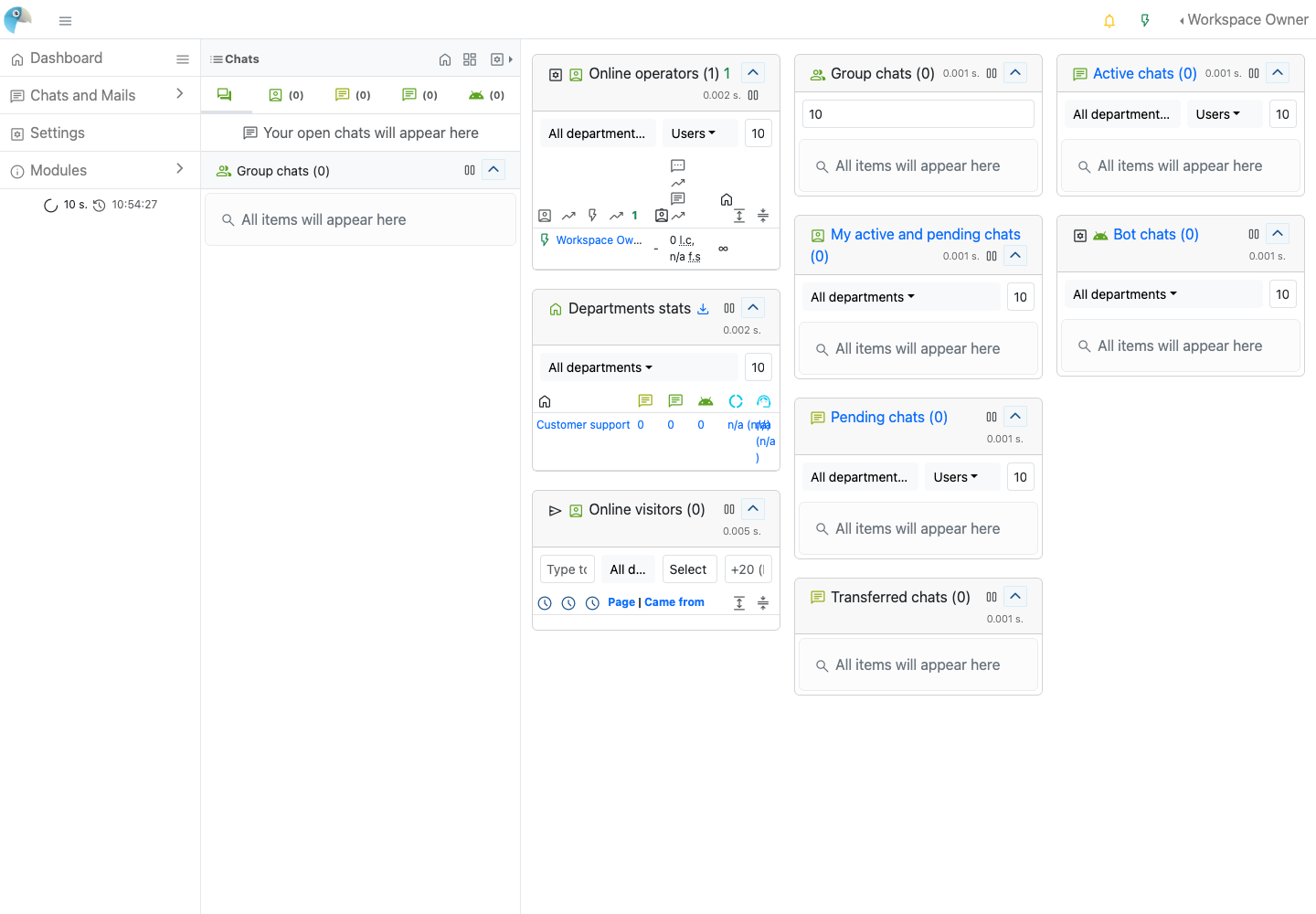
Open Settings > Departments to review the initial Customer support department. Give departments names that help operators route conversations, such as Product support or Account help. Assign the appropriate operators before embedding a department-specific widget on a website.
Use the operator profile menu to set your availability. Keep a signed-in operator online while testing a live conversation. An open website widget does not make an offline operator available to answer.
Add an Operator
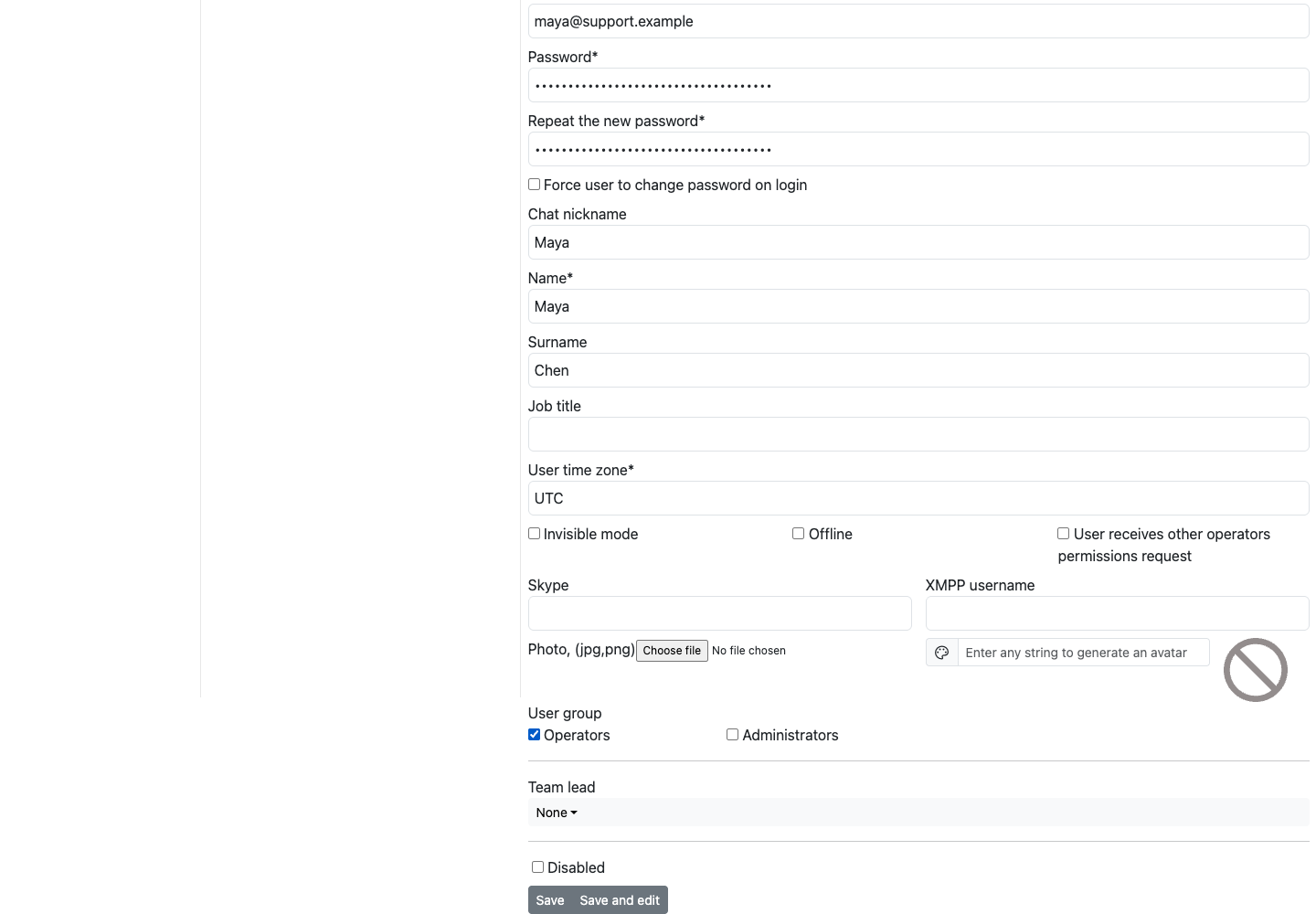
In Settings > Users, create a colleague with their own username, email and password. Assign only the support group and department access needed for their work. Do not give every operator administrator permissions or share the owner account.
- Choose New user and enter the colleague's account details.
- Select Operators, not Administrators, for an ordinary support agent.
- Save the account. Department assignment becomes available after this save.
- Edit the saved user and open Assigned departments.
- Under Individual departments, choose New and select Customer support, or the specific department that colleague should handle.
- Choose Assign as operator, then Add. Do not select All departments unless that wider access is intentional.
- Have the colleague sign in separately and set their availability online.
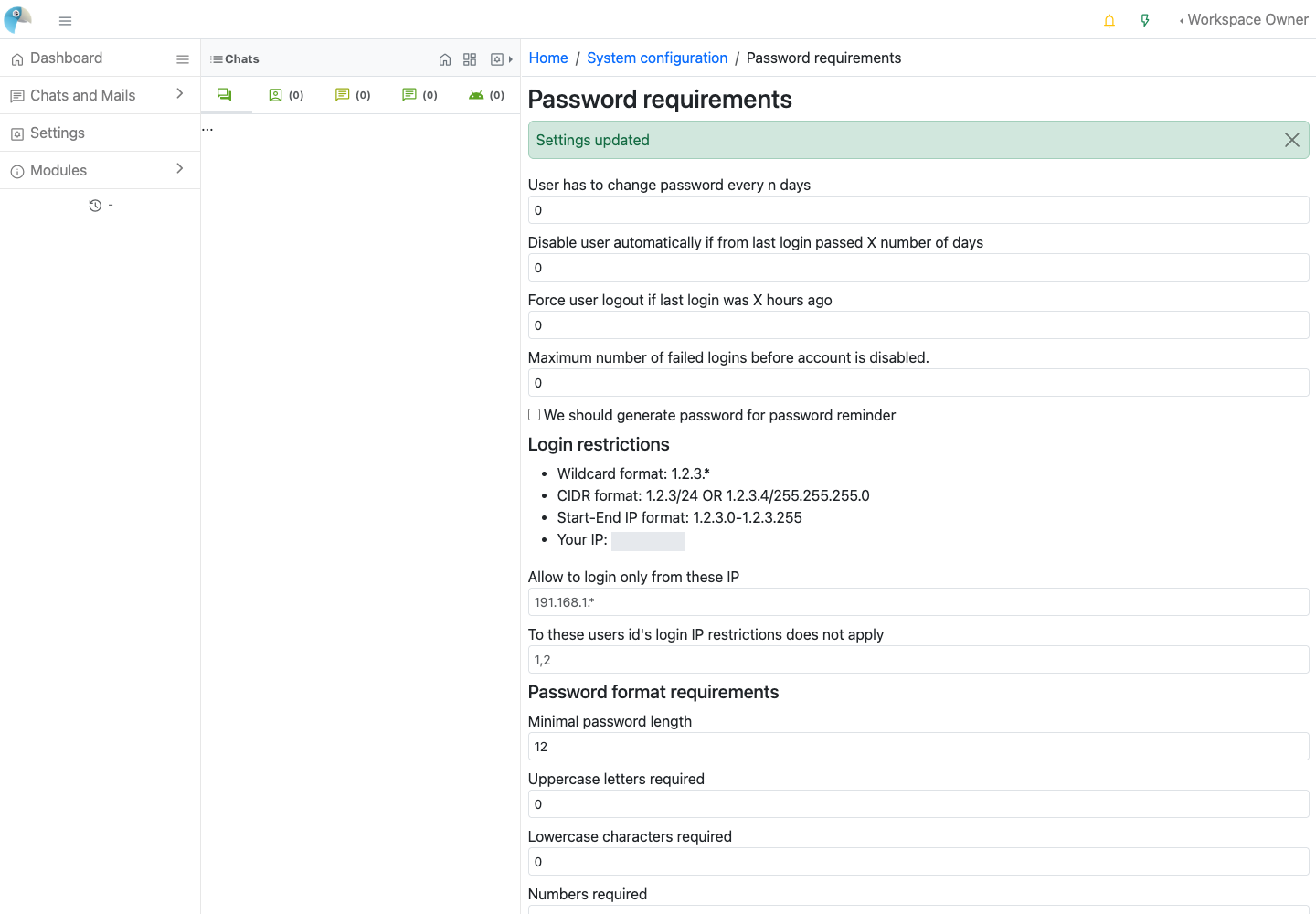
Review Settings > Password requirements before inviting operators. New installations start with a 12-character minimum. Keep a strong minimum and choose any additional requirements that suit your support team.
Have the colleague sign in independently and confirm that they can work on their assigned conversations. Department membership, application roles and Moltern organization permissions are different controls.
Add Chat to a Website
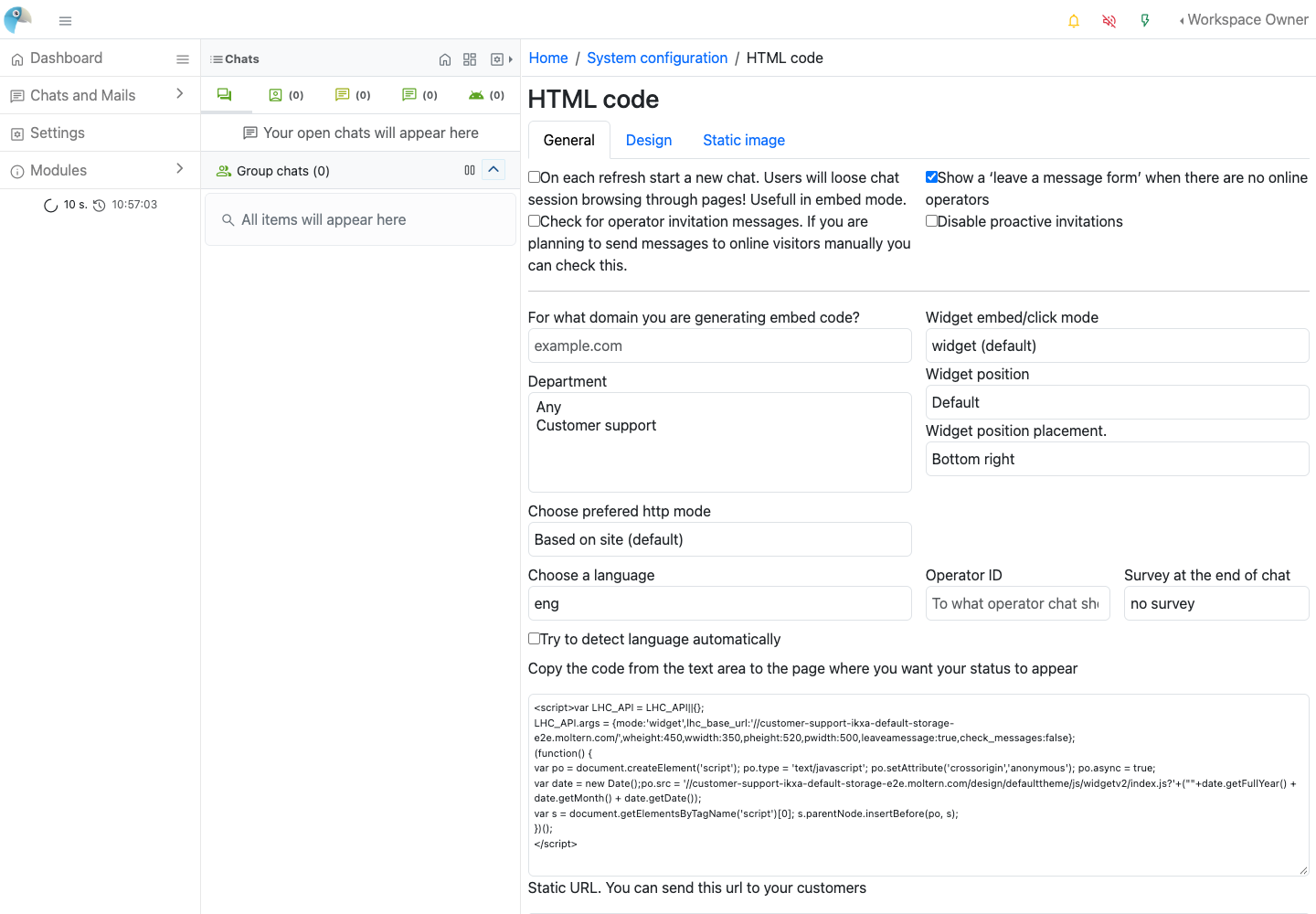
Open Settings > Embed code > Widget embed code (new). Select the intended department and options, then copy the generated script into the website where you want the chat launcher to appear. Use the HTTPS address of your deployed service.
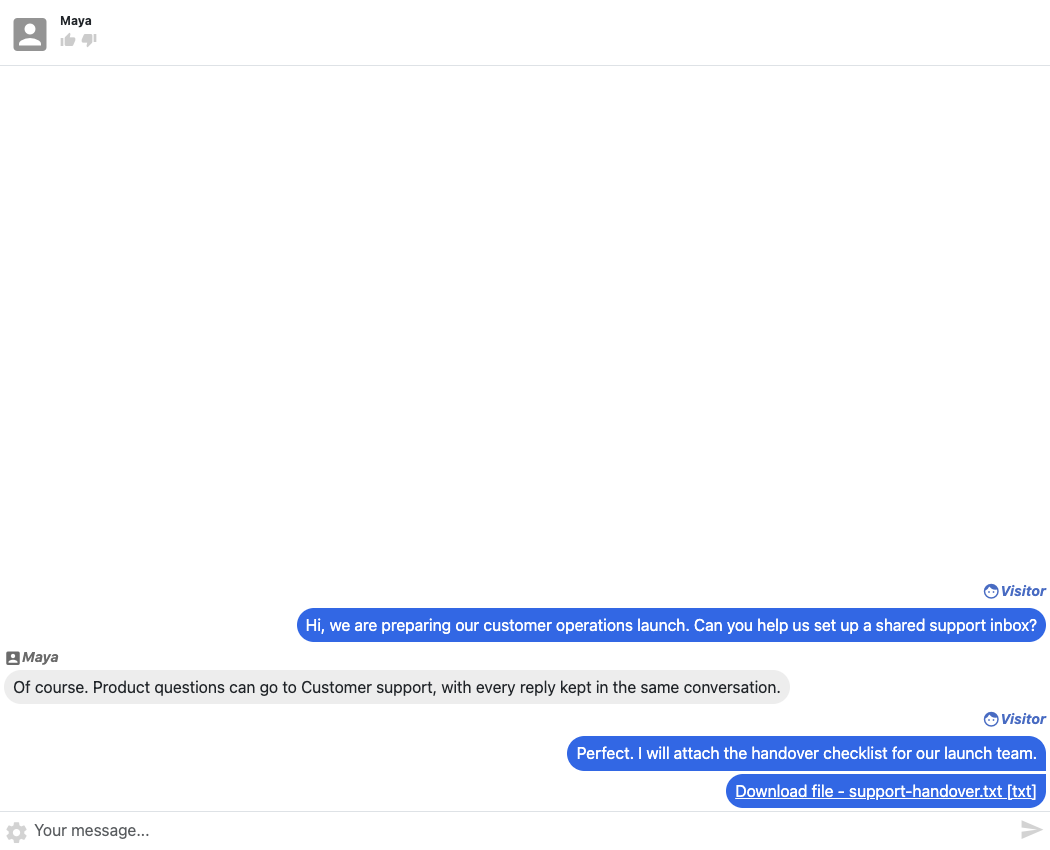
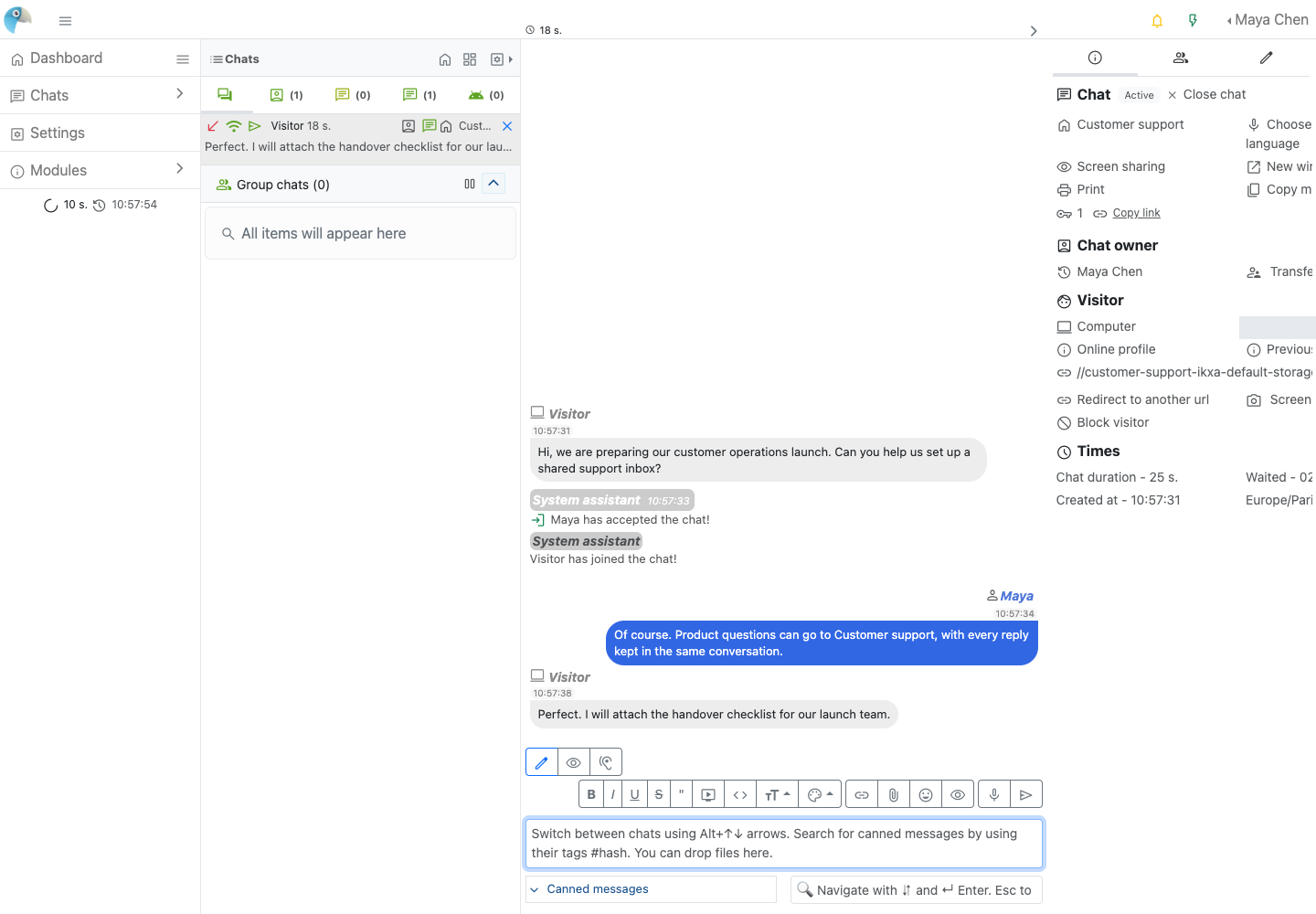
For a quick standalone test, open /eng/chat/start on the service URL in a
separate browser profile or private window. Send a realistic question, then
return to the operator inbox and open the pending conversation. Accept it and
reply. The visitor should see the operator's response without signing into
Moltern.
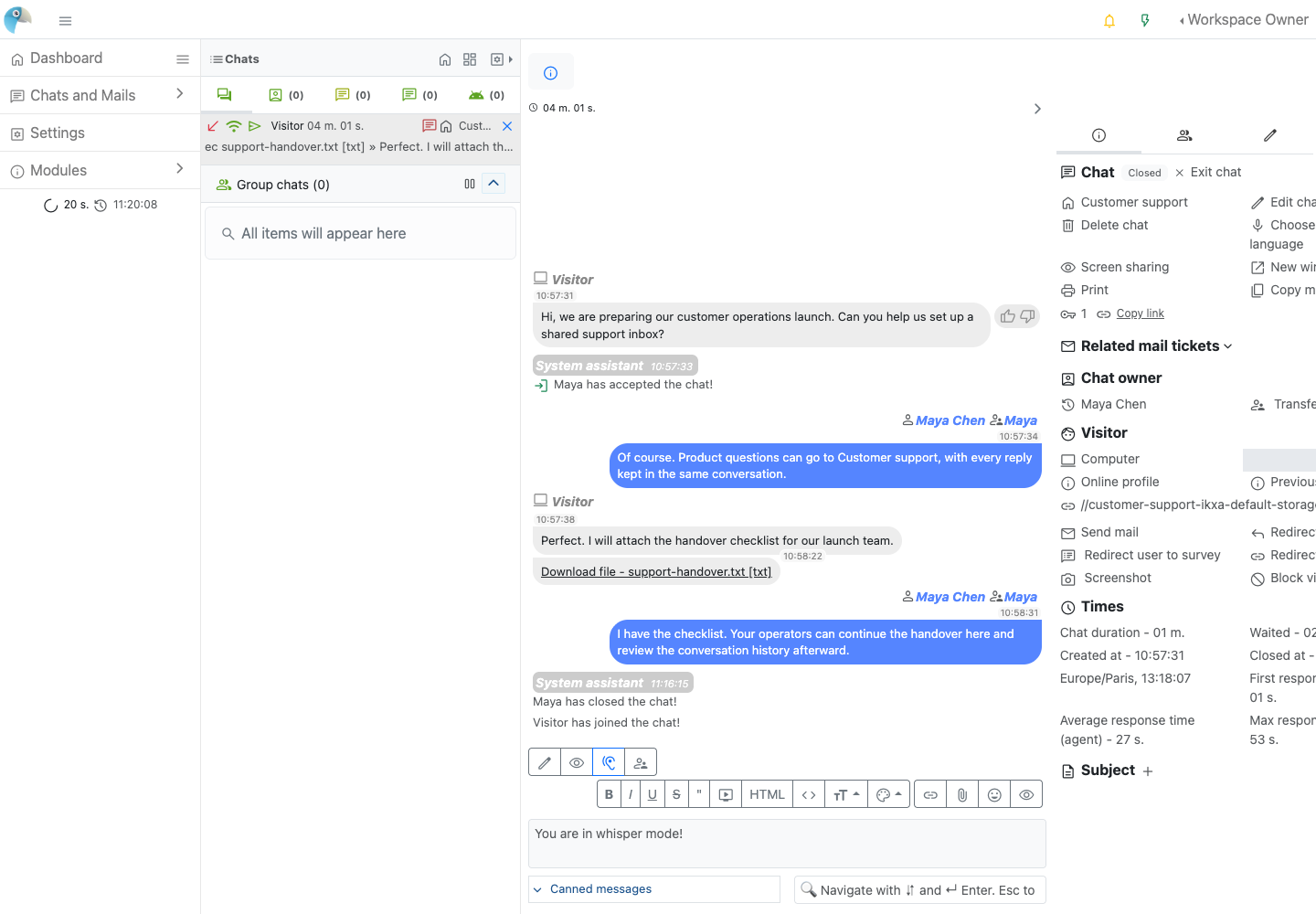
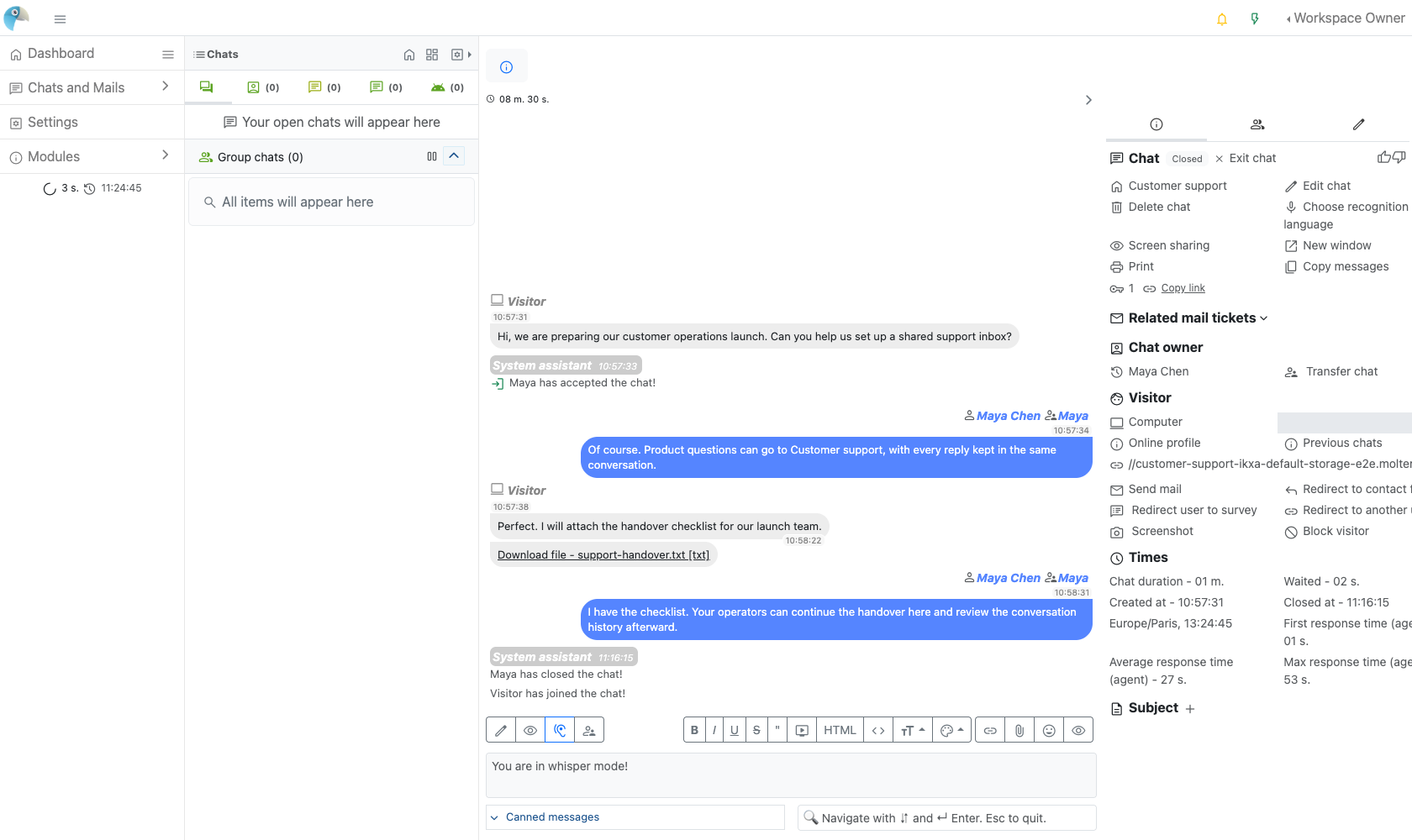
After resolving the request, use Close chat. Find the conversation again through Chats List to review its history. Closing a conversation does not delete the service or its stored messages.
Share Files Safely
Open Settings > File configuration. Operator uploads and visitor uploads have separate controls; enable visitor uploads only when your team needs them. Choose a small set of permitted extensions and a size limit appropriate for support requests. Keep file download permissions restrictive.
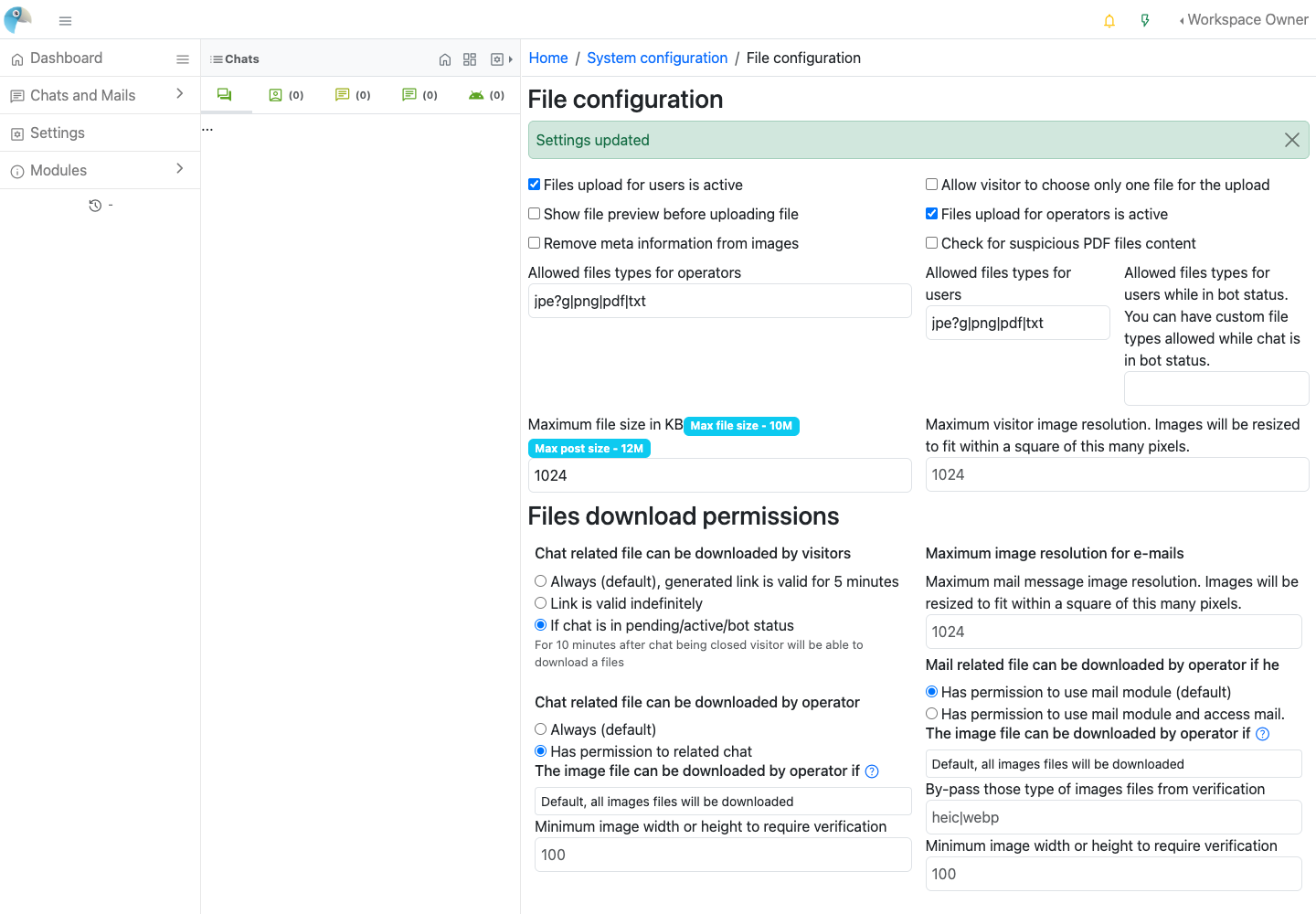
Use the attachment action in a conversation, select a permitted file and wait for it to appear in the conversation. Open it as the intended recipient to check that the original file downloads correctly.
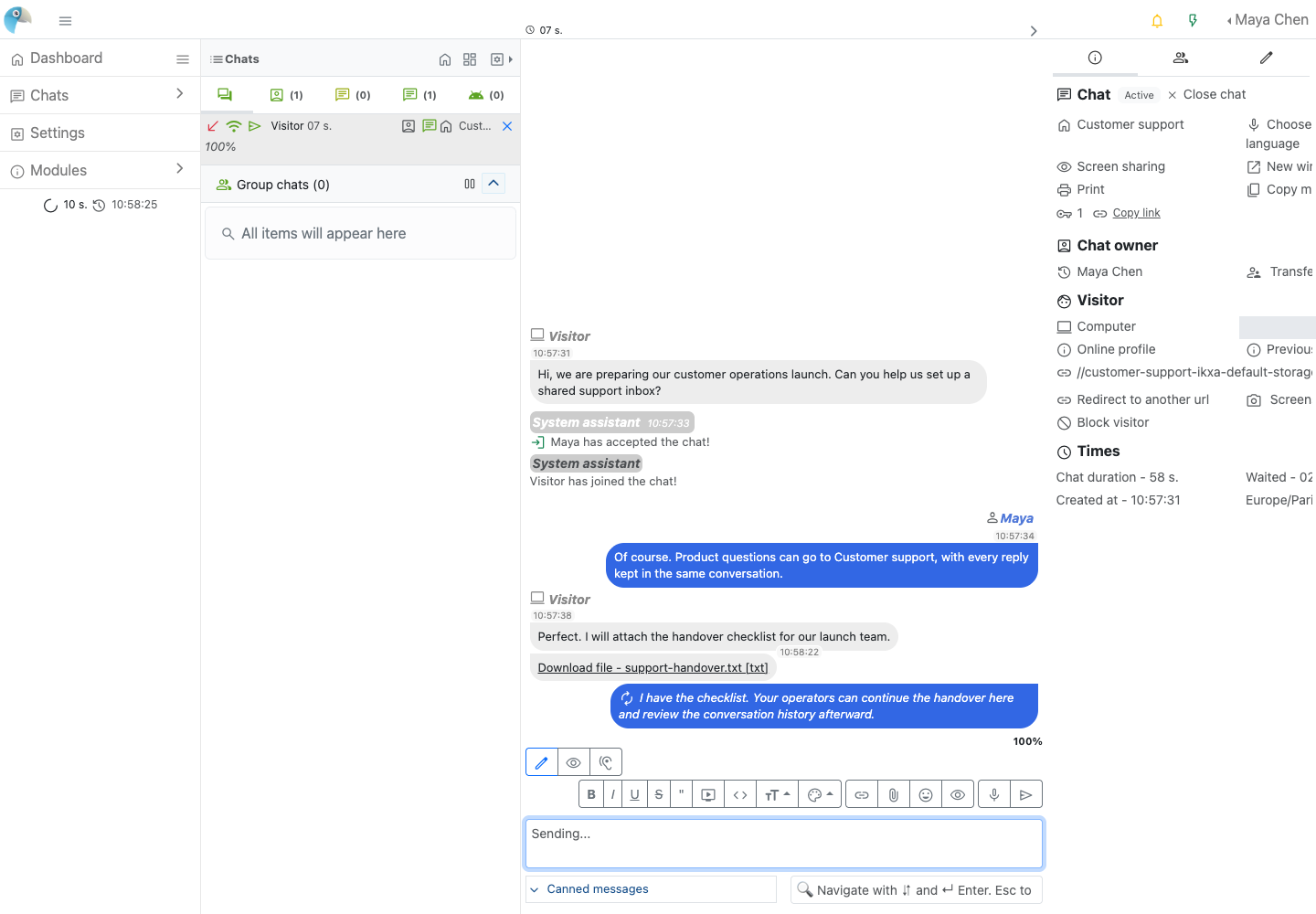
This template accepts at most 10 MiB per uploaded file at the runtime layer; a lower native limit still applies. Permitted extensions do not prove that a file is safe. Antivirus scanning requires a separately configured scanner and is not automatically supplied with this template.
Visitor download links can be short-lived capabilities. Treat complete links, including their access parameters, as private; do not post them publicly. Operator access and visitor link lifetime are controlled in File configuration. Never use the indefinite-link option for sensitive support attachments.
Configure Email and Password Recovery
Open Settings > Mail settings. Configure a sender address and display name, then open the SMTP tab and enter the host, port, authentication and security settings supplied by your mail service. Save the configuration and send a controlled test before relying on it for account recovery.
For a private mail service in the same Moltern environment, first grant the required connection under the Live Helper Chat service's Settings > Private service connections. Select only the intended service. Network permission does not automatically configure the native SMTP form.
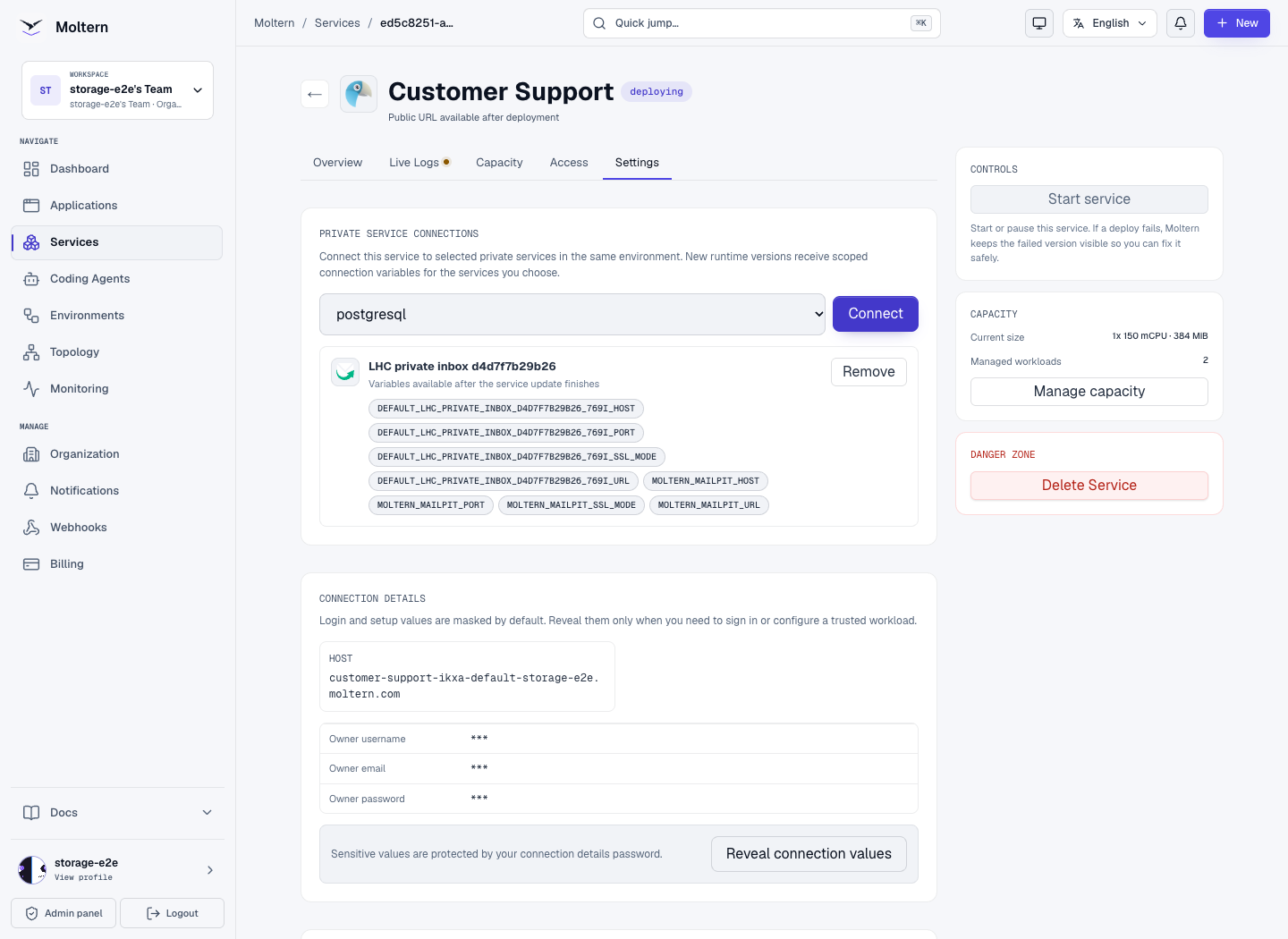
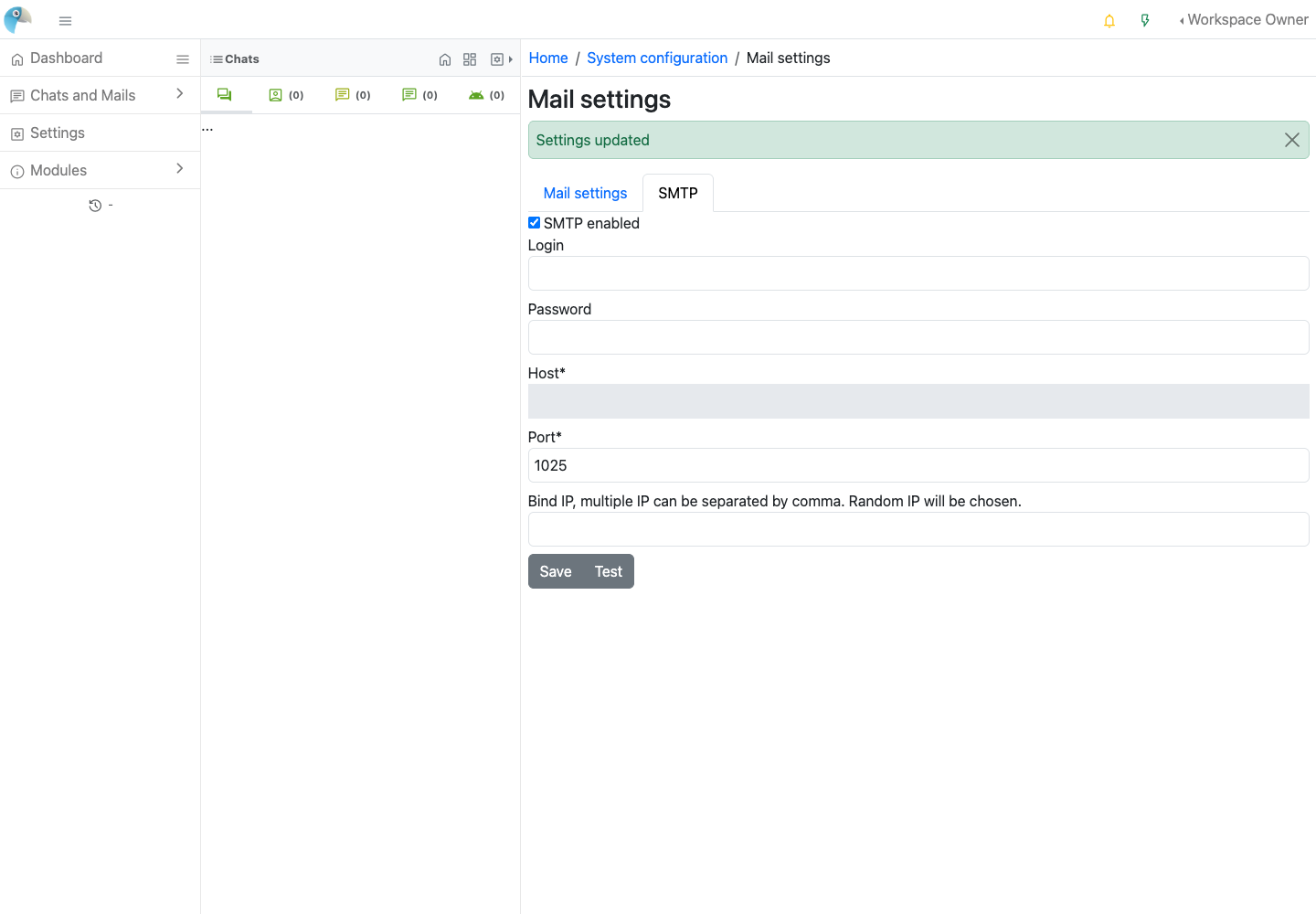
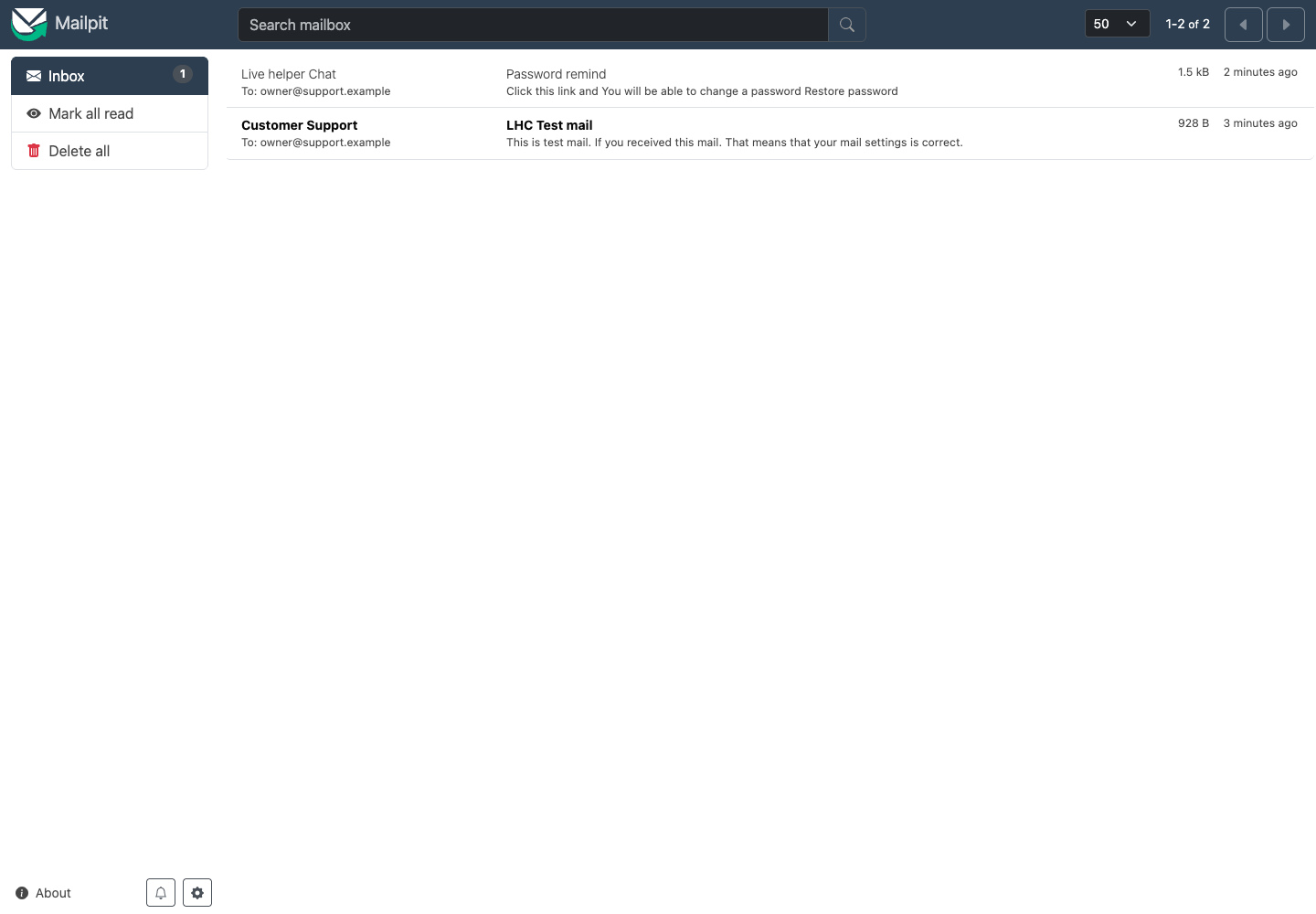
Mailpit is useful for development and staging because it captures mail without delivering it to real mailboxes. A captured message does not prove that an external recipient received it. For production, use an approved delivery service and confirm its sender verification, authentication, TLS and allowed network connection. Installing this template does not create an external mail-provider account or open unrestricted outbound connectivity.
To recover an account, open the operator sign-in page, choose Password reminder, and enter the account email. Open the recovery message in that account's mailbox and follow its link to choose a new password. Recovery links are secrets: do not share them in screenshots, logs or support requests.
Visitors can also request a transcript from the chat's options menu using Send chat to your email!. This uses the same configured mail delivery; validate that flow before advertising email transcripts to customers.
Connect an Application or Coding Agent
A private connection and an application credential solve different problems: the connection permits selected network access; the credential determines what the caller may do inside Live Helper Chat.
For a native integration, create a dedicated operator with only the necessary department and role permissions. In Settings > Rest API > Rest API Keys, create an active key for that account. Limit its source addresses when that is appropriate for your deployment. Do not reuse an owner password in a public application or browser bundle.
The native source-address field refers to the address seen by the application. With a reverse proxy, that may not be the caller's public address. Confirm this with your administrator before treating an IP restriction as a client security boundary. Always rely on a private key and appropriate native permissions too.
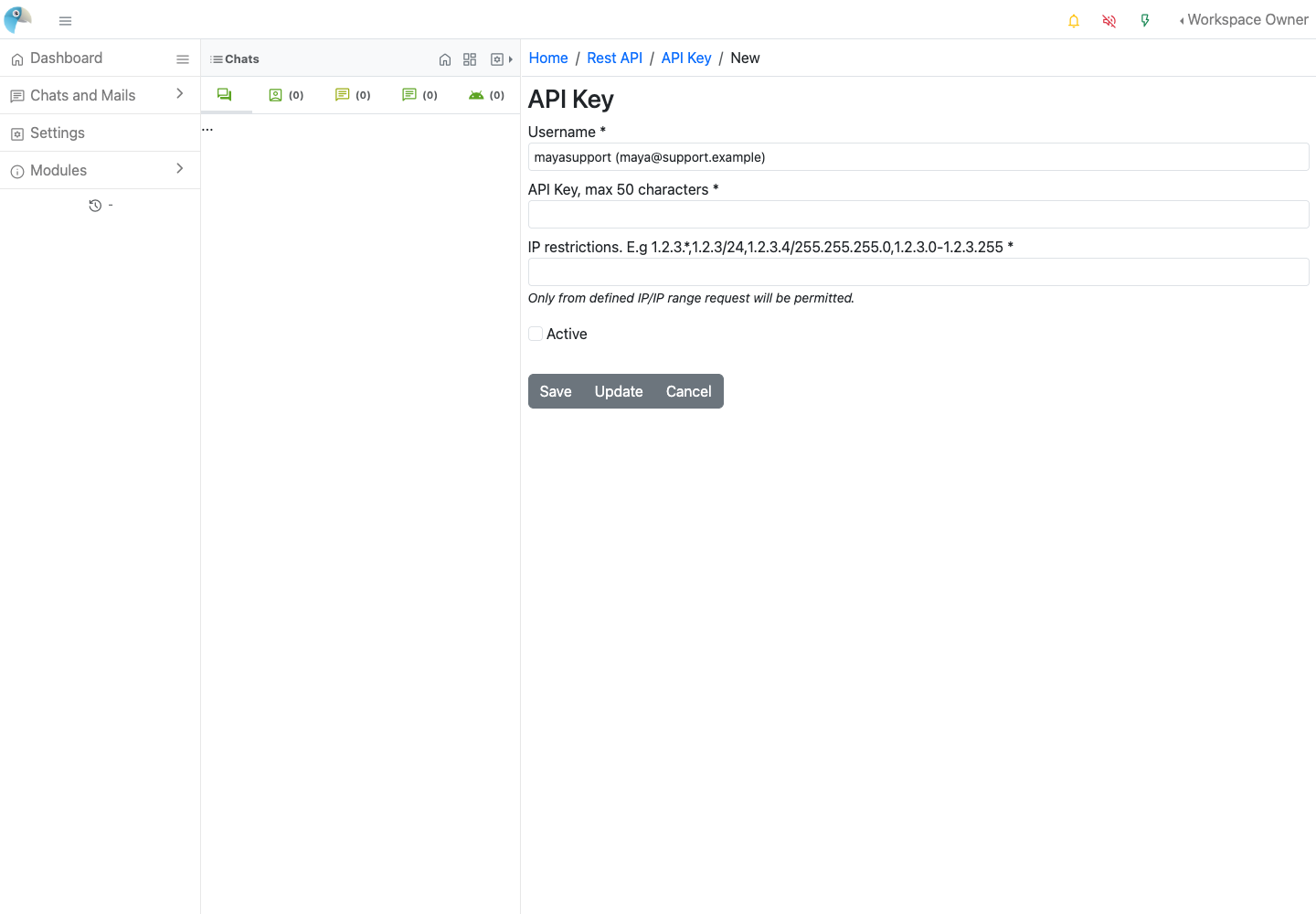
The native REST API uses HTTP Basic authentication: the operator username is the username and its API key is the password. Store the key as a secret in the calling workload. Read-only context about a service is not an API key, an operator session or permission to administer its runtime.
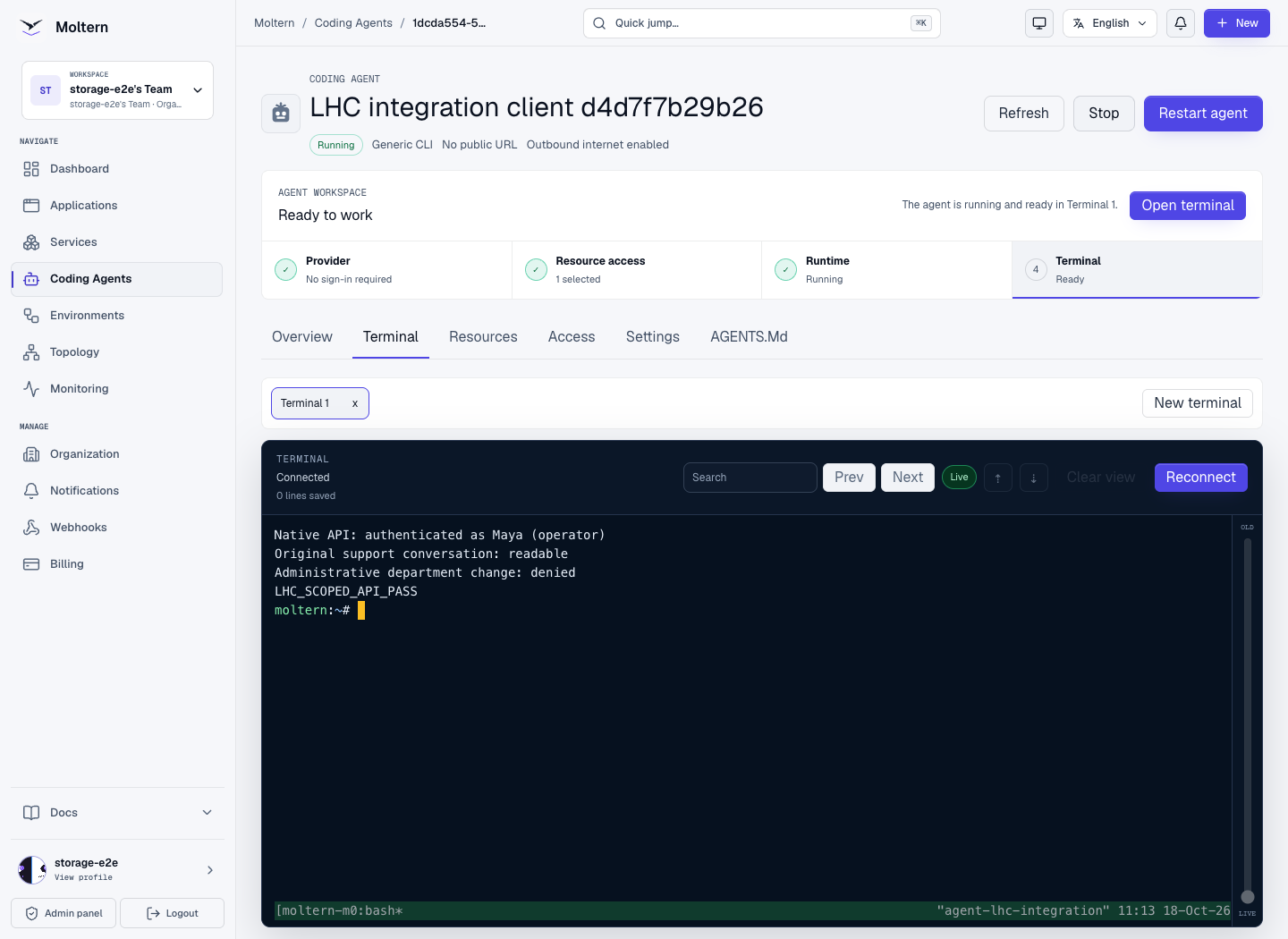
For a Moltern coding agent, choose the specific service under Resources and review the requested access scope. Administrative access can expose managed owner credentials; grant it only when you deliberately want the agent to have that authority. Prefer a dedicated native integration account for routine work. Review the agent's current resource policy before running commands.
The Connect scope can include managed application credentials. For an integration that needs only its own restricted native API key, use Read context and provide that key privately to the calling process. Do not paste credentials into a command that will be recorded in shell history.

Treat the native JSON error field as well as the HTTP status as part of the
result: some rejected native API requests return HTTP 200 with error: true.
Revoke an integration key when it is retired and remove its Moltern connection
when the caller should no longer reach the service.
Stop, Restart and Change Capacity
Use Moltern's service controls to stop or start the application. An intentional stop interrupts live conversations; plan maintenance when operators and visitors are not relying on the inbox.
The service keeps its native configuration, accounts and uploaded files, and the original database keeps conversation data. Restarting must not repeat first-owner setup. Do not detach the database, replace it with an empty one or delete stored data to resolve a temporary startup problem.
Use Capacity to review CPU and memory. Changes can restart the application and briefly interrupt availability. Increasing compute does not increase a file upload limit, invite more operators automatically or constitute a backup. Review workspace billing and storage usage as conversations and files grow.
Before an upgrade, arrange a consistent backup of the native database and the application's persistent files through your approved backup workflow. A backup of only one side is not a complete recovery plan. Do not assume that a generic restart action creates a backup or that every upstream optional extension is included in this template.
Delete an Inbox
Stop using the visitor link, export information you must retain and remove any website embed script. Revoke native integration keys and remove the related workload connections.
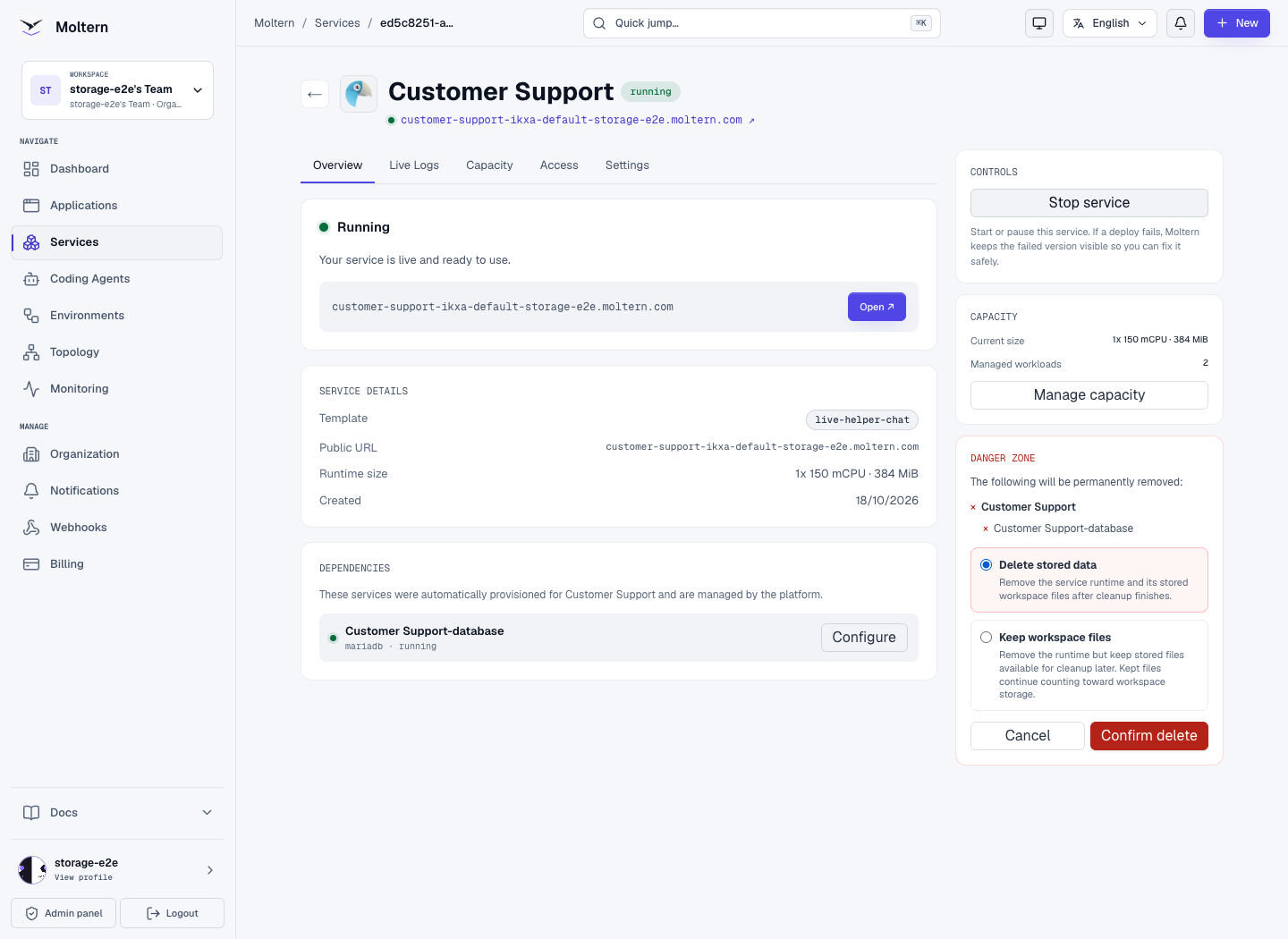
In Moltern, choose Delete Service, review the dependent database and stored data options, then complete the protected confirmation. Deleting stored data is destructive. A database deliberately shared with another application must not be removed as though it belonged only to this inbox.
Troubleshooting
| Symptom | What to check |
|---|---|
| Owner login is rejected | Use the native application username and its current password, not a Moltern password. After native recovery, use the recovered password. |
| Visitors wait without a reply | Confirm an assigned operator is online, the widget points to the intended department and the operator has accepted the pending conversation. |
| The attachment action is missing | Check File configuration; visitor uploads are a separate option from operator uploads. |
| A file is rejected | Check its extension and both the native and runtime size limits. Do not rename an executable to bypass a restriction. |
| A visitor file link stops working | Short-lived links expire. Return to the permitted conversation and obtain a fresh link rather than making links indefinite. |
| Recovery email is missing | Confirm the native SMTP configuration, sender details and allowed connection. A test inbox captures mail; it does not send to an external mailbox. |
| An API call returns HTTP 200 but does nothing | Read the JSON error and result fields, key activity, role permissions and department access. |
| Startup fails after a database change | Restore the original database selection and configuration. Do not run fresh-owner setup over existing conversations. |
| Background work is unhealthy | Review the service's Live Logs, database readiness and capacity. Optional upstream queue extensions are not automatically provisioned. |